
Shopify GA4 Setup: A Complete Guide for 2026
You've connected Google Analytics 4 to Shopify, opened the reports, and immediately started doubting the numbers. Purchases look light. Sessions look noisy. The funnel feels incomplete. Meanwhile, your marketing team still wants channel answers, and your paid media decisions are hanging on data you don't trust.
That's the normal starting point for Shopify GA4. The problem usually isn't GA4 itself. It's the implementation. Most stores don't fail because they skipped setup. They fail because they mixed tracking methods, missed the final purchase step, or assumed Shopify's native tools, apps, and GTM would peacefully coexist without duplicates or gaps.
Table of Contents
- Why Your Shopify GA4 Data Is Probably Wrong
- Choosing Your GA4 Implementation Path
- The Correct Way to Set Up Shopify GA4
- Tracking the Ecommerce Events That Matter
- Troubleshooting Common Shopify GA4 Disasters
- Shopify GA4 Setup FAQs
Why Your Shopify GA4 Data Is Probably Wrong
A lot of merchants assume the hard part was getting a G- Measurement ID and connecting the Google & YouTube channel. That's only the start. Shopify's own help documentation makes clear that GA4 is now the standard route for Google Analytics setup on Shopify, typically through the Google & YouTube sales channel. That means Shopify GA4 isn't optional plumbing anymore. It sits at the center of attribution, traffic analysis, and campaign measurement.

The setup looked finished but the measurement was not
The most common bad assumption is simple: “It's connected, so it must be accurate.”
That's where stores get in trouble. A Shopify GA4 setup can look correct in the admin and still produce weak data because events are incomplete, duplicated, or blocked in the browser. I see this when merchants compare Shopify orders to GA4 purchase reporting and assume GA4 is “just bad.” Usually, the actual issue is implementation quality, not the platform.
Three failure patterns show up again and again:
- Duplicate tracking: Native Shopify tracking and another GA4 tag both fire.
- Broken checkout tracking: Product and cart activity show up, but purchase measurement drops off at the order confirmation stage.
- False confidence from partial data: Pageviews appear in Realtime, so the team assumes all ecommerce events are working too.
Practical rule: If GA4 looks “mostly right,” treat that as a warning, not a green light. Partial tracking is harder to catch than total failure.
Merchants working on acquisition often feel this pain first. They try to connect traffic quality to revenue, then discover they can't tell whether campaign issues are real or whether the tracking layer is dirty. That same confusion spills into SEO decisions too, especially when teams are trying to improve category and product page performance through efforts like organic search traffic growth on Shopify.
Why bad data turns into bad decisions
When your funnel is broken, every report downstream becomes less useful. Channel attribution gets fuzzy. Landing page performance becomes misleading. Retargeting decisions start chasing noise.
The fix isn't adding more tools. It's simplifying the setup, choosing one implementation path, and validating the critical events before trusting any report built on top of them.
Choosing Your GA4 Implementation Path
A lot of Shopify GA4 problems start before the first event is tested. The store has the Google & YouTube channel connected, a leftover theme script from an old setup, and a marketing app that also sends ecommerce events. Realtime looks busy, so everyone assumes tracking is fine. It is not.
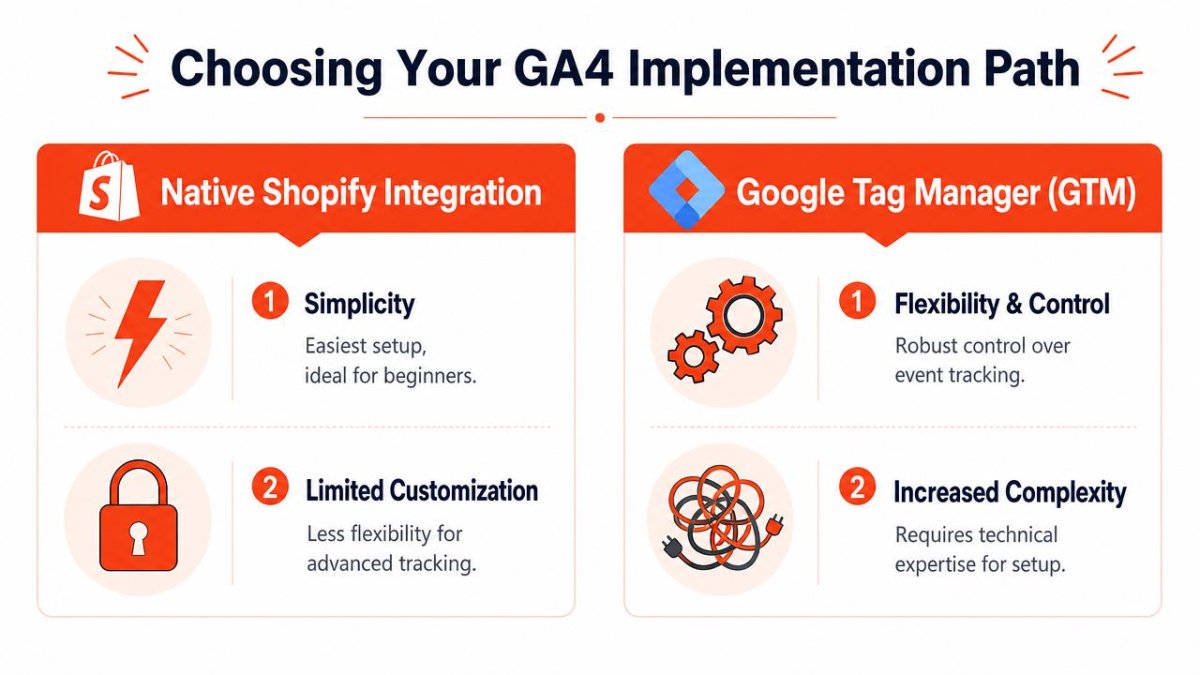
The decision here is less about features and more about control. Pick one primary GA4 path, then build around it. Mixing native tracking, GTM, and app-based event sending without a clear owner is how duplicate pageviews, inflated sessions, and missing purchases slip in.
| Path | Best fit | Trade-off |
|---|---|---|
| Native Shopify integration | Stores that want a clean baseline fast | Less flexibility for custom event logic |
| GTM setup | Teams that need more control | More setup complexity and more QA |
| App-based setup | Stores that want convenience plus managed ecommerce tracking | Another vendor layer to debug |
Native Shopify integration
For many stores, the Google & YouTube sales channel is the right starting point. It is the least complicated option if the goal is straightforward GA4 measurement without custom event rules or a large tag stack.
Use the native route if the team mainly needs standard ecommerce reporting and does not have someone who will actively maintain GTM. That last part matters. A flexible setup is not automatically a better setup if nobody is going to test it after theme changes, app installs, or checkout updates.
The trade-off is predictability versus customization. Native Shopify is easier to keep clean. It is also more limiting if you need custom event parameters, special routing rules, or cross-domain measurement across a separate checkout, booking flow, or headless experience. In those cases, plan the implementation carefully and configure GA4 cross-domain tracking before you trust attribution reports.
Google Tag Manager
GTM is the better path when the store needs tighter control over how GA4 works. That usually means custom themes, multiple marketing platforms, consent logic, or a requirement to inspect exactly what fires and when.
It also creates more ways to break tracking.
I use GTM for Shopify when the business has a real reason for that control, not because someone heard it was more advanced. Advanced is expensive if the team does not have a clear tagging plan. A half-maintained GTM container paired with Shopify's native Google integration is one of the fastest ways to pollute GA4.
Shopify community guidance warns that running Shopify's built-in GA4 tracking alongside a GTM-based GA4 tag can double-count pageviews and sessions. Once that happens, channel reporting, conversion rate analysis, and ROAS numbers stop being reliable enough to guide spend.
Use GTM if you need to:
- Control event timing for custom product, cart, or upsell interactions
- Manage GA4 alongside other tags in one place
- Debug event payloads and consent behavior in detail
- Support a more customized storefront or measurement setup
Third party apps
Apps sit between native simplicity and GTM control. They are often a practical choice for merchants who want stronger ecommerce tracking but do not want to build and maintain the logic themselves.
The upside is speed. A decent app can handle event mapping with far less manual setup than GTM. The downside is dependency. If purchase tracking breaks, you may need to inspect Shopify settings, app settings, and any other tracking already present on the store. That is still workable, but it is another layer that can fail unnoticed.
Comparing apps with GTM usually comes down to ownership. If the team wants convenience and support, an app can make sense. If the team wants full visibility into every tag and parameter, GTM is usually the better fit.
Choose the path your team can realistically maintain. Clean, boring tracking beats flexible, messy tracking every time.
The Correct Way to Set Up Shopify GA4
If you want the least fragile baseline, start with the native Shopify route and keep it clean. That means no duplicate tags, no leftover theme scripts, and no “temporary” GTM setup running in parallel.
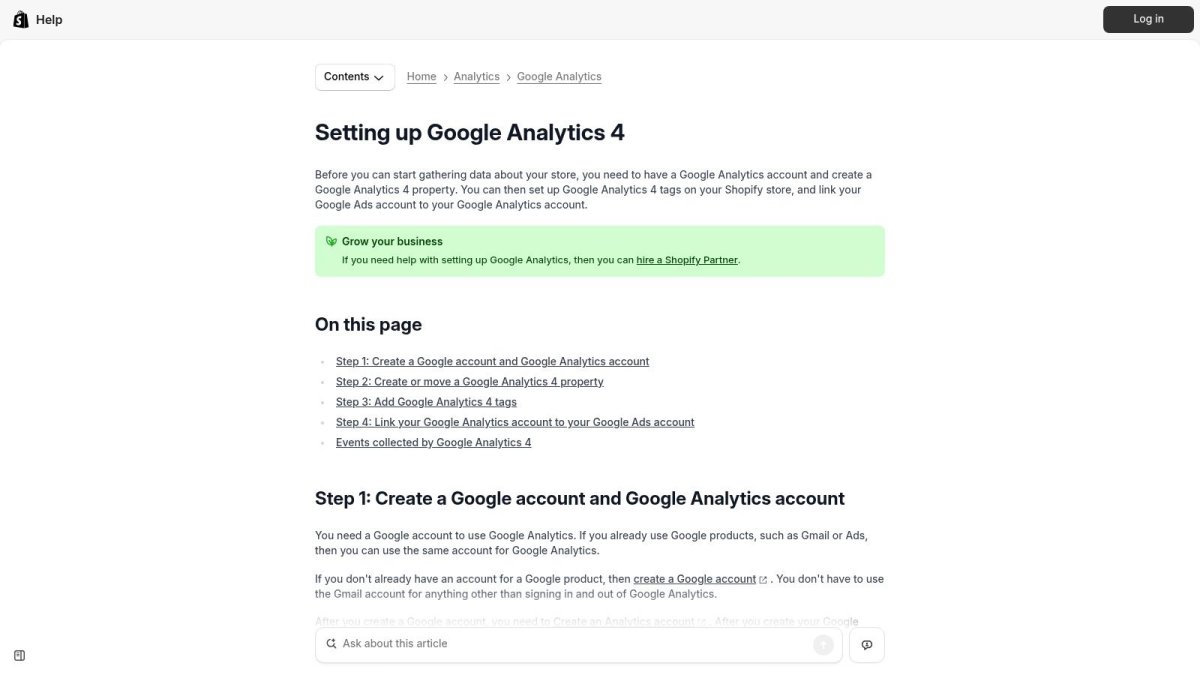
Start inside Google Analytics
Create or move to a Google Analytics 4 property, then create a web data stream. Shopify's own setup flow requires that sequence before you connect the store through Shopify admin. The key identifier you'll use is the Measurement ID that starts with “G-”.
Keep the setup disciplined:
- Create the GA4 property in your Google Analytics account.
- Create the web data stream for your storefront domain.
- Copy the G- Measurement ID from that stream.
- Do not paste random GA4 code into your theme if you plan to use Shopify's native Google integration.
The theme-code shortcut causes more damage than merchants realize. I've seen stores leave old gtag snippets in theme files long after switching to the Google & YouTube channel. Everything looks connected. Then pageviews and sessions inflate because multiple tags are firing.
Connect Shopify the clean way
In Shopify admin, install or open the Google & YouTube sales channel and connect the GA4 property there. That keeps the implementation aligned with Shopify's current architecture.
For stores that need ecommerce-grade accuracy, there's an important technical reality. A higher-fidelity setup typically uses Shopify Checkout Extensibility or a custom pixel architecture, and the purchase event needs to be explicitly captured on the order status page, as outlined in this Shopify GA4 implementation guide. If that final step isn't instrumented properly, revenue in GA4 gets undercounted even when everything before checkout looks healthy.
A practical checklist helps here:
- Remove old theme tags: Check
theme.liquid, app embeds, and any custom code snippets. - Use one active Tag ID path: Native Shopify or GTM. Never both.
- Check checkout coverage: Don't assume purchase tracking exists because product and cart events do.
- Keep notes on changes: If reports break later, you need a change log.
The storefront can look perfect while the thank-you page silently drops the purchase event. That's why “Realtime looks good” is never enough.
If your store spans multiple domains or subdomains, this is also the point where you should review how to configure GA4 cross-domain tracking. Otherwise, sessions can fragment between domains and make user journeys harder to interpret.
Verify before you customize
Before you add anything advanced, test the baseline implementation. Open GA4 Realtime and browse your storefront. View a product. Add it to cart. Start checkout if possible. Then confirm what appears.
After that first pass, use a second layer of QA before publishing bigger changes:
Don't rush into custom events until the fundamentals are stable. If the base setup doesn't reliably record page and commerce activity, adding more tags only multiplies confusion.
A clean native setup is boring. That's exactly why it works.
Tracking the Ecommerce Events That Matter
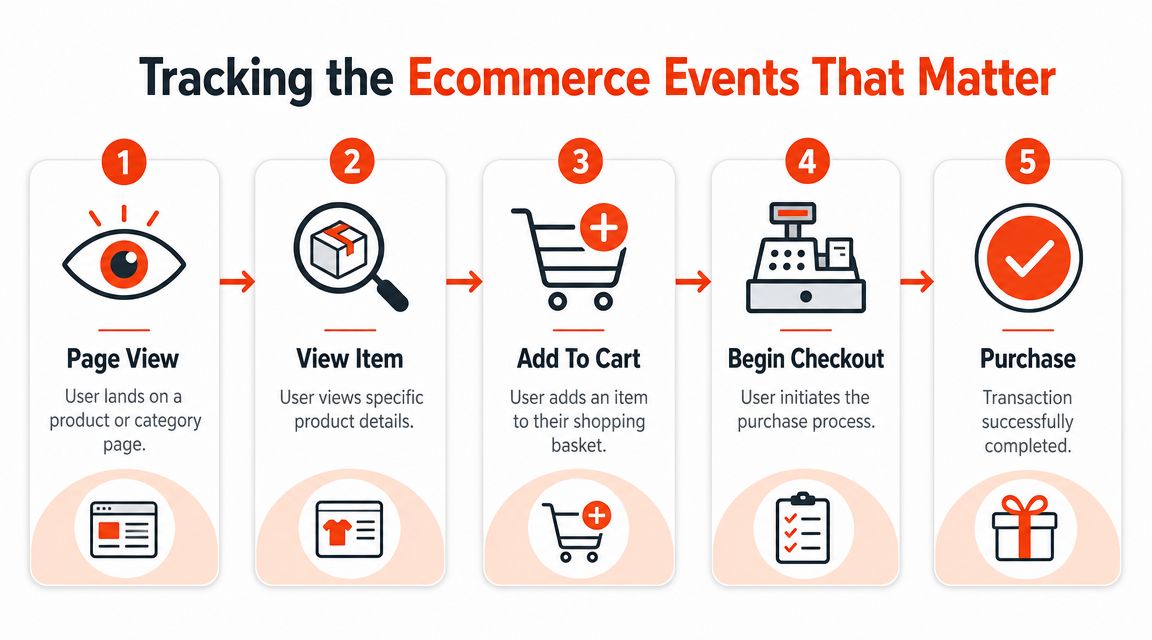
Pageviews don't explain a Shopify store. The useful part of Shopify GA4 is the event trail between product interest and completed order.
The funnel events that actually matter
A standard Shopify GA4 integration is designed to track product views, Add to Cart, Checkout, and Purchase events, as reflected in the Shopify GA4 app listing. Those are the events that make the funnel readable.
I care most about these event types:
view_item
This tells you whether product pages are attracting real interest, not just traffic.add_to_cart
This is often the first strong buying signal. If this event is missing, merchandising and conversion analysis gets shallow fast.begin_checkout
This helps separate product-page friction from checkout friction.purchase
This is the event most merchants assume is working. It's also the one that most often breaks without being noticed.
Shopify Analytics still matters because it remains the backend-confirmed source for orders and sales, while GA4 is more useful for pre-purchase behavior and traffic-source analysis. Browser-side issues such as ad blockers, consent settings, or implementation mistakes can weaken GA4 reliability even when the store itself is functioning normally.
How to validate event quality
You don't need to guess whether these events are firing. Use GA4 DebugView and Google Tag Assistant while navigating your own store.
Run a practical test:
- Open the storefront in a fresh session
- Visit a product page
- Add the item to cart
- Start checkout
- Complete a test purchase if your environment allows it
Then verify whether the expected events appear in sequence. If view_item shows up but add_to_cart does not, check theme customizations and app interference around cart behavior. If begin_checkout appears but purchase does not, the order status or thank-you-page instrumentation is the first place I look.
Here's the pattern many stores miss:
If the event sequence breaks at one stage, the reports above that break still look believable. That's why incomplete tracking is more dangerous than broken tracking.
For teams that need cleaner operational access to store and cart data outside the reporting interface, tools built around ecommerce data handling can help. A useful example is API2Cart's Shopify data management, especially when internal systems need store data for workflows like abandoned cart recovery or cross-platform integrations.
You can also cross-check behavioral findings with operational tools inside Shopify. For example, if a store's order handling flow is customized with apps, it helps to understand adjacent backend workflows such as Shopify order printer app usage, because app changes often ripple into storefront and post-purchase tracking assumptions.
A healthy funnel in GA4 should tell a coherent story. Not a perfect story, but a coherent one. If cart intent exists without checkout starts, or checkout starts exist without purchases, the implementation needs inspection before the reports deserve trust.
Troubleshooting Common Shopify GA4 Disasters
Most GA4 problems on Shopify don't start as technical tickets. They start as business questions. Why is revenue low in GA4? Why did traffic jump after a harmless change? Why do campaign clicks exist without cart activity?
Modern implementations are moving beyond simple Measurement ID placement toward Shopify Customer Events, custom pixels, and event-level subscriptions with analytics.subscribe(), as described in this guide to Shopify's newer tracking model. That shift matters because the actual problem isn't “where do I paste the ID?” It's how to preserve measurement quality when native apps, custom pixels, GTM, and consent rules all interact.
Disaster one mismatched revenue
When Shopify sales look healthy but GA4 purchase revenue looks weak, start at the end of the funnel.
Check these first:
- Thank-you-page purchase tracking: If the purchase event isn't wired correctly at the final confirmation step, GA4 will under-report completed orders.
- Consent behavior: If users decline tracking, browser-side reporting will be reduced.
- App and pixel conflicts: A custom checkout app or post-purchase app can interrupt expected event flow.
The mistake is trying to reconcile channel performance before confirming purchase-event integrity. Fix the purchase event first. Attribution analysis can wait.
Disaster two inflated traffic
Inflated sessions and pageviews almost always point to multiple tracking paths. Look for an active native setup plus a GTM tag, or leftover GA4 code inside the theme.
Use this diagnostic sequence:
| Symptom | Likely cause | First fix |
|---|---|---|
| Sessions look too high | Duplicate GA4 tags | Remove one implementation path |
| Pageviews spike after setup changes | Old theme script still active | Audit theme files and app embeds |
| Traffic looks normal but attribution is erratic | Parallel event streams | Consolidate into one source of truth |
This is also where broader store health matters. Technical clutter that affects scripts, app loading, and page behavior often overlaps with issues you'd spot during a technical SEO review for ecommerce. Analytics problems rarely live in total isolation.
Disaster three the silent funnel
This one is frustrating because the storefront appears normal. Users browse. Marketing platforms report clicks. But add_to_cart, checkout, or purchase events are missing in GA4.
That usually means one of three things:
- Theme or cart customization broke event mapping
- A custom pixel is scoped incorrectly
- Consent or browser behavior is suppressing browser-side measurement
The durable fix is often moving away from brittle one-off scripts and toward a cleaner customer-events or custom-pixel architecture. That gives you a more explicit event pipeline and a better debugging path when the store changes later.
Shopify GA4 Setup FAQs
Do I need GA4 if Shopify Analytics already shows sales
Yes, because the tools answer different questions.
Shopify Analytics is the backend-confirmed source for orders, refunds, and sales activity. GA4 is better suited to visitor behavior, traffic sources, landing-page paths, and pre-purchase marketing analysis. If you only use Shopify Analytics, you lose detail about how users moved through the site before buying. If you only use GA4, you risk leaning on browser-side data for sales interpretation.
Use Shopify Analytics to verify commerce reality. Use GA4 to understand how people got there.
Why does consent affect my GA4 reports
Because GA4 on Shopify often relies on browser-side tracking. If a visitor declines consent, uses an ad blocker, or browses in an environment that restricts scripts, some events may never reach GA4.
That doesn't always mean your setup is broken. It means your reports reflect a measured view of behavior, not a perfect census of every action. This is why a store can have correct orders in Shopify and lighter purchase reporting in GA4 at the same time.
Should I care about server side tagging
Maybe, but not first.
Server-side tagging is usually worth considering after you've already cleaned up the basics and know why your current setup falls short. It can help stores that need stronger control over data collection, event routing, and resilience against browser-side loss. It also adds implementation complexity, ongoing maintenance, and more room for configuration mistakes if the team isn't ready.
For most stores, the right order is simple:
- First: get one clean Shopify GA4 implementation working
- Next: validate funnel events and purchase tracking
- Then: consider more advanced architecture if the business case is clear
If you want a cleaner operational layer around Shopify search visibility and content management while your analytics stack matures, wRanks is one option built specifically for Shopify merchants. It focuses on SEO, content, technical audits, and discoverability workflows rather than replacing GA4, which makes it complementary to a proper measurement setup.

About Amira Hassan
Digital growth consultant specializing in AI-powered commerce strategies. Amira bridges the gap between cutting-edge AI tools and practical Shopify store growth.