
Order Printer App Shopify: Master Shopify Order Printing in
You've got orders coming in, a printer on your desk, and a quiet realization that the paper going into each package looks nothing like the brand you worked so hard to build. That's the moment most Shopify merchants hit with the order printer app shopify setup. The sales channel is live, the checkout works, but post-purchase operations still feel improvised.
That gap matters more than people think. A packing slip isn't just warehouse paperwork. It's often the first physical brand asset your customer sees after paying you. If it's messy, generic, or missing useful information, the whole experience feels cheaper. If it's clear, branded, and operationally tight, fulfillment gets easier and the package feels more trustworthy before the box is even opened.
Table of Contents
- Why Your Packing Slips Matter More Than You Think
- Installing and Navigating the Order Printer App
- Customizing Your Templates with Dynamic Data
- Developing an Efficient Bulk Printing Workflow
- Exploring Automation and Third-Party Alternatives
- Troubleshooting Common Order Printer Issues
Why Your Packing Slips Matter More Than You Think
Most stores start the same way. The owner gets the first few orders, opens the admin, prints whatever default document is available, and tells themselves they'll clean it up later. Later usually arrives when a customer gets a box with a plain slip, no branding, no useful context, and a support email follows asking what was shipped or whether the order is complete.
That's why I treat packing slips and invoices as part of operations, not decoration. Good documents help the picker confirm the right items, help the customer understand what arrived, and help your brand feel intentional. Bad ones create hesitation. They also make returns, replacements, and internal handoffs harder than they need to be.

A lot of merchants focus heavily on storefront polish and forget the printed layer behind fulfillment. That's one reason it helps to understand the full Shopify website development process and costs before launch. The storefront is only half the work. The other half is what happens after the order lands.
Brand trust gets built in boring places
Your customer won't remember the exact Liquid variable you used. They will remember whether the package felt clean, complete, and professionally handled.
A solid packing slip usually does three jobs at once:
- Confirms the shipment clearly so the customer can match products to their order without guessing.
- Supports your team by surfacing the exact fields needed for picking, packing, and exception handling.
- Carries your brand forward with your logo, tone, and structure instead of generic admin output.
A premium unboxing experience often starts with a sheet of paper most brands barely think about.
Shopify's native Order Printer app is the right starting point for many stores because it turns that loose process into a repeatable one. Once the document is standardized, you stop reinventing fulfillment on every order. That's the first step toward operations that still work when order volume stops being small.
Installing and Navigating the Order Printer App
The good news is the initial setup is simple. Shopify positions its own Order Printer app as a document-generation tool for store operations, letting merchants print custom invoices, packing slips, receipts, labels, and other order documents directly from Shopify. Shopify also says the app supports bulk printing of up to 50 orders without leaving the app on the Shopify Order Printer app listing.
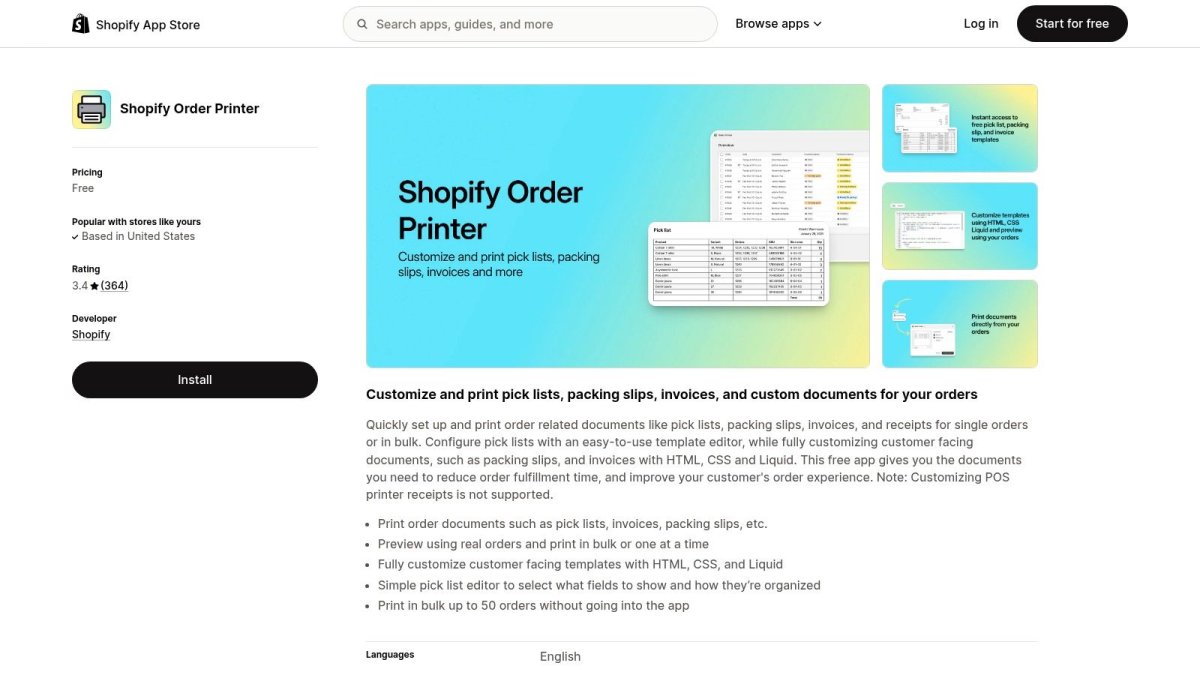
Get it installed fast
In most stores, this takes only a few clicks.
- Open the Shopify App Store and search for Shopify Order Printer.
- Add the app to your store and approve the install.
- Go back to your Shopify admin, then open the app from your Apps area.
- Look for the default templates so you can confirm invoices and packing slips are available before editing anything.
If you sell in person, this matters too. Shopify documents that the app can be used to print invoices from Shopify POS when a standard printer is connected. That's useful if you want one consistent document system across retail and online orders instead of separate workflows.
Learn the two areas that matter
Most merchants overcomplicate the first visit. You only need to understand two parts of the interface:
- Templates for document structure and code changes
- Print for generating the documents you use day to day
The Templates area is where your future workflow lives. That's where you control whether the slip is customer-friendly, warehouse-friendly, or both. The Print area is your execution layer. It's what your team uses once the document design is locked in.
Here's a quick visual walkthrough if you want to see the app in action before editing anything:
Practical rule: Don't start by customizing everything. Install the app, print a live order, and identify what's missing. That gives you a cleaner template brief than editing from imagination.
Out of the box, the app is useful. But out of the box, it usually isn't enough for a growing brand. That's where template work starts paying off.
Customizing Your Templates with Dynamic Data
The order printer app shopify setup either becomes a real operational tool or stays a generic print button. Shopify's current Order Printer app is built around HTML, CSS, and Liquid, and Shopify documents native barcode and QR support with code blocks like <s-barcode value="a" /> and <s-barcode type="qrcode" value="" /> in the Shopify Order Printer help documentation.
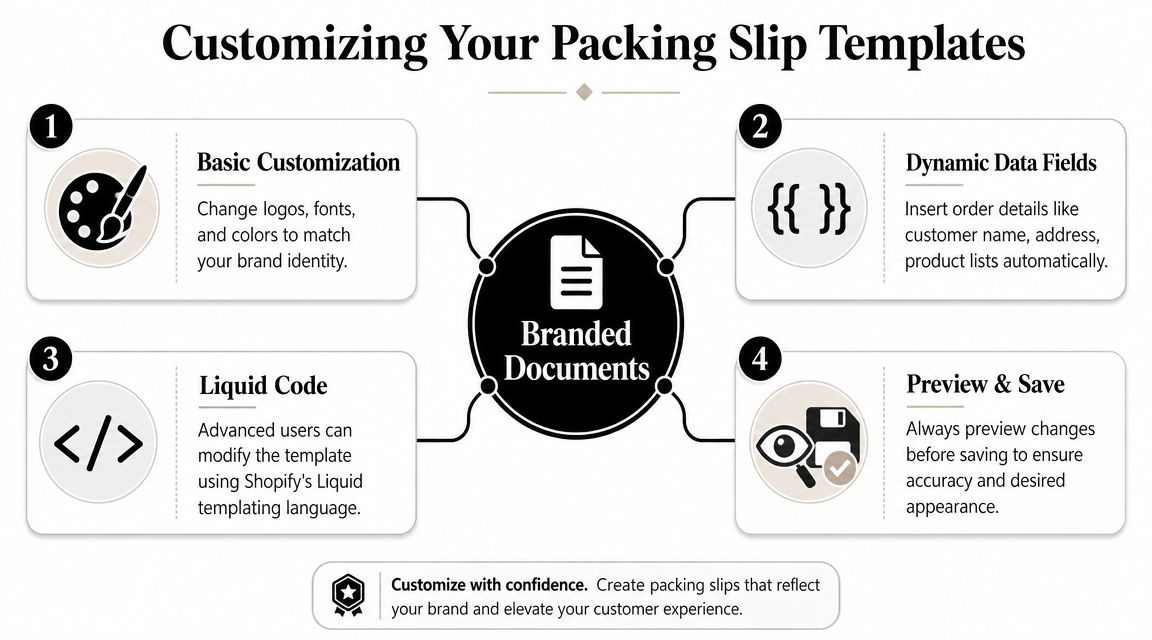
Start with layout before logic
A common mistake is jumping into Liquid before fixing the document structure. Don't do that. First make the document easy to scan.
For most stores, the best first edits are visual and simple:
- Set clear hierarchy with larger order numbers, customer names, and shipping blocks.
- Use brand-consistent styling for fonts, spacing, borders, and headers.
- Reduce clutter by removing fields your picker or customer doesn't need.
Here's the kind of basic HTML structure I like for the top of a branded packing slip:
<div class="document-header">
  <img src="YOUR_LOGO_URL" alt="Your store logo on packing slip" style="max-width: 180px;">
  <h1>Packing Slip</h1>
  <p>Order {{ order.name }}</p>
</div>
And a simple CSS cleanup:
body {
  font-family: Arial, sans-serif;
  color: #111;
  font-size: 14px;
}

.document-header {
  display: flex;
  justify-content: space-between;
  align-items: center;
  margin-bottom: 24px;
}

h1 {
  font-size: 22px;
  margin: 0;
}
The alt text on the logo is a small detail, but it's worth doing cleanly. It keeps your document markup more intentional and avoids anonymous image tags floating around your template.
Use Liquid for the fields that actually help fulfillment
Liquid is what turns a static document into a live one. The goal isn't to show every possible field. The goal is to show the right ones.
Start with these practical fields:
<p><strong>Customer:</strong> {{ order.customer.first_name }} {{ order.customer.last_name }}</p>
<p><strong>Ship to:</strong><br>
  {{ order.shipping_address.name }}<br>
  {{ order.shipping_address.address1 }}<br>
  {{ order.shipping_address.city }}, {{ order.shipping_address.province_code }} {{ order.shipping_address.zip }}<br>
  {{ order.shipping_address.country }}
</p>

<p><strong>Order notes:</strong> {{ order.note }}</p>
For line items, keep the layout straightforward:
<table width="100%" cellspacing="0" cellpadding="6">
  <tr>
    <th align="left">Product</th>
    <th align="left">SKU</th>
    <th align="center">Qty</th>
  </tr>
  {% for line_item in order.line_items %}
  <tr>
    <td>{{ line_item.title }}</td>
    <td>{{ line_item.sku }}</td>
    <td align="center">{{ line_item.quantity }}</td>
  </tr>
  {% endfor %}
</table>
If your team picks from slips, SKU visibility matters. If customers see the document, product titles and quantities matter more than internal shorthand. That's why many stores should create separate templates instead of forcing one document to do every job.
Don't ask one packing slip to satisfy accounting, customer communication, and warehouse efficiency equally. Build for the user holding the paper.
A practical split often looks like this:
| Template type | Best use | What to emphasize |
|---|---|---|
| Customer invoice | In-package or post-purchase records | Billing details, branded layout, product summary |
| Packing slip | Fulfillment insert | Shipping address, item list, quantities |
| Pick list | Internal warehouse use | SKUs, variants, sort-friendly item display |
Add logos barcodes and purpose built templates
Once the basics work, add the features that remove friction on the floor.
Barcodes and QR codes are especially useful when your process includes scanning, internal checkpoints, or fast order verification. Shopify supports native barcode elements in templates, which means you can build them directly into the document without bolting on another tool.
A simple example:
<p>Order barcode:</p>
<s-barcode value="{{ order.name }}" />
If you need a QR code instead:
<s-barcode type="qrcode" value="{{ order.name }}" />
This is also the point where custom templates become worth the effort. I usually recommend at least two. One polished version for the customer. One stripped-down version for internal use. The internal version can remove pricing, reduce visual weight, and give more space to product identifiers and order notes.
A few edits that usually work well:
- For branded invoices keep the logo, store contact details, and cleaner spacing.
- For warehouse slips enlarge product lines and variant details.
- For pick lists remove anything that slows scanning, especially decorative sections.
The best template is the one that prevents the next avoidable mistake.
Developing an Efficient Bulk Printing Workflow
Single-order printing feels harmless when you're shipping a few packages. Then volume picks up and someone on the team spends too much time opening orders, checking the same fields, and manually printing one document at a time. That's when fulfillment starts dragging.
Why batch printing changes how a store runs
Bulk printing isn't just faster. It changes behavior. It pushes your team toward batches, checkpoints, and repeatable daily routines instead of ad hoc fulfillment.
The native app's customization layer is limited to template logic and styling, and successful edits depend on understanding Shopify's Liquid data model rather than just HTML. Shopify's customization documentation even points to variables such as {{ customer.orders_count }} in the Order Printer template customization guide. That matters operationally because once your template is stable, your next efficiency gain comes from process, not more code.
Here's the shift I like to see:
- Stop printing as orders arrive if your store doesn't require immediate one-off fulfillment.
- Create print windows during the day so the team works in controlled batches.
- Use order tags such as Ready to Ship or Hold so only clean orders enter the batch.
A simple rhythm that avoids fulfillment mistakes
Shopify's native limit of up to 50 orders works well as a fulfillment sprint. It's enough to create momentum without turning the printer queue into chaos.
A practical routine looks like this:
- Review new paid orders.
- Tag exceptions first, such as address issues or stock questions.
- Filter to the orders that are ready.
- Print the batch.
- Pick and pack from the printed set before starting the next one.
That rhythm does something important. It reduces context switching. Your team isn't bouncing between admin screens, customer notes, and printers for every single order. They're running a controlled packet of work.
If your printer stack is becoming a mess, the issue usually isn't the printer. It's the absence of a batch rule.
The 50-order ceiling isn't ideal for every business, but for many growing brands it's a useful checkpoint. It forces discipline. If you outgrow that rhythm, that's usually the signal to look at deeper automation rather than forcing more manual work through the native app.
Exploring Automation and Third-Party Alternatives
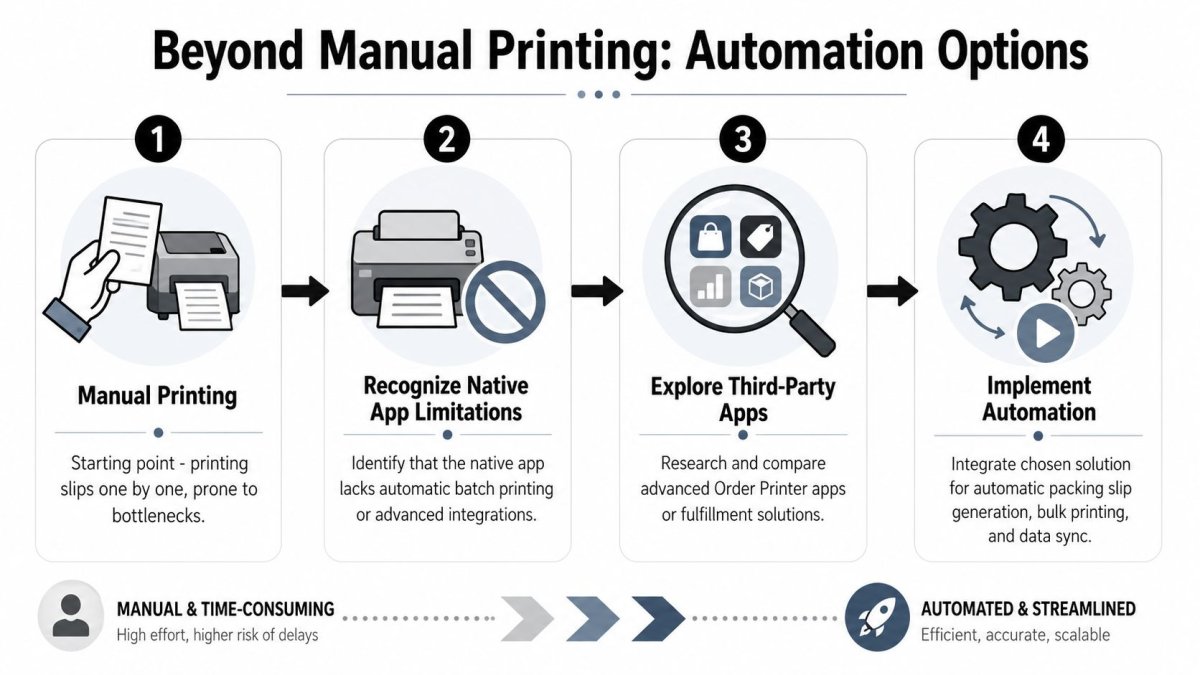
At some point, the native app stops being the whole answer. Not because it's bad, but because your store starts asking more from the document workflow than manual printing can comfortably handle.
Where the native app starts to slow you down
The first pain point is usually not design. It's repetition. The team still has to decide when to print, who prints, what gets included, and how documents get delivered outside the warehouse.
That's why many stores begin with the native tool and later layer on automation around it. Some use Shopify Flow on eligible plans to tag orders, route internal notifications, or prepare print queues. Even then, there's a difference between operationally organized and genuinely automated.
The broader market shows this isn't a niche need. The third-party ecosystem is substantial, with Order Printer Pro reporting over 2,000 positive reviews and Vify Order Printer installed on over 1,500 stores on the ecosystem pages referenced by Order Printer Pro.
When upgrading is the practical move
The decision gets easier when you stop asking which app has more features and start asking which workflow removes the most manual handling.
Third-party options usually make sense when you need one or more of these:
- Low-code template control because your team doesn't want to maintain Liquid-heavy documents
- Automated delivery of invoices or related documents beyond manual print steps
- Dedicated app support when printed documents are business-critical
- Cleaner migration paths if your current setup is brittle or inherited from an older store build
There's also a wider strategic question some operators eventually face. If your printing pain is part of a bigger systems problem, not just a document problem, it can be useful to read a beginner's guide to replacing Shopify. Not because most merchants should leave Shopify. Most shouldn't. But it helps to understand whether your bottleneck is the app, the workflow, or the platform expectations you've outgrown.
A simple rule works here. If Shopify Order Printer still handles your daily fulfillment with clean templates and manageable print batches, keep it. If printing has become a recurring bottleneck, it's time to price the cost of manual work against a paid app.
Troubleshooting Common Order Printer Issues
When a document breaks, merchants often blame the app first. That's usually the wrong diagnosis. Most Order Printer problems fall into one of three buckets: code, layout, or data.
Figure out whether the problem is code layout or data
If you see raw Liquid tags on the page instead of customer or order information, the issue is usually template syntax. A missing brace, broken loop, or malformed conditional can stop a document from rendering correctly.
If the document prints but looks wrong on paper, the issue is usually layout. That points to CSS, spacing, table widths, or print formatting choices rather than missing Shopify data.
Use this quick triage list:
- Raw code showing in output means check Liquid syntax first.
- Broken logo or image means verify the image URL in the template.
- Missing item details means confirm the data exists on the order object you're referencing.
- Strange page breaks usually come from table structure or print CSS choices.
Fix the smallest possible thing first. Don't rewrite the whole template because one variable failed.
The migration problem merchants keep underestimating
Another issue shows up when stores move from older setups or paste in code from previous Order Printer versions. Community friction around the native app often comes from code-heavy customization and migration risk, which Shopify's printing documentation and surrounding guidance also reflect in the broader native-versus-alternative discussion at Shopify's Order Printer printing documents help page.
If your old template used assumptions from a legacy app, don't assume it will behave the same way now. Test every major document type with real orders before rolling changes live.
A few grounded workarounds help:
- Duplicate before editing so you always have a fallback version.
- Test with real order scenarios including notes, multiple line items, and edge-case addresses.
- Separate app data from Shopify data in your thinking, because some fields from bundles, options, or external apps may not appear where you expect.
- Preview before production every time you touch Liquid logic.
The fastest operators aren't the ones who never break templates. They're the ones who know how to isolate the cause quickly and restore a usable document before fulfillment gets backed up.
If your Shopify store needs stronger SEO, cleaner content workflows, and faster fixes beyond fulfillment documents, wRanks is worth a look. It's built specifically for Shopify merchants and helps teams handle technical SEO, content creation, metadata, structured data, rankings, and GEO visibility from one place without turning the store into another maintenance project.

About Priya Sharma
Content marketing expert and Shopify ecosystem authority. Priya has helped 200+ stores grow organic traffic through strategic blog content and keyword targeting.