
How to Optimize Shopify Speed: The 2026 Playbook

If you're reading this, you've probably already done the usual Shopify speed cleanup. You compressed a few images, removed an app or two, maybe switched themes, and your store still feels heavier than it should. The frustrating part is that generic advice rarely tells you what to fix first, what to ignore, and what can unintentionally harm revenue if you “optimize” the wrong thing.
That's the core problem with most Shopify speed content. It treats performance like a bag of tips. In practice, speed work is a sequence. You measure the right things, isolate the biggest bottleneck, fix changes in a safe order, and then keep watch so the store doesn't slide backward after the next app install or theme update.
Table of Contents
- How to Actually Measure Your Shopify Speed
- Prioritizing Fixes The 80/20 of Quick Wins
- Advanced Theme and Liquid Code Optimization
- Taming Your Apps and Third-Party Scripts
- Monitoring, Maintenance, and Agency Workflows
- Your Complete Shopify Speed Optimization Playbook
How to Actually Measure Your Shopify Speed
A slow store can feel slow for different reasons. The homepage may struggle because of a hero banner. Product pages may lag because of review widgets and variant logic. Collection pages may choke on too many cards, filters, and badges. If you want to optimize Shopify speed properly, you need a baseline that tells you which page type is causing the pain.
Start with two views of the same store
Shopify's built-in speed reporting is useful for trend watching. It helps you notice whether things got better or worse after a theme edit, an app install, or a merchandising change. It is not the only thing I'd use to diagnose the root cause.
For diagnosis, use Google PageSpeed Insights and pay closest attention to the mobile score, because Shopify's own guidance recommends focusing there since mobile is lower for most stores and has the biggest practical impact on conversions, as noted in this Shopify speed optimization guide. That same guidance also says stores loading in under 2 seconds convert 2.5× better, which is why sub-2-second load performance became such an important benchmark for ecommerce speed work.
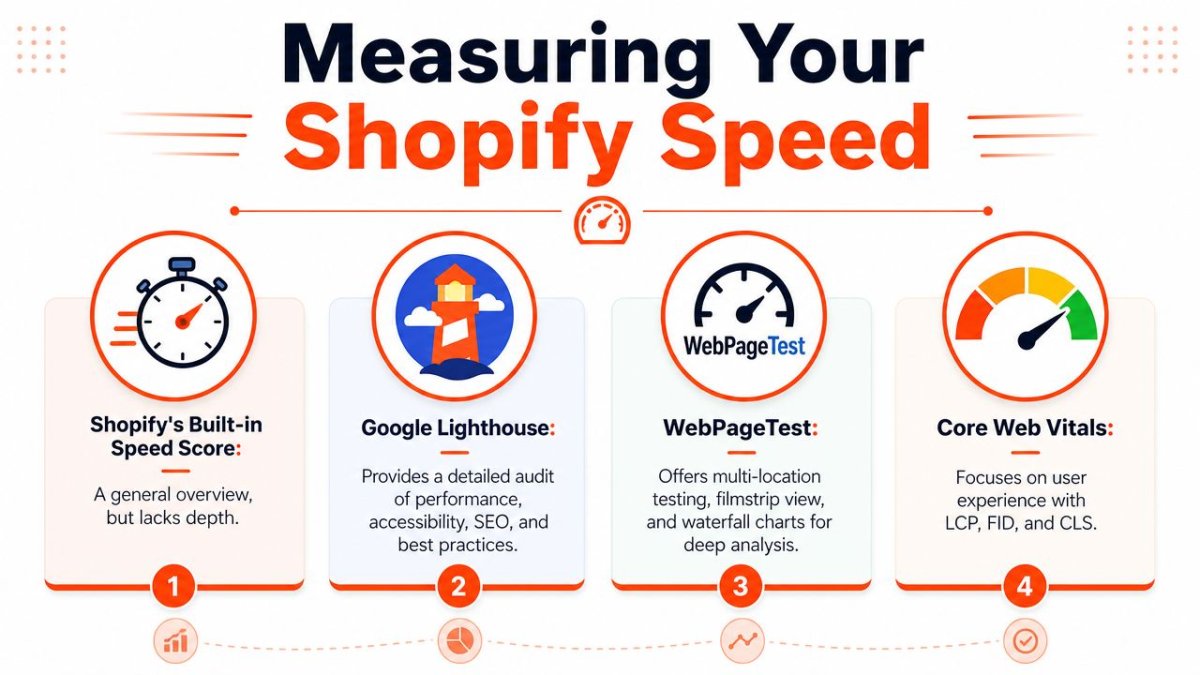
Run PageSpeed Insights on at least these templates:
- Homepage: On this page, oversized hero sections, sliders, and announcement clutter show up fast.
- Top product page: Review apps, media galleries, variant pickers, and sticky add-to-cart code often surface here.
- Top collection page: Grid density, filter systems, badges, and promo blocks can drag this template down.
- One blog or landing page: Long-form pages often reveal lazy loading mistakes and section bloat.
You also need to separate “SEO score thinking” from “shopping experience thinking.” A lab report can show why a page is technically slow. Your browser, especially on mobile throttling, shows whether the store feels hesitant when someone taps, scrolls, or opens a cart drawer. If you're already improving crawlability and storefront structure, this practical mindset also fits broader technical SEO for ecommerce.
Practical rule: Don't diagnose your whole store from one homepage test. Shopify stores are template systems, not single pages.
Read the main metrics like a merchant, not a lab technician
You don't need to memorize every performance acronym. You do need to know what each one means for a customer.
| Metric | What it means in plain English | What it usually points to |
|---|---|---|
| LCP | How fast the main visible content appears | Heavy hero image, banner, product media, render delays |
| CLS | Whether the layout jumps around while loading | Missing image dimensions, late-loading banners, injected widgets |
| TTFB | How quickly the browser gets the first response | Theme complexity, app overhead, backend response conditions |
LCP matters most on many Shopify stores because it reflects when shoppers see the main thing they came for. On a homepage that's often the hero block. On a product page it may be the product image. If LCP is poor, the page feels slow even if other pieces eventually catch up.
CLS is the silent conversion killer. A page can load “fast” and still feel broken if a button moves while someone tries to tap it, or a late app widget pushes content downward.
TTFB is useful, but merchants often over-focus on it. On Shopify, the bigger wins usually come from what loads after the initial response, especially storefront assets, media, scripts, and sections.
A performance score is only useful when it tells you what to remove, simplify, delay, or rebuild.
Prioritizing Fixes The 80/20 of Quick Wins
Most speed projects go sideways because the work starts with tiny tweaks. Merchants minify something, install another optimization app, or spend hours chasing a score fluctuation while the biggest issue sits above the fold in plain sight.
Find your LCP element first
The fastest path to better Shopify performance is usually not “optimize everything.” It's finding the LCP element and dealing with that first. Independent Shopify performance analysis found that Largest Contentful Paint is often the biggest determinant of a store's overall performance score, and that almost every slow site in the dataset had an LCP problem. That same benchmark recommends getting the hero image below 2 MB and keeping INP under 200 ms, as explained in these Shopify speed benchmarks.
On many stores, the LCP element is one of these:
- A hero image: Usually a homepage banner that's too large, poorly cropped, or loaded through a slider.
- A product image: Common on product templates with oversized source files.
- A collection banner: Often forgotten because merchants focus only on the homepage.
- A text block delayed by scripts or CSS: Less common, but it happens when themes or apps block rendering.
Place this visual near your desk while you work through fixes.
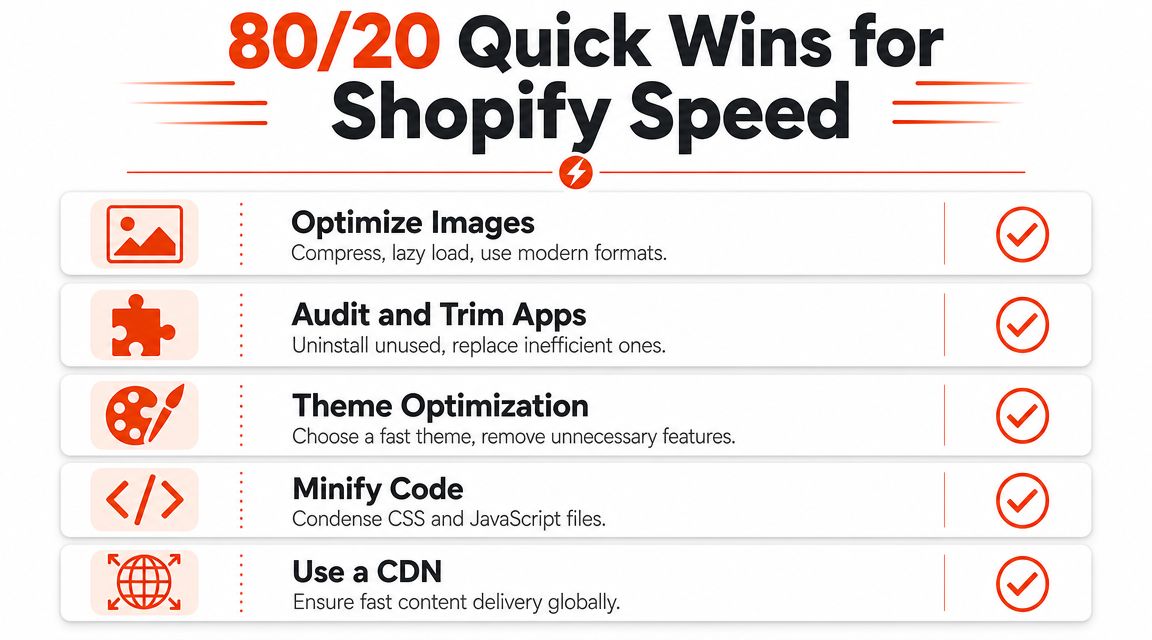
Clean up the images that matter
Hero image work is where a lot of real gains come from, but only if you do it properly.
Replace oversized source files
If a designer uploaded a huge desktop asset and the theme scales it down in the browser, you're paying the cost up front. Export images for actual storefront use, not print quality, not “just in case” size.Use modern formats when your workflow supports them
If your store operations already generate lean, responsive assets consistently, keep that pipeline. If not, fix the upload process before you start blaming the theme.Match image dimensions to layout reality
A full-width desktop banner and a mobile hero usually shouldn't be the exact same crop. When one file tries to do both jobs, mobile often gets punished.Don't lazy-load above-the-fold media
Lazy loading helps below the fold. It hurts when you apply it to the element the browser is supposed to show first.Set image width and height attributes properly
This reduces layout shift and helps the browser reserve space before the asset finishes loading.
If you need a deeper workflow for compression, sizing, and responsive image handling, use this guide on how to optimize Shopify images.
Later in the process, this kind of walkthrough can help your team compare tactics visually:
Quick wins that usually survive real-world testing
Some “speed tips” sound good but barely move the store. These ones tend to hold up.
- Cut homepage slides: One strong hero almost always performs better for speed than a rotating banner stack.
- Remove decorative sections near the top: If a section doesn't help a shopper decide, move it down or remove it.
- Delay below-the-fold images: Product grids, blog thumbnails, and supporting content can wait.
- Trim heavy mobile headers: Mega menus, promo bars, search overlays, and sticky widgets can pile up fast on smaller screens.
If the first screen is heavy, the whole store feels slow. Fix that first and a lot of secondary issues become easier to evaluate honestly.
What doesn't work well? Blindly installing “speed optimizer” apps, obsessing over tiny script reductions while leaving the hero untouched, and compressing every image so hard that the store looks cheap. Performance still has to support the brand.
Advanced Theme and Liquid Code Optimization
Once the obvious asset problems are under control, theme architecture starts to matter more. At this point, a store can look clean on the surface and still carry a lot of unnecessary work in Liquid, CSS, and JavaScript.
Common Liquid mistakes that make templates heavier
Liquid itself isn't usually the villain. The issue is what developers ask it to output.
A few repeat offenders show up over and over:
- Overbuilt product cards: Themes output extra badges, swatches, inventory text, secondary media, quick-add forms, and hidden data on every card, even when the page doesn't need all of it.
- Collection loops with too much logic: Merchants want rich collection pages, but layered conditions inside every loop can make templates harder to maintain and slower to render.
- Global snippets used everywhere: A snippet built for one template gets included across the store and becomes universal payload.
- Unused schema settings and sections: Merchants disable visual blocks in the customizer, but the code still loads dependencies.
The fix isn't “make the theme simpler” in some abstract way. It's to load less, output less, and scope functionality to the template that requires it.
Before and after example for Liquid output
A common mistake is rendering data for every possible product state when only a small slice is visible.
Before
{% for variant in product.variants %}
  <div class="variant-data"
       data-id="{{ variant.id }}"
       data-title="{{ variant.title }}"
       data-price="{{ variant.price }}"
       data-sku="{{ variant.sku }}"
       data-inventory="{{ variant.inventory_quantity }}">
  </div>
{% endfor %}
That pattern can be acceptable on some product pages, but I still see versions of it dumped into shared snippets or loaded with extra fields that never get used on the frontend.
After
{% if product.selected_or_first_available_variant %}
  {% assign current_variant = product.selected_or_first_available_variant %}
  <div class="variant-data"
       data-id="{{ current_variant.id }}"
       data-title="{{ current_variant.title }}"
       data-price="{{ current_variant.price }}">
  </div>
{% endif %}
This doesn't solve every performance issue, but it cuts output to what the page needs at first render. If JavaScript needs more variant data later, load or expose it with intent rather than dumping everything into the DOM by default.
Keep initial Liquid output focused on first render. Extra convenience in the markup often becomes long-term weight.
For teams that also work across larger technical SEO systems, I like the thinking in Pait Digital's SaaS SEO expertise because it reinforces a useful discipline: technical work should serve the page's real purpose, not just add complexity that looks advanced in a dev environment.
Script loading order matters more than most theme customizations
A lot of stores don't have a “bad theme.” They have a decent theme with bad loading behavior.
Use this checklist when you review assets:
| Theme issue | What to look for | Better approach |
|---|---|---|
| Global JS bundles | Features for every template packed into one file | Split by template or feature where possible |
| Parser-blocking scripts | Scripts loading too early in the head | Use deferred loading where compatible |
| Bloated base stylesheet | Page-specific CSS loaded everywhere | Move styles closer to the templates that need them |
| Duplicated libraries | Same category of functionality added twice | Standardize on one approach |
If you hire a developer for Shopify speed work, good ones distinguish themselves. They won't just “minify code.” They'll identify what code shouldn't be there in the first place, what should load later, and what should only exist on specific templates.
Taming Your Apps and Third-Party Scripts
“Delete apps” is lazy advice. Sometimes it's correct. Sometimes it destroys useful functionality and barely improves speed because the actual problem was script behavior, leftover embeds, or a theme that kept old app code after uninstall.
Stop asking how many apps you have
The better question is whether each app earns its storefront cost.
Shopify's own guidance says the hardest performance problems often come from app code left behind after uninstalling, too many page-template sections, and third-party scripts that must be evaluated for value versus performance cost, as detailed in Shopify's web performance guidance. That's the key nuance most listicles miss. “Fewer apps” isn't the metric. Useful payload versus useless payload is the metric.
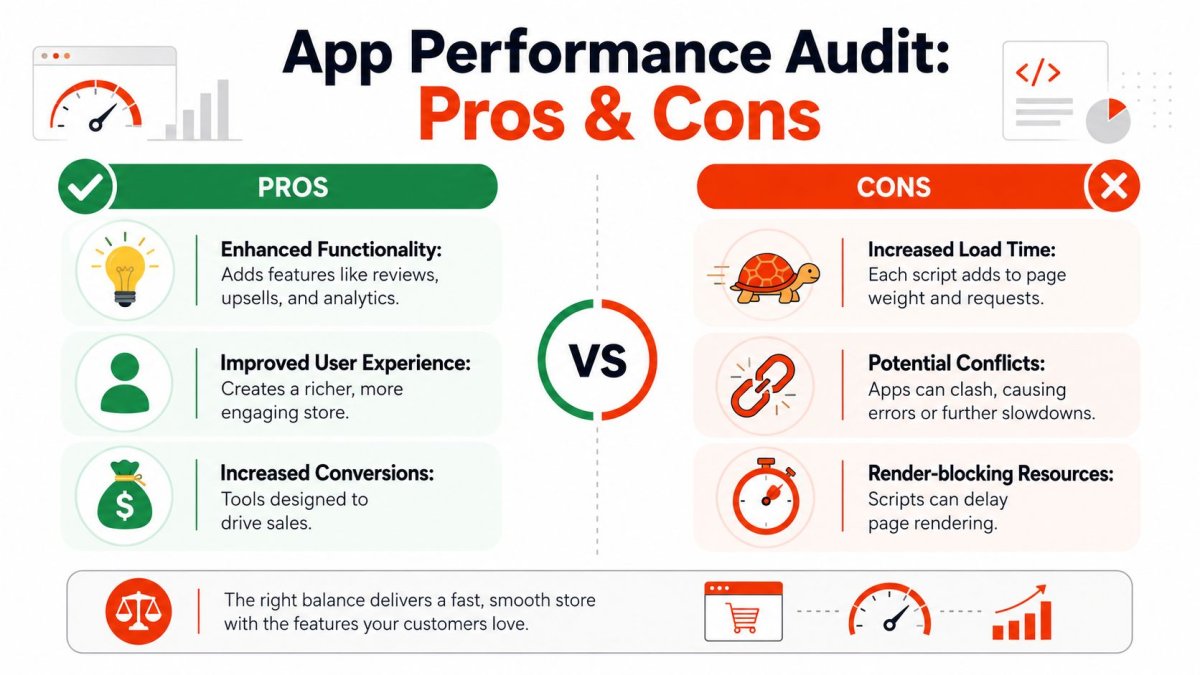
Build a simple performance budget for every app or script:
- Revenue-critical: Reviews, subscriptions, search, personalization, shipping protection, bundles.
- Operational but invisible: Internal analytics, support widgets, staff tools.
- Marketing optional: Heatmaps, popups, countdowns, A/B add-ons, campaign scripts.
- Dead weight: Old tests, duplicate functionality, abandoned vendors, legacy embeds.
If an app drives clear revenue or removes meaningful operational pain, it may deserve the cost. If it adds a cosmetic flourish and drags the page, it usually doesn't.
How to audit app cost in the browser
You don't need an enterprise tool just to spot the worst offenders. Open your store in Chrome, inspect the page, and review the Network tab and Performance tab.
Look for patterns like these:
- Scripts from third-party domains loading on every page
- Large JavaScript files tied to app widgets
- Requests firing before the page becomes usable
- Multiple apps solving similar jobs
- Widgets injected into templates where they add no value
Then test with intent. Disable an app embed in a duplicate theme. Remove a section. Re-run PageSpeed Insights. Compare what changed in the first screen and in interaction feel.
A profitable app can stay. A decorative script that slows the page and adds noise should be treated like technical debt.
Where ghost code usually hides
Uninstalled apps often leave traces in places merchants never check.
Search your theme for:
- Old snippets and sections: App-generated files often remain even after the app is gone.
- Theme app extension remnants: Some toggles stay enabled or partially integrated.
- Script tags in theme layout files: Especially in
theme.liquidand shared snippets. - Data attributes and containers: Empty app wrapper markup can still trigger requests or layout shifts.
This part is tedious, but it matters. Some of the worst Shopify speed issues come from code nobody knows is still there.
Monitoring, Maintenance, and Agency Workflows
A store can be fast in the morning and slower by next month without anyone noticing the exact moment it happened. A new app launches. A merchandiser adds heavier homepage sections. A developer pushes a theme update. Someone installs tracking for a campaign and forgets to clean it up later.
Use a maintenance rhythm instead of random audits
Independent benchmark coverage notes that Shopify now surfaces performance reporting over the last 30 days and by page URL, which is useful because it lets merchants spot regressions over time rather than relying only on one-off tests. That shift toward continuous monitoring is one of the biggest practical changes in modern Shopify speed work.
Set up a routine around that reality:
- After every app install: Check homepage, top product page, and top collection page.
- After every theme release: Compare the unpublished theme against the live one before publishing.
- After major merchandising pushes: Recheck hero media, added sections, promo bars, and scripts.
- On a regular calendar: Review trend reports, not just one test result.
A duplicated unpublished theme is your staging environment on Shopify. It's not perfect, but it's enough to test most storefront changes safely before they hit revenue pages.
If your team is also tightening measurement and attribution, keep event tracking clean while you do speed work. This practical Shopify GA4 setup guide is worth reviewing because messy analytics changes and speed changes often get shipped together, which makes debugging harder.
How agencies keep speed work repeatable
The agencies and freelancers who do this well don't reinvent the process on every client store. They standardize.
A solid workflow usually includes:
| Workflow piece | What it does |
|---|---|
| Baseline audit checklist | Forces the same review of templates, assets, apps, and scripts every time |
| Preferred fast theme stack | Reduces variance across projects and makes debugging faster |
| Approved app shortlist | Avoids repeat mistakes with heavy or messy storefront integrations |
| Change log and rollback notes | Makes reversals fast if a fix causes a layout or conversion issue |
For multi-client teams, the biggest win is operational. You stop treating speed as an emergency service and start treating it like controlled maintenance.
Your Complete Shopify Speed Optimization Playbook
If you want to optimize Shopify speed without wasting weeks on low-impact tasks, keep the process tight. Measure first. Prioritize what affects the first screen and main user actions. Execute in a safe order. Monitor so gains don't disappear.
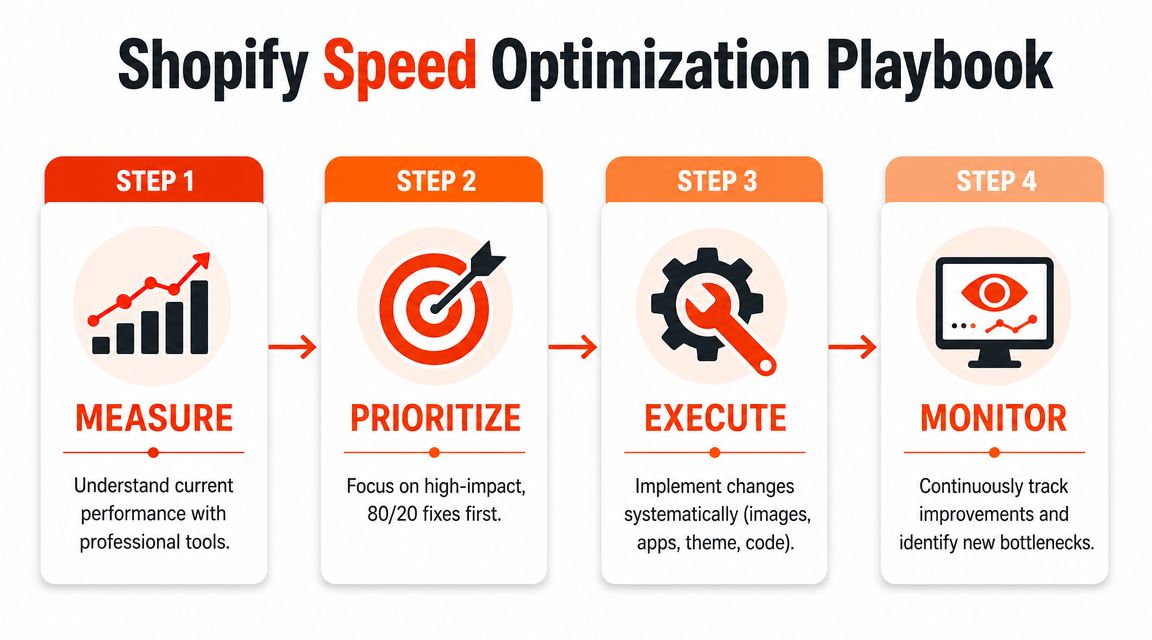
The checklist
Measure
- Test homepage, product, collection, and a content page.
- Use Shopify reporting for trend direction.
- Use PageSpeed Insights to identify the actual bottleneck.
Prioritize
- Identify the LCP element.
- Fix above-the-fold media before touching minor assets.
- Cut visual clutter and redundant sections near the top of key templates.
Execute
- Optimize hero and product imagery.
- Scope Liquid output to what the page needs now.
- Audit apps by business value, not app count.
- Remove leftover code and unnecessary third-party scripts.
- Use a duplicate theme before publishing changes.
Monitor
- Re-test after theme edits, app installs, and major campaigns.
- Watch trends over time, not just a single score.
- Keep a changelog so regressions are easier to trace.
Your rollback plan matters just as much as your fix list. Before changing theme code, duplicate the theme. Before replacing an app, record where it appears and what it controls. Before removing a script, document who requested it and how success was being measured. That discipline saves more stores than flashy optimization tricks ever will.
For another useful reference point, Shugert's performance resources are worth skimming alongside your own audit notes because they help reinforce the habit of treating speed work as a repeatable operating process, not a one-time cleanup.
If you want a faster way to find Shopify SEO and technical issues without adding storefront bloat, wRanks is built specifically for Shopify merchants. It helps audit issues, prioritize fixes, improve content, and monitor organic visibility in one place, while avoiding theme-heavy frontend scripts that can work against performance.

About David Chen
Technical SEO engineer focused on structured data, indexing optimization, and Core Web Vitals. David turns complex technical requirements into actionable Shopify solutions.