Shopify Product Image Size: A Practical Setup Guide
Shopify product image size impacts zoom clarity, loading speed, and consistency. Use 2048x2048 pixels with a 1:1 ratio for best results. You upload a
You upload a product photo that looks crisp on your laptop, then open your Shopify store on your phone and see a cropped edge, a slow gallery, or a product that looks oddly stretched. When you troubleshoot Shopify product image size, the cause may be the pixels, aspect ratio, file format, compression, or theme presentation.
Most Shopify merchants don't have a product image size problem. They have a consistency and delivery problem. Your dimensions, aspect ratio, format, compression, theme presentation, and descriptive metadata must work together so shoppers can browse clearly and image search can interpret each product accurately.
You’re usually aiming for four things: sharp images, consistent framing, quick loading, and better visibility in image search. The workflow below covers the process from choosing a standard and preparing a master image to resizing without distortion, testing a small batch, and scaling safely across your catalog.
Your source-file dimensions also differ from the way your theme displays an image. Once your visual system is standardized, wRanks can handle the SEO layer with image alt text, structured data, keyword tracking, and Google Search Console insights.
Choose Image Quality That Supports Zoom Without Slowing the Store
Your Shopify product image size affects more than visual polish. If you upload a small source, shoppers may lose detail when they zoom. If you upload an oversized file, your product gallery may carry unnecessary weight on mobile devices.
You need a quality ceiling and a delivery target, not the biggest file Shopify accepts. A consistent image system makes your store easier to browse and gives search engines clearer visual context.

What product image dimensions work best for Shopify
For most square product catalogs, use 2048 by 2048 pixels as your starting target with a 1:1 aspect ratio, according to the Shopify Help Center. This gives you a detailed master for product galleries while keeping every item consistently framed.
"Square product images are recommended at 2048 by 2048 pixels with a 1:1 aspect ratio," according to the Shopify Help Center.
Keep your original high-quality master separately, then create the Shopify-ready version at that target when your products suit square presentation. You can preserve detail for zoom without sending far more pixels than your theme displays.
What is the best product image size for Shopify
The best Shopify product image size is usually 2048 by 2048 pixels for square products, provided you compress the delivered file sensibly. More pixels aren't automatically better when your theme displays a smaller image. Extra bytes can slow the gallery and make browsing harder for you and your customers.
Sharp, consistently framed photos also support product usability and image-search visibility. You can reinforce that context with accurate image alt text and structured data. A guide to how to add product schema in Shopify fits the same product-page optimization workflow.
What happens when product images are smaller than 800 by 800 pixels
Use at least 800 by 800 pixels when you want Shopify's built-in zoom feature to work, according to the Shopify Help Center. Treat that figure as a floor, not your everyday target. A 2048-pixel master gives you more useful detail for a polished gallery.
What are Shopify's 5000-pixel and 20 MB image limits
Shopify accepts images up to 5000 by 5000 pixels and 20 MB per image, according to the Shopify Help Center. Those are upload limits, not optimization goals. Keep a high-quality master, resize square products to 2048 by 2048 pixels, and compress the delivered file before it approaches either ceiling.
Practical rule: Use 2048 by 2048 pixels for square product images, keep 800 by 800 pixels as the zoom floor, and treat 5000 by 5000 pixels and 20 MB as limits rather than targets.
Match the File Format and Aspect Ratio to the Shopify Product Catalog
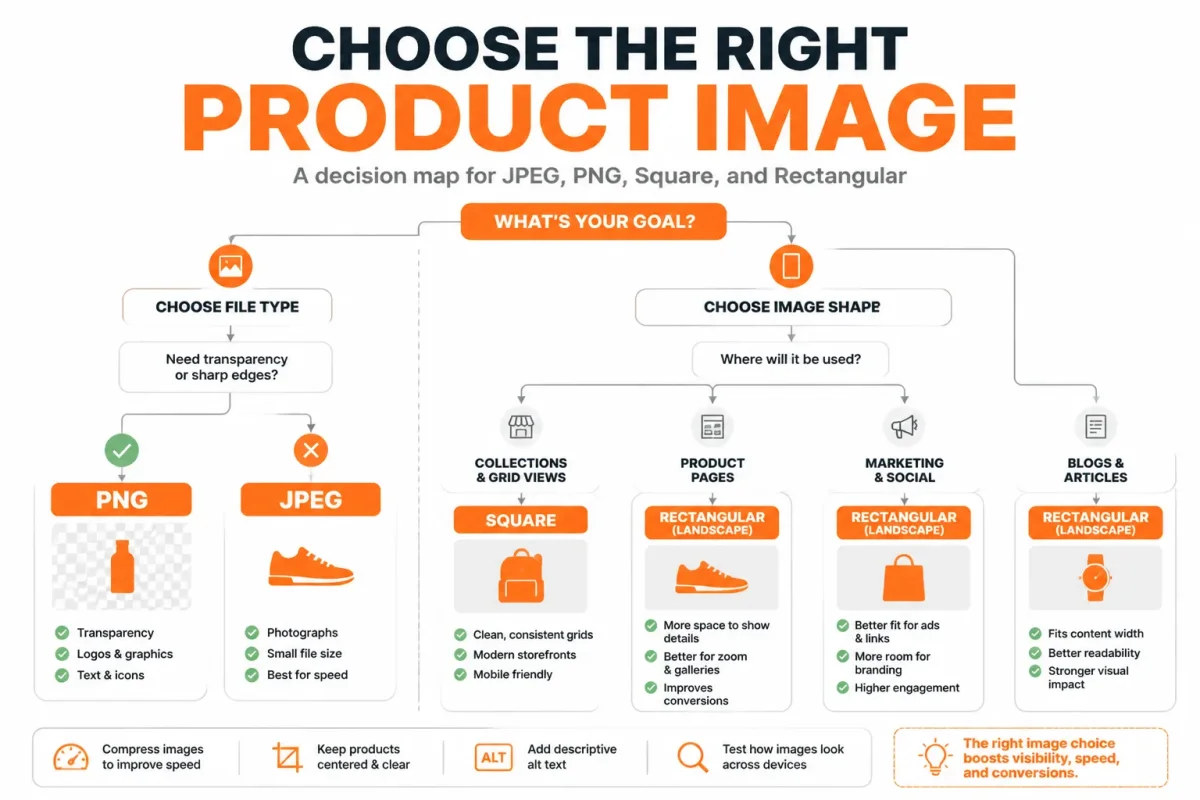
Your Shopify catalog can look untidy when one product uses a square JPEG, another uses a wide PNG, and a third is cropped by the theme. Set a default image standard, then define a short list of sensible exceptions.
Choose the ratio from your catalog layout and the format from the image content. That keeps your product grids predictable without forcing every product into the same visual shape.
Use a 1:1 ratio for consistent product grids
A 1:1 ratio is the safest primary standard when you want consistent product grids across desktop and mobile. Shopify recommends square product images at 2048 by 2048 pixels, while its guidance places product thumbnails at 150–300 pixels with a 1:1 ratio, according to Shopify. Your thumbnail display size is not the same as your uploaded master.
Weak example: Galaxy Trail Running Shoes use a 1200 by 900 pixel image beside a 2048 by 2048 candle photo.
Strong example: Galaxy Trail Running Shoes use a centered 2048 by 2048 pixel JPEG master with equal padding on every side.
The recommended image aspect ratio for Shopify
The recommended Shopify image aspect ratio is 1:1 for most catalogs, but 4:3 or 3:2 can work better when your product or photography needs more horizontal space. Choose one rectangular ratio for that product group instead of allowing every upload to set its own shape.
Use 4:3 or 3:2 for naturally rectangular products
Use 4:3 for products photographed with moderate horizontal framing, or 3:2 for wider lifestyle scenes and long products. Document the choice. A consistent rectangular group still looks more deliberate than a catalog with mixed ratios.
Choose PNG or JPEG for Shopify
JPEG is better for most photographic Shopify product images because it usually creates a smaller file at an acceptable quality level. PNG is the better choice when you need transparency, crisp graphic edges, or a simple illustration, though it can be much heavier for photographs.
Use JPEG for photos and PNG for transparency or graphics
| situation | better move |
|---|---|
| Most photographic product shots with solid backgrounds | Use a consistent 1:1 catalog canvas and export a quality-controlled JPEG. |
| Products that need a wider composition or lifestyle framing | Use one documented rectangular ratio, such as 4:3 or 3:2, and apply it consistently within that product group. |
| Transparent background, sharp graphic edges, or simple illustrations | Use PNG when transparency or edge clarity justifies the larger file. |
| Small catalog cards and collection grids | Keep the source standard consistent and let Shopify or the theme generate the smaller display rendition. |
If you are standardizing hundreds of products, document the ratio and format by product type. This guide to SEO automation for Shopify stores fits the same workflow when you are organizing image, metadata, and structured data tasks together.
Prepare One Master Image Before You Resize the Catalog
You can create a poor Shopify product image size standard by editing the wrong source file. A crop may remove a zipper, a label, or the product edge that shoppers need to inspect.
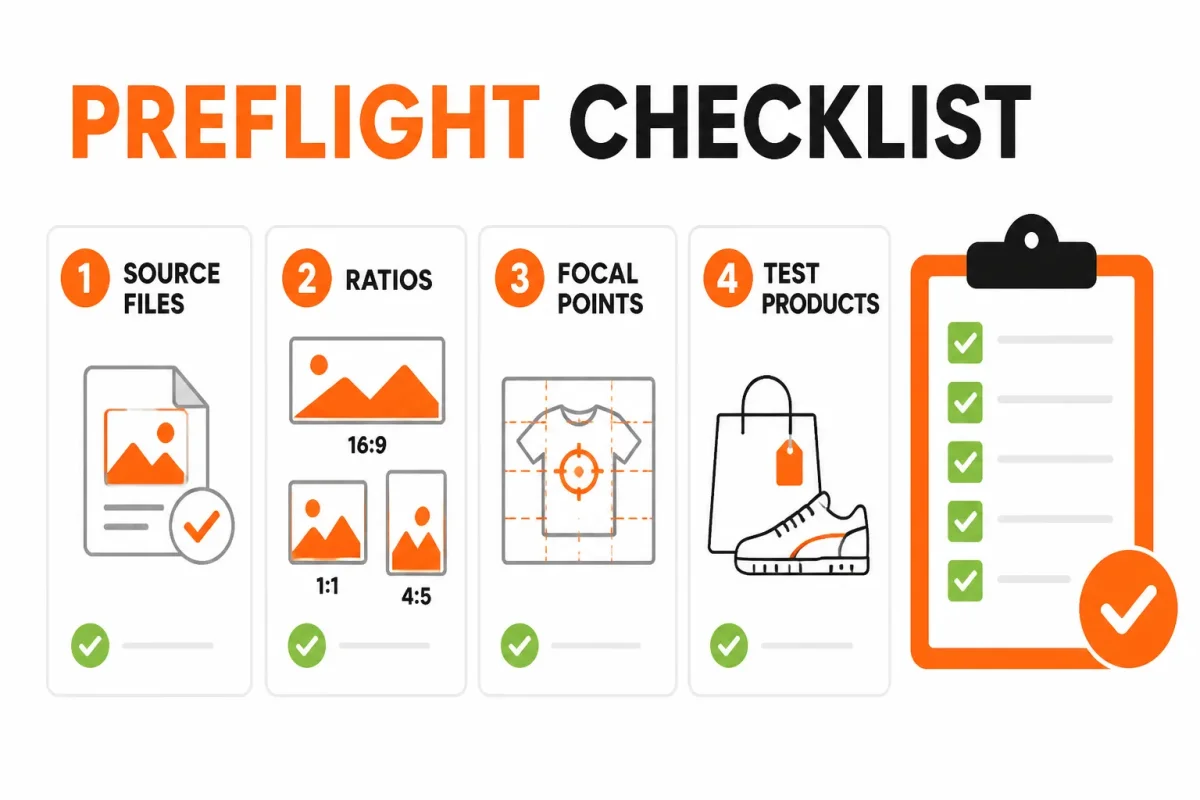
Before changing pixels, identify the original, the intended display ratio, and a small group of desktop and mobile product pages. This preflight tells you whether proportional scaling, cropping, or canvas padding is the right route.
Collect originals and record the current dimensions
Preserve each original product file in an untouched folder, then record its current width, height, format, orientation, and background type. Write down the target ratio for that product group, such as square or 4:3.
Weak example: final-image.jpg stored in a mixed downloads folder.
Strong example: Products/Lighting/Luna-Pendant/original/Luna-Pendant-front-4000x4000.jpg gives you the product, view, dimensions, and source location at a glance.
Resize an image for Shopify
Resize an image for Shopify by first choosing whether to scale it proportionally, crop its edges, or add canvas padding. Proportional scaling changes dimensions without changing composition. Cropping removes outer areas, while padding adds space without cutting the product.
Check transparent backgrounds, image orientation, the focal product area, and edge-to-edge framing before you edit. Confirm that the source is large enough to reach your selected target without upscaling. If it is not, find a larger original instead.
Adjust the size of an image
Adjust an image's size by applying the chosen method to a copy of the master file, not the original. Use proportional scaling when the source ratio already matches your catalog standard and the entire product must remain visible.
- Transparent background: Confirm that transparency is intentional and won't become a white or colored block in your theme.
- Focal area: Check that the product's key feature remains inside the safe central area.
- Orientation: Confirm portrait, horizontal, or square orientation before selecting a preset.
- Edge details: Protect handles, straps, packaging text, and other features near the frame.
- Source size: Verify that you can reach the target without enlarging a small file.
Select a representative product batch for testing
Test a square product, a wide product, a transparent asset, and an item with important edge details. Open each result on representative desktop and mobile product pages so you can see the gallery, thumbnail, zoom, and theme crop.
Use a clear naming and folder convention for the test files. The guide to SEO automation for Shopify stores fits the same workflow when you organize image, metadata, and structured data tasks together.
If the source ratio differs from your catalog standard, decide whether the product can tolerate a crop before touching pixels. If not, use proportional scaling or canvas padding, then test that choice on the small batch first.
Resize Product Images Without Cropping or Distortion
You have a workable source image and catalog standard. Now resize each file without changing the product’s shape, hiding key details, or creating an uneven gallery in your Shopify store.
The safest workflow moves from inspection to testing. Check the source ratio, set the canvas, preserve proportions, choose crop or padding deliberately, and upload a small batch before editing the full catalog.
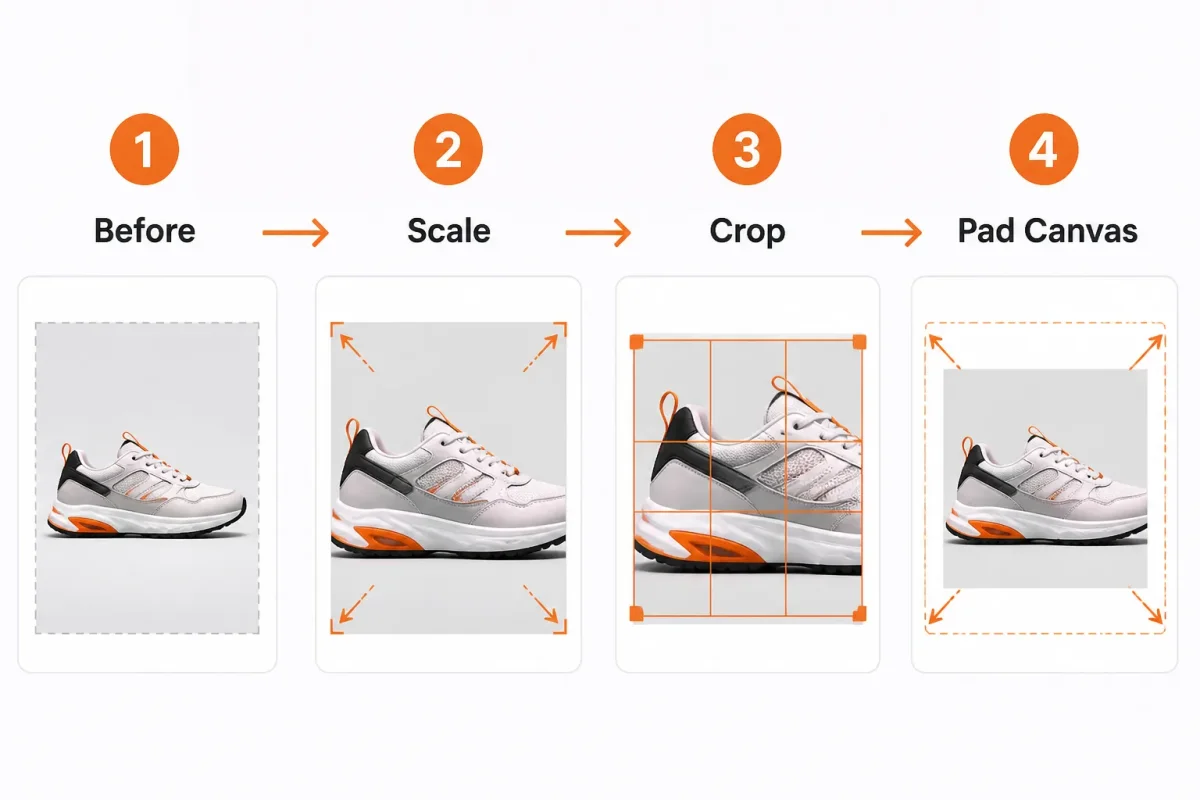
Resize an image to a target size
Resize an image by setting a target canvas, locking its proportions, and scaling the source to fit that canvas. First, compare the source width-to-height ratio with your chosen Shopify product image size. A square source fits a square canvas naturally. A portrait or horizontal source needs proportional scaling, padding, or a carefully judged crop.
Set the target canvas and lock the aspect ratio
Set the target canvas before changing the image dimensions. Keep the width and height linked so the product cannot stretch while you resize it.
A weak setting forces the Harbor Canvas Backpack into a 2000 by 2000 box by changing its width and height independently. You will see distorted straps and a wider-looking bag.
Better setting: Keep the source ratio locked, scale the Harbor Canvas Backpack proportionally, and add canvas padding if the square frame requires it. You will see the entire bag without stretched edges.
Scale down without upscaling weak originals
You can safely scale a large, sharp source downward when the product remains clear at its displayed size. Do not enlarge a small, blurry file and expect new detail to appear. Upscaling can produce soft labels, fuzzy edges, and weak zoom behavior.
Check the product page, collection grid, mobile view, gallery thumbnails, and zoom after resizing. The result should look clear in each location, not only in your editing software.
Make an image fit a certain size
Make an image fit a certain size by choosing between contain and cover. Contain preserves the full product and uses canvas padding where needed. Cover fills the frame but may cut the product edge.
Choose crop only when the whole product, label, clasp, and other selling details remain visible. If a crop removes any important edge detail, use proportional scaling with padding instead.
Crop or pad until the product fits the canvas
Inspect the frame at thumbnail size before approving a crop. A successful canvas keeps product placement consistent across the gallery and leaves enough space around the item.
- Ratio: The source and target proportions are recorded before editing.
- Proportions: Width and height remain locked during resizing.
- Visibility: The complete product and important details stay visible.
- Consistency: Product position and background treatment match nearby images.
Export, upload, and compare the before-and-after result
Export in the format selected for that product type, then upload a small test batch to Shopify. Compare the original and resized files on desktop and mobile before bulk work.
Look for blurry zoom, cut-off edges, stretched products, and thumbnails that do not align. If those failures appear, correct the canvas or fit method before processing more products. Changing file dimensions cannot fix a theme setting that forces an unsuitable display crop.
Create a 1920 by 1080 Version Without Treating It as a Product Standard
A wide banner and a catalog thumbnail serve different jobs. You may need a 1920 by 1080 asset for a hero section, promotion, or full-screen viewer, but that does not make it the right Shopify product image size for every listing.
Start with the product’s shape and the placement you need. Preserve important details by changing the composition deliberately, not by stretching a square photo into a wide rectangle.
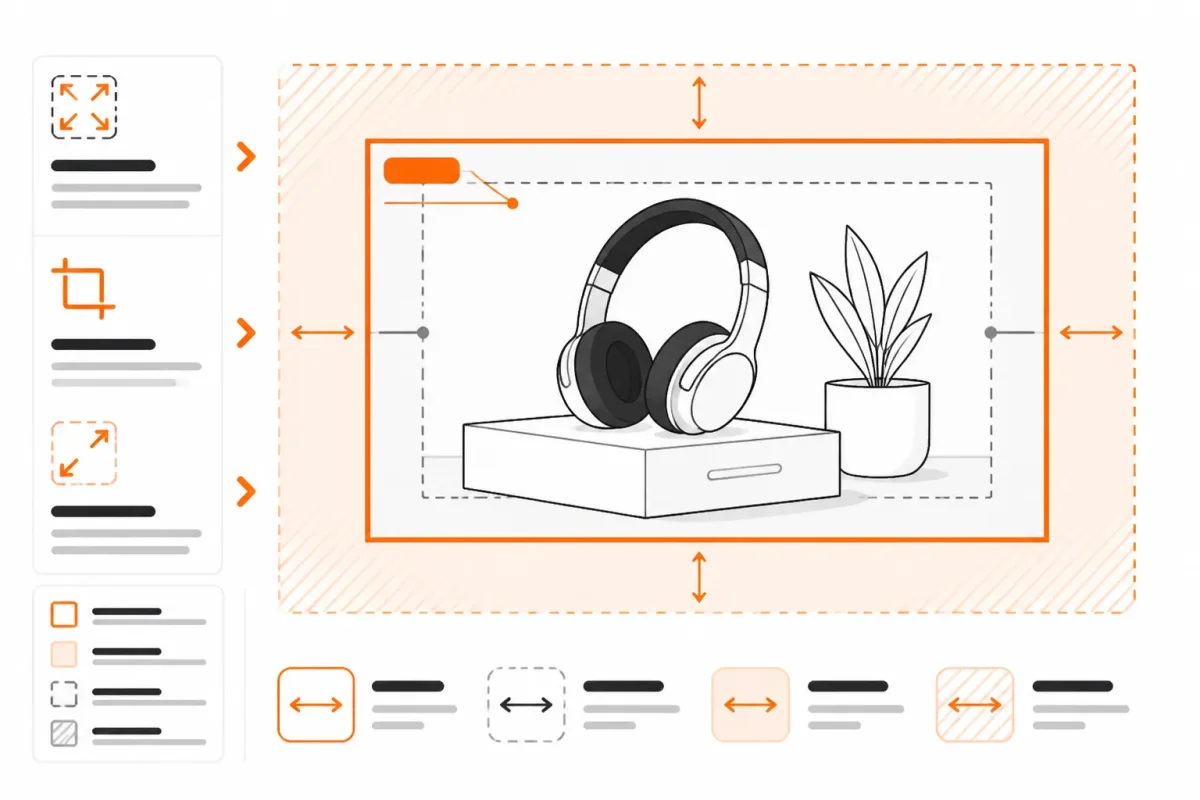
Check whether the source can support a 16:9 crop
Check whether your source width divided by its height is close to 1.7778, the ratio for 16:9. A wider image may allow a careful crop around the product, while a taller image usually needs background space instead.
- Test the ratio: Divide your source width by its height before editing. A 2400 by 1350 photo already fits 16:9; a 1000 by 1000 photo does not.
- Protect the subject: Crop the sides when your product has breathing room. If a sofa fills the frame, cropping may remove an arm or distort the visual balance.
- Check the result: The product stays fully visible, centered, and proportionate. A cut-off label, handle, or model is a failed crop.
Before: A 1000 by 1000 photo of the Northline Ceramic Lamp is stretched to fill a 1920 by 1080 frame.
After: The Northline Ceramic Lamp stays proportional on a 1920 by 1080 canvas with matching neutral background space.
Resize an image to 1920 by 1080
Resize an image to 1920 by 1080 by creating a 16:9 canvas, placing the source proportionally, and cropping or padding it without stretching.
- Create the canvas: Set the output to 1920 by 1080 pixels. Your canvas should show the intended hero composition, not merely a resized square.
- Place the source: Scale the product until it remains sharp and fully recognizable. Add background space when the original is too tall or narrow.
- Review mobile placement: Test the finished asset in your Shopify theme on a phone. A responsive section may crop the sides differently, even when your file is correct.
Resize the canvas to 1920 by 1080 without stretching
A 1920 by 1080 canvas suits a wide hero, promotional visual, or lightbox-style asset better than a square collection grid. Your 1000 by 1000 photo can sit on that canvas, but it has not become a naturally wide photograph.
Before: A square product-grid image is forced into a 16:9 slot, making the watch face look wide.
After: The watch remains square and proportional, with added background space for the promotional banner.
Keep product-grid images on their catalog ratio
Keep your catalog images on the established product ratio, then maintain a separate 1920 by 1080 standard for heroes and promotions. You will get cleaner collection grids and wider campaign visuals without forcing every product into one composition.
Apply the Standard Across a Large Shopify Catalog
One successful product image does not create a reliable catalog standard. You need a repeatable process that protects original files, groups similar products, and catches visual problems before thousands of assets reach your Shopify store.
Treat resizing as production work, not a one-time design task. Shopify says smaller files are generally preferable, with images up to two megabytes and around 500 kilobytes often working better in practice, according to Shopify’s June 30, 2026 guidance. Use those figures as working targets, not rigid limits.
Group products by ratio and photography style
Keep untouched master files outside your upload folder, then group products by ratio, background, and photography style. You might separate square jewelry photos, portrait apparel shots, transparent footwear PNGs, and edge-to-edge furniture images before processing.
Before: “All-products-final” mixes a square silver watch with portrait boots. After: “Watches-square-white-background” keeps similar files together, so you can apply the correct canvas and crop rules.
Automate repetitive resizing and compression
Automation can handle predictable work across your catalog. Use it for consistent filenames, batch resizing, format conversion, compression after resizing, and metadata workflows. Validate a representative batch first, including products from every ratio group, before bulk uploading.
Before: You compress original 4000 by 4000 images first, then resize them repeatedly. After: Resize first, then compress each Shopify-ready file to preserve sharper edges and reduce wasted processing.
Review transparent, cropped, and zoom-critical products manually
Human review remains necessary when a fixed crop could remove a focal point. Check transparent PNGs, edge-to-edge framing, asymmetrical products, labels, and details shoppers inspect through zoom. Automation improves consistency, but it cannot reliably judge whether a handbag strap or ring setting has been cut away.
Pair image changes with alt text and product SEO checks
After your visual files pass review, check image alt text, product-page meta tags, structured data, tracked keywords, and Google Search Console signals in wRanks. Standardized files help, but resizing alone does not optimize your product page for Google or AI platforms.
What works
- Batch control: You process each ratio and product type with consistent settings.
- Preserved masters: You can correct a poor crop without starting from a degraded upload.
- Faster checks: You review a small representative batch before changing the full catalog.
What fails
- Blind automation: You may cut important details from asymmetrical or edge-framed products.
- Premature compression: You reduce quality before the final dimensions are established.
- Visual-only optimization: You miss alt text, structured data, and Search Console issues after resizing.
Fix the Symptoms That Reveal a Bad Image Setup
Your product image can be sharp in the file and still fail inside your Shopify theme. You may be dealing with the source ratio, uploaded dimensions, export settings, or the theme’s display container.
Isolate one variable first. Test one product on desktop, mobile, collection pages, and the product gallery before changing the whole catalog.
Cropped mobile images
Mobile cropping often points to a presentation problem, not a bad source image. Compare the original ratio with the theme container before editing the file again.
Weak: A 4:5 shoe photo is placed in a cover-style square container that cuts off the heel.
Strong: Test the same shoe on a 1:1 canvas, then switch the theme container to contain mode if the full product returns.
Blurry or low-quality product photos
Blurring usually comes from a small original, upscaling, or aggressive compression. Shopify says files above 20 megabytes can seriously affect website speed, though file size alone does not explain every slow page.
Use a larger master, resize downward, and compare a moderate-quality JPEG with your current export. Check the uploaded dimensions and compression before replacing the catalog.
Stretched products and uneven ratios
| symptom | likely cause | first fix |
|---|---|---|
| Product edges are cropped on mobile | The source ratio conflicts with the mobile theme container or a cover-style crop. | Test the same product with a compatible canvas or adjust the theme display setting before re-editing the entire catalog. |
| Image looks blurry or low quality | The source is too small, was enlarged, or was compressed too aggressively. | Use a larger original, resize downward instead of upscaling, and export a test JPEG with moderate compression. |
| Product looks stretched | Width and height were changed independently without locking proportions. | Restore the master and resize with the aspect-ratio lock enabled. |
| Zoom is unavailable or disappointing | The image is below the 800 by 800 pixel threshold or lacks enough detail. | Test an image at least 800 by 800 pixels and inspect the product at its intended zoom level. |
| Gallery thumbnails do not align | Products use mixed ratios, inconsistent padding, or inconsistent focal positioning. | Apply one documented canvas standard to a small product group and compare the grid. |
| Batch upload fails or creates very heavy pages | Files exceed Shopify limits, use inconsistent exports, or are larger than needed. | Check dimensions and file size, then resize and compress a small batch before retrying. |
Broken zoom or batch uploads
Zoom needs enough detail, while batch uploads need consistent dimensions, formats, and file weights. Check the original ratio, uploaded dimensions, export format, compression, and theme container behavior separately.
- Before: Upload 200 mixed PNG and JPEG files, then inspect the whole catalog after publishing.
- After: Test 10 representative products across desktop, mobile, thumbnails, galleries, and zoom before scaling the correction.
FAQ
Is PNG or JPEG better for Shopify
JPEG is usually the better choice for photographic product images because it keeps file sizes manageable while preserving good detail. Choose PNG when an image needs a transparent background, crisp text, line art, or other sharp graphic elements. Test the exported file on your product page, since aggressive compression can create visible blocks or blur around edges.
What size should product images be
Use product images large enough for your theme's main gallery and zoom view, then check the actual display before standardizing them. A square image around 2,000 by 2,000 pixels suits many Shopify catalogs, but your products and theme may need a different ratio or height. Keep the files as light as possible without making fine details hard to inspect.
What is the recommended image aspect ratio for Shopify
There isn't one required aspect ratio for every Shopify store. Square images, such as 1:1, are a practical default for mixed catalogs because they create consistent grids and thumbnails. Portrait or landscape ratios can work better for clothing, furniture, or wide products. Choose the ratio that shows the full item without awkward cropping, then apply it consistently within each product group.
How do I resize an image for Shopify
Open the original file in an image editor or resizing tool, set the required width and height, and preserve the chosen aspect ratio so the product doesn't look stretched. Export a JPEG for most photos or a PNG when transparency matters. Keep the original file, upload the resized copy to a test product, and inspect its gallery, thumbnail, mobile view, and zoom.
What is the best product image size for Shopify
The best size is the largest practical dimension your theme and customers need, not simply the biggest file you can upload. For many stores, 2,000 by 2,000 pixels gives product pages enough detail for zoom while remaining manageable after compression. Check your theme's gallery, mobile layout, and loading time before making that size your catalog standard.
Start Today With a Five-Stage Product Image Standard
You don't need to rebuild your entire Shopify catalog before improving its images. Start with one repeatable rule and a small test batch, and use a short morning planning routine to focus the work; Karanna Academy offers a five-step morning meditation guide that can support that habit. Inspect the result in real storefront conditions, and apply the standard only after it holds up.
Your first standard should protect product detail without forcing every image into one shape. Start with one visible problem, document the result, and use that proven workflow for the rest of your catalog.
Choose the ratio and target dimensions
- Choose the ratio: Set the catalog ratio that keeps your products consistent without cutting important edges.
- Set target dimensions: Define the width and height your theme, zoom view, and largest product display can use comfortably.
Resize and export the test batch
- Select the format: Use JPEG for most photographic product images and PNG when transparency or sharp graphic detail requires it.
- Test the batch: Resize and compress a small group representing different products, ratios, backgrounds, and file sizes.
Check Shopify on desktop, mobile, and zoom
- Inspect every view: Upload the test files and check the product gallery on desktop, mobile, thumbnails, and zoom before you change more products.
You should see the whole product, consistent framing, readable detail, and acceptable loading behavior. If one image fails, record whether the problem starts in the source, export, upload, or theme presentation.
Scale the standard across the catalog
Once your test batch works, apply the same rule to similar product groups instead of processing the catalog blindly. Keep original files, record the chosen ratio and export settings, and review exceptions separately.
- Open one product: Choose the Shopify product with the most visible image problem.
- Record the baseline: Write down its original dimensions, aspect ratio, file format, and file size.
- Document the rule: Save the target dimensions, format choice, compression setting, and inspection checks that worked.
- Extend the workflow: Apply the proven standard across the catalog, then review image alt text and product SEO in wRanks, including meta tags, structured data, keyword tracking, and Search Console insights.
If you want a faster way to improve Shopify product visibility, wRanks’ Shopify SEO guidance helps you optimize image alt text, meta tags, structured data, keyword tracking, and Search Console insights for product pages, collections, and blogs.

Digital growth consultant specializing in AI-powered commerce strategies. Amira bridges the gap between cutting-edge AI tools and practical Shopify store growth.