
How to Add Product Schema in Shopify
You open a Shopify product page expecting Google to find the product name, price, stock status, and reviews. When you search for how to add product schema in Shopify, the practical answer starts with inspection, not another automatic script. The page may look complete in your browser, yet its rendered HTML can contain unfamiliar scripts, duplicate Product markup, stale variant values, or no usable Product entity at all.
Most Shopify merchants don't have a ranking problem first. They have a product-data consistency problem between the theme, apps, variant selectors, and search crawlers. This guide shows you how to check one live URL, identify what already exists, add only missing fields, test the rendered result, and expand cautiously. It also shows how wRanks can support broader Shopify SEO monitoring through structured data, product optimization, and Search Console insights. Field-level guidance covers price, availability, identifiers, reviews, and variants, so your storefront data stays aligned before you scale the change.
Why Accurate Product Schema Protects the Data Shoppers See
You may see a complete product page while search systems see disconnected text, scripts, and conflicting facts. When price, stock, or review data differs between your page and its markup, shoppers can lose trust before they reach checkout.
Accurate Product schema gives your Shopify store one clear version of each product fact. That matters in Google results and AI discovery, where machine-readable details help systems interpret what you sell.
Schema markup and its purpose
Schema markup is a machine-readable label system that helps you identify product names, prices, currency, availability, reviews, and identifiers for search systems. Shopify says AI-driven traffic to Shopify sites grew eight times year over year in 2025, while AI-driven orders grew 15 times. Clear product data is useful beyond traditional search.
“AI-driven traffic to Shopify sites grew eight times year over year in 2025,” according to Shopify.
Product schema
Product schema is the structured data that labels facts about one product on your page. Shopify reports that fields including name, price, currency, availability, review score, and GTIN can feed directly into Google’s Shopping Graph. You give discovery systems context they can connect to the product shoppers see.
How Product schema turns storefront facts into labeled data
You might earn a richer result showing product details, delivery information, or review context, but no display is guaranteed. Shopify’s Yeti example showed a 4.4-star store rating, 26 reviews, free delivery, and a 30-day returns policy, illustrating the type of context shoppers may encounter.
The risk of stale price, stock, and review markup
If your page shows $39.99 but schema says $34.99, a shopper may feel misled. A discontinued variant marked as available creates the same problem, while duplicated review markup can make your store appear careless.
The rule for marking up only visible, verifiable claims
You should mark up only facts that shoppers can verify on the page, including the current price, rating, availability state, and policy details. Your product copy, visible offer, and structured data must agree before you expand the change across Shopify stores.
Practical rule: Never mark up a price, rating, availability state, or policy that shoppers cannot see and verify on the page.
Choose the Shopify Schema Route That Matches Your Store
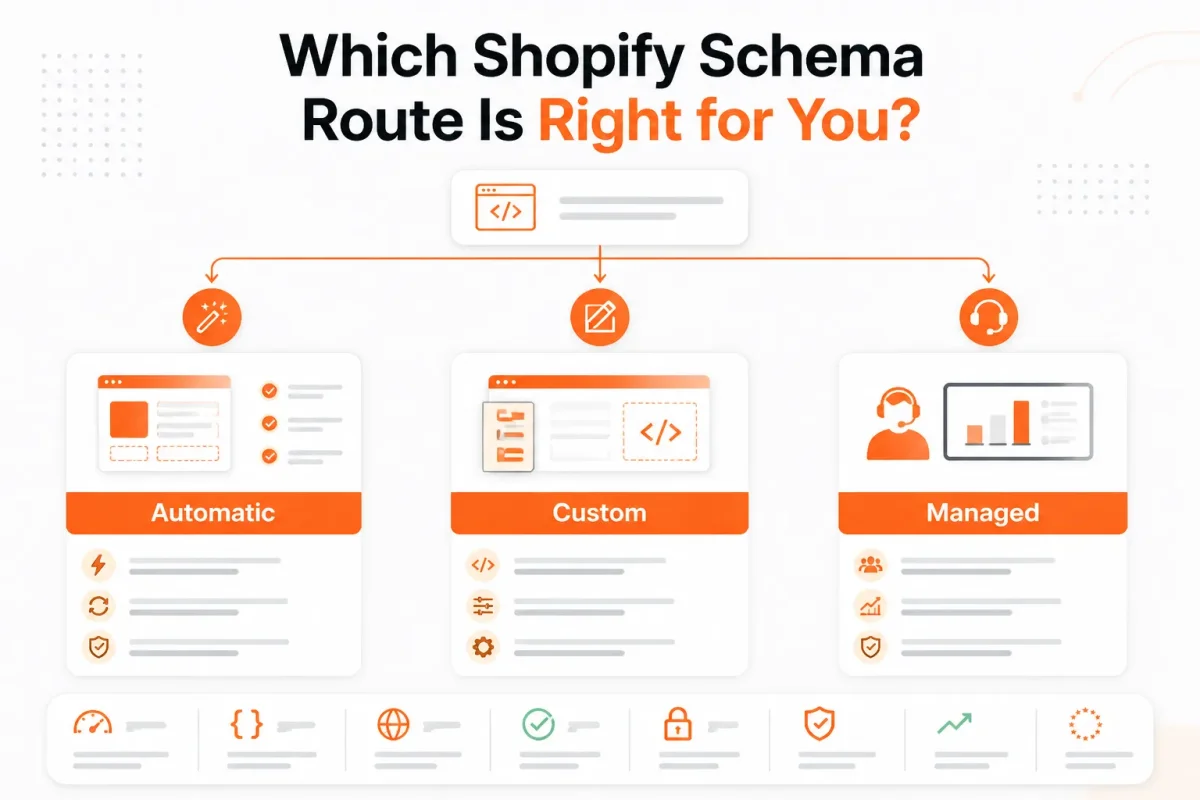
You have three practical routes, but the least invasive one usually starts with inspection. Before you edit Liquid or install another SEO app, check what your live product page already outputs and compare it with the product facts shoppers can see.
Adding another Product entity does not automatically improve coverage. If your theme and an app describe the same product differently, you may give Google competing prices, availability states, or variant details. Choose the route that fixes a real gap in your store.
Product schema
Product schema describes an item, its offer, price, availability, identifiers, reviews, and variants so search systems can interpret your product page. Shopify states that themes automatically generate basic product schema for the name, price, availability, and URL, according to Shopify's own ecommerce schema guidance.
Organization schema
Organization schema describes your business, including its name, logo, and contact details. You may need it for brand understanding, but it does not replace the Product markup on each product page.
WebSite schema
WebSite schema describes your Shopify store as a website and can support site-name and search features. You should keep it separate from the Product entity that describes a specific item.
FAQPage schema
FAQPage schema describes visible question-and-answer content. You should not add it to product pages unless those questions and answers genuinely appear for shoppers to read.
Automatic theme markup versus custom Liquid
Use the theme's Product JSON-LD when its rendered output already matches your visible product data. Extend the existing Liquid snippet only when legitimate identifiers, variant logic, or another necessary field is missing. Do not create a second Product entity to patch the first one.
| situation | better move |
|---|---|
| The live theme already outputs accurate name, price, availability, and URL data | Keep the theme output and validate it before adding code |
| The existing Product JSON-LD is present but lacks legitimate identifiers or variant details | Extend the existing Liquid snippet rather than creating a second Product entity |
| A theme and SEO app both output Product JSON-LD | Choose one authoritative Product implementation and remove or disable the duplicate |
| The catalog needs ongoing product, collection, page, and structured-data monitoring | Use wRanks for coordinated SEO work while keeping schema rendering controlled |
Weak setup: Your theme outputs Product JSON-LD, while an SEO app adds another Product entity for the same “Harbor Cotton Hoodie,” with a different price.
Controlled setup: You keep the theme's Product entity, extend its Liquid only for the missing SKU, and use wRanks to monitor structured data, meta tags, and product changes. wRanks coordinates the workflow, but it does not remove the need to inspect your theme's rendered output.
When a managed SEO workflow is safer than another snippet
If you manage many Shopify products, collections, and blogs, a platform such as wRanks can help you coordinate optimization, keyword tracking, Google Search Console insights, and structured-data monitoring. The implementation still needs one controlled source, so your store does not trade missing data for duplicate entities.
This guide to SEO automation for Shopify stores fits the same workflow when you need to coordinate product updates without adding unchecked theme code.
Prepare One Product Page Before Editing the Theme
You can create duplicate Product markup by editing a theme that already supplies the needed data. Your browser may show a complete product page, but your live HTML can reveal output from Shopify, your theme, and an SEO app at the same time.
Choose one representative product first. You will spend a few minutes checking that page, then select the least invasive route based on what you find.
Collect the product facts the markup must match
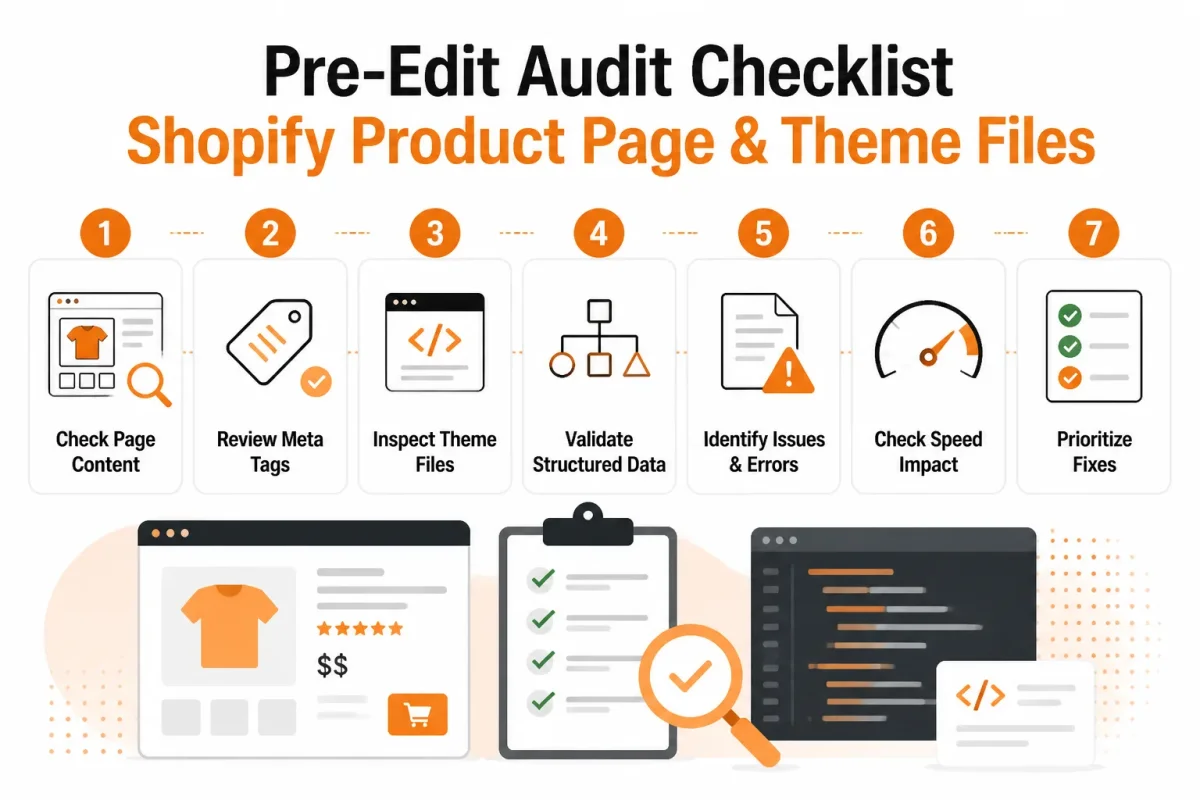
Before you open the code editor, gather the facts that your structured data must represent. Your checklist is complete when you can verify each item against the live product page or Shopify admin.
- Product URL: You have the public URL for a typical product, preferably one with a normal price, several variants when relevant, and your usual inventory behavior.
- Theme access: You can access the Shopify theme editor or Liquid files, and you have confirmed a backup or duplicate theme is available.
- Price and currency: You have recorded the displayed price, sale price if applicable, and currency shown to shoppers.
- Variant details: You have noted the selected variant, alternate variant prices, availability, SKU, and any GTIN or other product identifiers.
- Inventory state: You know whether the selected variant is in stock, sold out, or available for purchase when inventory reaches zero.
- Review data: You know which provider supplies reviews and can see the review content, rating, and review count on the page.
- Existing output: You have listed every SEO or schema app that may inject JSON-LD, including its product or review features.
Inspect the live source before opening Liquid files
Open the product URL in a browser, then inspect its rendered HTML and structured-data scripts. Modern Shopify themes commonly generate basic Product data for the name, price, availability, and URL, so this check can show that your store already has a usable foundation.
Compare that output with the facts you collected. If one app already supplies accurate Product data, you may only need to correct missing fields or settings. If two sources describe the same offer, pause before adding another snippet.
Set a single-product trial run and rollout boundary
Use one product as a controlled trial. Do not edit the live theme until you know which source owns the Product data, which fields are missing, and whether reviews or variants require special handling.
Keep the trial limited to that page until its price, currency, availability, variant details, identifiers, and legitimate reviews match what shoppers see. You will then have a clear basis for choosing a theme edit, an app setting, or no change at all.
Add and Test Product Schema in the Correct Shopify Sequence
You already have one product selected and know which source owns its Product data. Now edit that source carefully. Adding a second complete Product object can create conflicting prices, stock statuses, or variant offers.
JSON-LD is the common lightweight format for placing structured product data in your HTML, according to Shopify’s documentation. Shopify explains how ecommerce schema works. Your goal is one authoritative script whose values match the product page shoppers see.
Back up the theme and find existing Product JSON-LD
- Duplicate the theme: In Shopify, open Online Store, Themes, and duplicate the active theme before editing Liquid.
- Search the product template: Inspect product.json, product.liquid, and related snippets for application/ld+json, Product, or offers.
- Keep one owner: Extend the existing Product script instead of pasting a second complete Product object from an app or tutorial.
Adding schema markup
You add schema markup by extending the existing Product JSON-LD in the product template, then previewing one product before publishing. A weak implementation might show price: 19.99 with no currency or stock value. Strong version: “Cedar Trail Mug” includes its canonical URL, image, brand, SKU, price, USD currency, and current availability.
Add the minimum valid Product and Offer properties
Map the visible product name, canonical URL, primary image, brand, and SKU or GTIN when available. A compact structure looks like this: <script type="application/ld+json">{"@context":"https://schema.org","@type":"Product","name":"Cedar Trail Mug","url":"https://example.com/products/cedar-trail-mug","image":["https://example.com/mug.jpg"],"brand":{"@type":"Brand","name":"Cedar Trail"},"sku":"CTM-001","offers":{"@type":"Offer","url":"https://example.com/products/cedar-trail-mug","price":"24.00","priceCurrency":"USD","availability":"https://schema.org/InStock"}}</script>
Adding schema markup to Shopify
You add it in the authoritative Liquid snippet that renders your product page, not in a random content block. Save the duplicate theme, edit one source, and preview the selected product before publishing.
Handle price, availability, reviews, and variants
Reviews and aggregateRating belong in the markup only when genuine, visible review content supports them and your implementation follows applicable search guidelines. For variants, each offer must map to the correct selected option. Its price and availability must change with that selection.
- Single variant: Done means one offer has the visible price, USD currency, stock status, URL, and product identifier.
- Multiple variants: Done means every offer identifies the matching variant, with its own accurate price and availability.
- Review data: Done means the visible product reviews support any review or rating properties you publish.
An example of schema markup
An example is the Product JSON-LD structure above, where the Product describes the item and Offer describes the purchasable price and stock state.
A schema markup example
Yes. “Cedar Trail Mug” with price: 24.00 and availability: InStock is stronger than a script that names the product but omits its offer details.
Validate the rendered page before requesting a recrawl
- Preview the product: Confirm the selected variant displays the same price and stock status as the markup.
- Inspect the HTML: Search the rendered page for Product and confirm that only one authoritative Product script remains.
- Run validation: Google’s Rich Results Test validates structured data without requiring you to write code, according to Shopify’s documentation.
- Request recrawling: After fixing errors, use Google Search Console to inspect the live URL and request a recrawl. Validation supports discovery but doesn't guarantee rankings.
Scale Shopify Product Schema Without Creating Conflicting Offers
A large catalog makes copied Product scripts difficult to maintain. You can update a price or review field in one template while another still exposes an outdated value. Your goal is one authoritative Product entity for each product page, not more markup.
Reusable Liquid gives you that control when it reads Shopify’s product and variant objects directly. You can then omit unavailable fields instead of inventing ratings, prices, or stock claims.
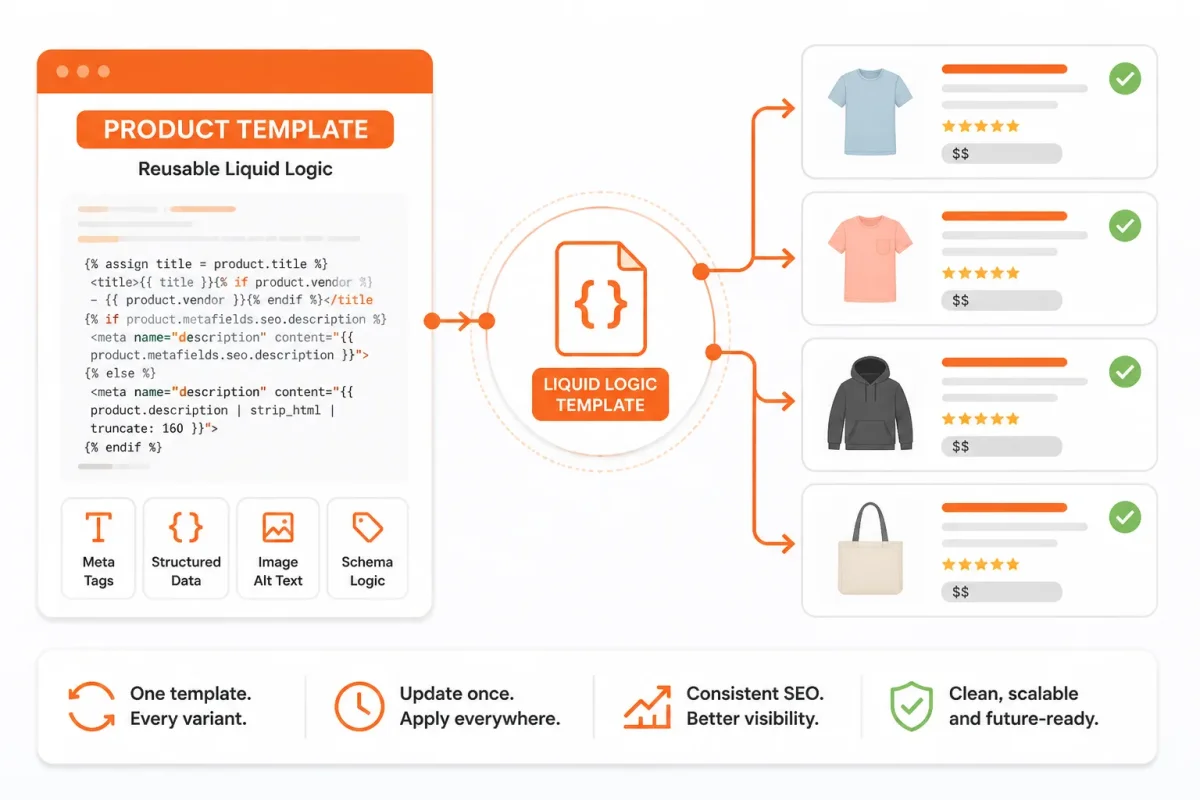
Use reusable Liquid instead of copying product scripts
You can build one product-template routine that reads the current product and its selected or first available variant. Keep collection targeting separate, so a collection page does not inject Product schema and a product page does not receive several competing entities.
Weak example: your theme copies the same Product script into every product template and collection card. Strong example: your product template reads “Blue Cotton Hoodie,” its $48 variant, and its live availability from Shopify’s product object, then outputs one Product entity.
Keep variant offers and conditional review fields synchronized
For a multi-variant product, each Offer must represent a real variant. Use that variant’s price and availability, and provide a usable product or variant URL where your implementation supports it. If no review data exists, omit the review fields rather than displaying an invented rating.
Weak example: your schema lists a $32 small shirt while the selected variant costs $38. Strong example: your offer uses the selected “Large, Navy” variant, its $38 price, its in-stock status, and its matching URL.
Adding a custom section in Shopify
You add a custom section in Shopify by placing it inside the product template and giving its data a clear Product purpose. A visual “Materials” section alone does not make its text valid Product schema. Your section must support the same product entity, not create another one.
What works
- Theme logic: One reusable routine reads product and variant objects.
- Conditional fields: Missing reviews or offers are omitted cleanly.
- Managed workflow: You coordinate product, collection, page, and blog SEO in one system.
What fails
- Copied scripts: Several Product entities compete on one page.
- Collection injection: Product markup appears where no single product is represented.
- Blind automation: A tool adds duplicate markup without checking the theme source.
wRanks can coordinate structured data with product, collection, page, and blog SEO, but it cannot make an unavailable variant valid. Your workflow still needs live-page validation, especially after theme changes.
Diagnose the Product Schema Failures That Look Like SEO Problems
Your product page can pass a basic code check and still show stale or conflicting facts to shoppers. You need to compare the visible page, rendered source, theme snippets, and app settings before changing code.
The first fix is usually subtraction or correction, not more markup. Use the visible symptom to find the faulty field, then confirm that your page and Product structured data describe the same offer.
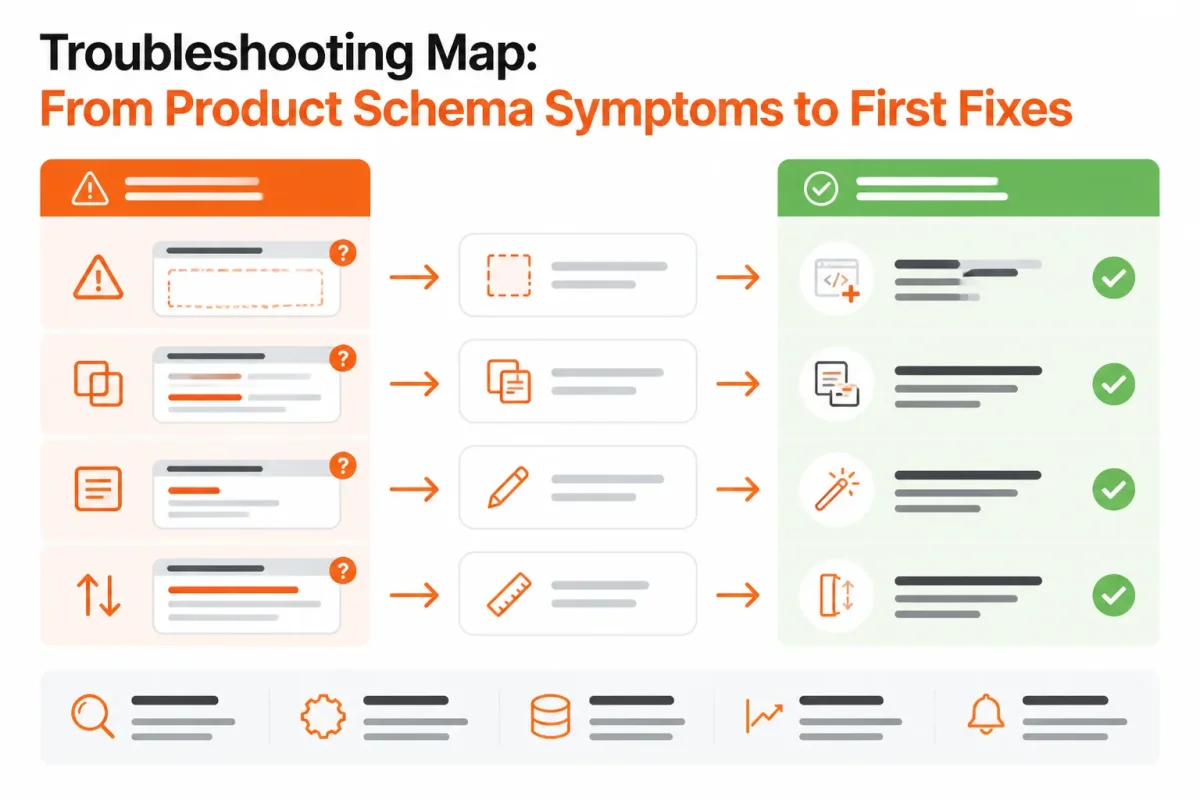
Duplicate Product scripts from overlapping sources
You may find two Product entities in the rendered HTML when your theme and an SEO or review app both inject JSON-LD. Search systems then receive competing prices, identifiers, or review claims. Inspect every JSON-LD block and choose one authoritative implementation.
Variant price and availability mismatches
You should test each important variant, not only the default selection. If your page shows the “Blue, Large” variant at $34.00 while structured data still reports $29.00, the markup may use the parent product price or a stale hard-coded value.
Weak example: Acme Trail Mug markup uses price: "29.00" for every variant.
Strong example: Acme Trail Mug markup reads the selected variant’s live price and inventory state before rendering the offer.
| symptom | likely cause | first fix |
|---|---|---|
| Two or more Product entities or duplicate JSON-LD blocks appear | The theme and an SEO or review app both inject Product markup | Identify the authoritative implementation and disable or remove the duplicate |
| The selected variant price differs from the structured-data offer | Markup uses the parent product price or a stale hard-coded value | Bind price to the selected variant and retest alternate variants |
| Markup says in stock while the product page says sold out | Availability is not connected to current inventory or selling settings | Derive availability from the same live inventory state shown to shoppers |
| A rating or review count is rejected or does not match the page | Review data is unsupported, unverified, or not visibly displayed | Remove the review fields until legitimate visible review data is available |
| A product identifier is missing despite an available SKU or GTIN | The Liquid mapping does not expose the product's legitimate identifier | Map the existing identifier and validate the rendered value |
Review and identifier claims that cannot be verified
You should remove rating, review count, or review author fields when your page does not visibly support them. Map a legitimate SKU or GTIN when your catalog already has one. Never invent an identifier to clear a warning.
- Review check: Compare the displayed rating and count with the structured data.
- Identifier check: Confirm your rendered value matches Shopify’s product or variant record.
- Trust check: Treat stale data as a shopper-trust problem, even when a code test passes.
Validator warnings versus missing rich results
You have an implementation defect when a validator reports invalid or unsupported markup. Valid markup is different. Google may still choose not to show a rich result because eligibility is not a display promise.
Check the live page, rendered source, app settings, and theme snippets before you add anything. wRanks can coordinate structured data with broader Shopify SEO, but it cannot make unavailable inventory or unverified reviews valid.
Check the Live Result Before You Roll Out the Change
Your theme editor can show a clean template while the published product page serves different JSON-LD. You need to inspect the live URL, because shoppers and search systems read the rendered page rather than your unpublished changes.
A successful check means the intended Product entity is present, its facts match the visible page, and each affected variant resolves correctly. It does not promise an enhanced result for every query. Separate implementation success from Google’s decision about search appearance.
Verify the live JSON-LD, not only the theme editor
Open the published product URL in a browser, view the rendered source, and search for the Product entity. You should find one intended Product record, not several competing scripts from your theme and SEO apps. Run that exact URL through Google’s Rich Results Test. Shopify’s guidance supports using the tool to validate structured data without requiring you to write code inside the tester.
- Live source: You can find the intended Product entity in the rendered page, with no duplicate or outdated product script.
- Rich Results Test: Your exact canonical URL returns the expected Product eligibility details and no unexpected errors.
- Visible agreement: The structured data describes what shoppers can actually see on the published page.
Check required fields and variant agreement
Compare the markup with the product page line by line. Check the product name, canonical URL, primary image, price, currency, availability, identifiers, and review information. Then test one product with a single variant and another with several variants if your rollout affects both.
- Offer accuracy: Each variant points to the correct price, currency, stock status, and product URL.
- Review accuracy: Review data is genuine, supported, and not duplicated across unrelated products.
- Variant resolution: Selecting a size, color, or other option leads to the offer represented in the markup.
Monitor Search Console before expanding to the catalog
After publishing, watch Google Search Console enhancement or coverage signals for new errors, warnings, and affected URLs. Search appearance remains a separate outcome. A valid Product entity may still receive no enhanced display for a particular query.
Use the same one-page check before expanding. A Search Console verification guide fits this workflow when you need to confirm the property setup before monitoring product-data changes. wRanks can help track structured data alongside broader Shopify SEO, but it cannot control Google’s display decision.
- Release decision: Expand only after one representative page passes source inspection, testing, visible comparison, and Search Console review.
- Ongoing check: Recheck the catalog after price, inventory, review, theme, or app changes.
Start With One Product Page and Expand Only After It Passes
You may add FAQ content to a Shopify product page and still leave its price, availability, reviews, or variants unclear to search engines. FAQPage and Product are separate structured-data types, so one does not repair missing or conflicting data in the other.
If you answer customer questions on your product page, your visible answers and FAQPage markup should match. Your Product entity should continue handling product facts. Keep the first implementation narrow, then inspect one canonical product page before applying any broader change.
FAQ schema and its role
Yes, FAQ schema still works as a separate markup type, but it does not replace Product schema. If your goal is product visibility, return to the product-page validation sequence and check the Product entity for name, price, currency, availability, reviews, and variants. A valid FAQPage result does not prove those fields are accurate.
Use FAQPage only when you have genuine, visible answers for shoppers. A weak example is: “Does this item ship?” with no useful answer. Strong example: “Does the Trailmark Rain Jacket ship to Alaska? Yes. Orders ship from Colorado within two business days, and Alaska delivery usually takes four to seven business days.”
Whether an enhanced FAQ display appears depends on current search eligibility and the content you actually show on the page. Adding FAQ schema to solve a Product-schema gap can increase duplicate-data risk without fixing the underlying issue. First make one canonical Product entity accurate, then consider FAQPage markup when it serves a real content purpose for you.
Use This Five-Step Shopify Product Schema Rollout Plan
You don't need more schema code simply because your Shopify catalog is large. You need accurate, non-duplicated Product data that matches what shoppers see, what your theme outputs, and what search systems can interpret.
Use one product page as your test case. Once you prove the data is correct there, you can expand with less risk and return to validation whenever your catalog, prices, variants, or review content changes.
Audit one live product URL
Start with one representative product, not your entire catalog. Choose a product with variants, a current price, stock information, and visible reviews if those features matter to your store.
- Inspect: Open the live product URL and record which Product properties Shopify already outputs.
- Choose: Keep the existing source when it is accurate, and select the least invasive route for any genuine gap.
- Implement: Add only the missing or inaccurate Product fields, including price, availability, reviews, and variant details where applicable.
- Validate: Test the representative product and its variants in the rendered page, not only inside the theme editor.
- Expand: Apply the proven implementation to similar products while monitoring Google Search Console and product-data changes.
Repair only the missing or inaccurate fields
You should not replace working Product markup just to make the code look different. Check that the price reflects the purchasable offer, availability matches the selected variant, review data is supported by visible content, and each variant resolves to the right information.
- Source: One theme, app, or custom integration clearly owns the Product entity.
- Accuracy: The structured data matches the product name, price, currency, stock status, and review details shown to you.
- Variants: Variant URLs, prices, availability, and identifiers remain consistent when you select different options.
Validate, monitor, and scale the proven implementation
After validation, watch the live page and Search Console for changes rather than assuming the first pass settles the issue. wRanks can connect structured-data checks with ongoing Shopify SEO optimization across products, collections, pages, and blogs, plus keyword tracking, image alt text, and Search Console insights. It doesn't replace live-page testing.
Open one live product URL and record every Product property Shopify already outputs before you touch the theme. Accurate data gives you a stronger foundation than additional code.
If you want a faster way to connect product, collection, page, and blog optimization, wRanks helps Shopify stores manage AI-powered SEO, structured data, meta tags, image alt text, keyword tracking, and Search Console insights. Its Shopify SEO blog guides provide practical guidance for applying that work.

About David Chen
Technical SEO engineer focused on structured data, indexing optimization, and Core Web Vitals. David turns complex technical requirements into actionable Shopify solutions.