
Buy Button
Quick Definition
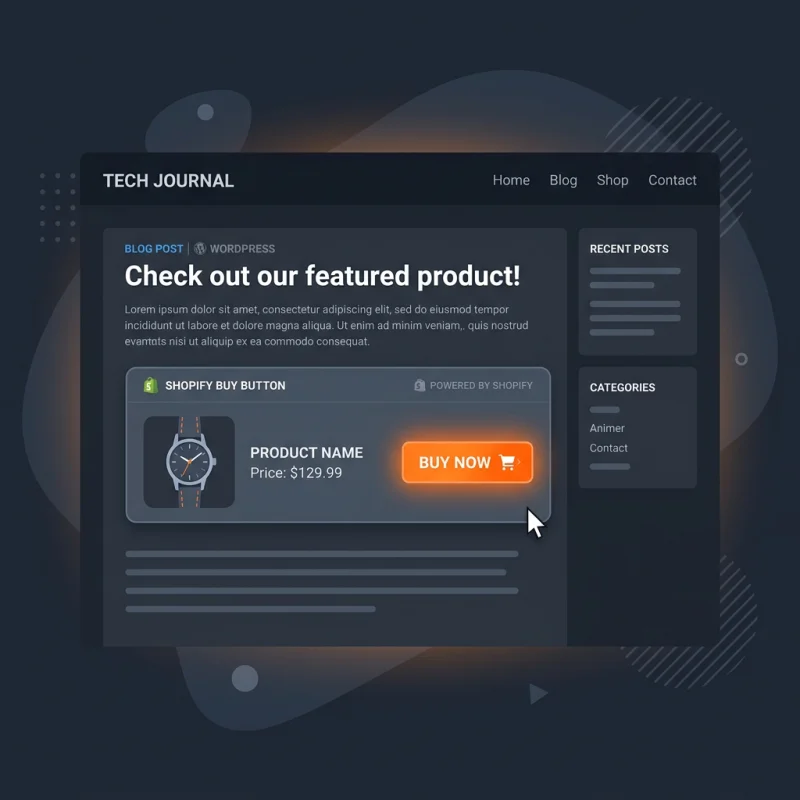
The Shopify Buy Button is an embeddable widget that lets merchants sell products on external websites, blogs, or landing pages by linking directly to Shopify's secure checkout.
Table of Contents
- Understanding the Buy Button in E-commerce
- Configuring and Implementing the Shopify Buy Button
- Accessing the Buy Button in Shopify
- Creating a Buy Button
- Embedding the Buy Button
- Customizing the Buy Button
- Strategic Business Value and Optimization of Buy Buttons
- Technical and SEO Considerations
- Conclusion
- Frequently Asked Questions
- How do I set up a Shopify Buy Button?
- Can I customize the appearance of the Buy Button?
- Is the Buy Button mobile-friendly?
Understanding the Buy Button in E-commerce
The Buy Button is a powerful tool in the e-commerce ecosystem, enabling merchants to extend their sales channels beyond their primary online store. Essentially, it is an embeddable widget that allows products from a Shopify store to be sold directly on external websites, blogs, landing pages, or social media platforms. This functionality bridges the gap between your main storefront and various digital touchpoints, providing a seamless shopping experience for customers regardless of where they encounter your products.
In practical terms, the Buy Button acts as a mini storefront embedded within other web environments. When a customer clicks on it, they are directed to a secure Shopify checkout, ensuring transaction safety and compliance with industry standards. According to Shopify's data, merchants utilizing Buy Buttons can increase their reach significantly, tapping into audiences that might not visit their primary store. This approach is especially effective for niche markets, influencer collaborations, or content-driven marketing strategies.
From a technical perspective, the Buy Button is built using JavaScript and can be customized to match the look and feel of the host website. It supports various product types, including single items, collections, and even custom configurations. The flexibility and ease of integration make it a preferred choice for merchants aiming to diversify their sales channels without extensive development resources.
Configuring and Implementing the Shopify Buy Button
Accessing the Buy Button in Shopify
To begin, log into your Shopify admin panel and navigate to Sales Channels. If the Buy Button is not already added, click on + Add sales channel and select Buy Button. Once added, you will see a dedicated section where you can create and manage your Buy Buttons.
Creating a Buy Button
- Go to Buy Button in your Shopify admin.
- Click on Create a Buy Button.
- Select the product or collection you wish to embed.
- Customize the button's appearance, including size, color, and layout, to match your website's branding.
- Configure additional options such as cart behavior and checkout settings.
- Generate the embed code, which is a snippet of JavaScript.
Embedding the Buy Button
Copy the generated code and paste it into the HTML of your external website, blog, or landing page. For platforms like WordPress, you can insert it into a custom HTML block. For static sites, embed it directly within your page's code.
Customizing the Buy Button
Shopify provides options to tailor the appearance of your Buy Button through the customization interface. You can modify colors, button size, and layout to ensure visual consistency with your brand. Additionally, advanced users can leverage CSS to further style the button for a more integrated look.
Strategic Business Value and Optimization of Buy Buttons
The Buy Button is more than just a sales extension; it is a strategic asset that can significantly impact your business growth. By embedding Buy Buttons on high-traffic blogs, social media pages, or partner websites, merchants can tap into new audiences with minimal effort. This approach is particularly effective for driving traffic and conversions from content marketing and influencer collaborations.
Optimization tips include:
- Placement: Position Buy Buttons where visitors are most engaged, such as within blog posts or product reviews.
- Design: Match the button's style to your website's branding for consistency and higher click-through rates.
- Testing: Use A/B testing to determine which placements and styles yield the best conversion rates.
- Tracking: Integrate with analytics tools like Google Analytics to monitor performance and optimize accordingly.
Real-world examples include fashion brands embedding Buy Buttons in Instagram blogs or tech companies placing them within product review articles. These strategies have proven to increase sales by providing frictionless purchasing options directly within content.
Technical and SEO Considerations
Embedding Buy Buttons requires attention to technical details to ensure optimal performance and SEO friendliness. Use asynchronous loading for scripts to prevent page slowdown. Ensure that the embedded code is responsive and mobile-friendly, as a significant portion of e-commerce traffic originates from mobile devices.
For SEO, while embedded widgets are primarily functional, you can enhance discoverability by including descriptive alt text, structured data, and contextual content around the Buy Button. Schema.org offers product schema markup that can help search engines understand your product offerings better, potentially leading to rich snippets in search results.
Conclusion
The Shopify Buy Button is a versatile, strategic tool that empowers merchants to expand their sales channels effortlessly. Its ease of setup, customization options, and proven effectiveness in increasing reach and conversions make it an essential component of modern e-commerce strategies. Proper implementation and optimization can lead to significant revenue growth, especially when integrated thoughtfully into content marketing and cross-platform campaigns.
Frequently Asked Questions
How do I set up a Shopify Buy Button?
To set up a Shopify Buy Button, access your Shopify admin, navigate to the Sales Channels section, add the Buy Button if not already added, and then create a new button by selecting the product or collection you want to embed. Customize its appearance and generate the embed code, which you can then insert into your external website or blog. Shopify provides detailed step-by-step instructions in their help center to guide you through the process.
Can I customize the appearance of the Buy Button?
Yes, Shopify allows you to customize the Buy Button's look and feel to match your website's branding. You can modify colors, size, layout, and button style directly within the Shopify interface. For more advanced customization, you can apply custom CSS styles to further tailor the button's appearance, ensuring a seamless integration with your site design.
Is the Buy Button mobile-friendly?
Absolutely. Shopify's Buy Buttons are designed to be responsive, ensuring they display correctly on all device types, including smartphones and tablets. Proper responsiveness is crucial, as a significant portion of online shopping occurs on mobile devices. Testing your embedded buttons across different screen sizes helps optimize user experience and conversion rates.

About Priya Sharma
Content marketing expert and Shopify ecosystem authority. Priya has helped 200+ stores grow organic traffic through strategic blog content and keyword targeting.