
Bulk Editor
Quick Definition
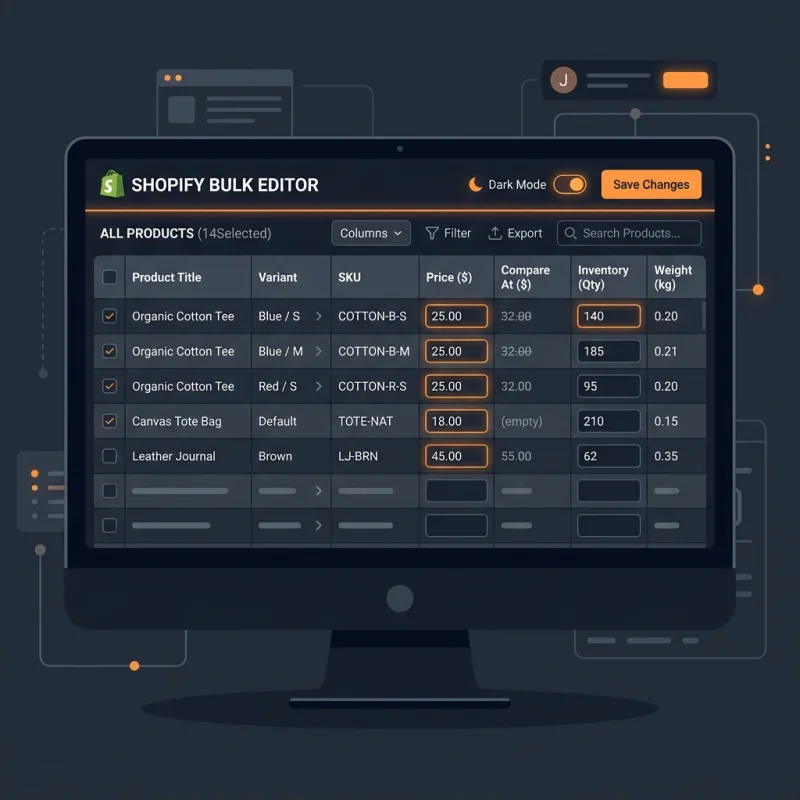
The Shopify Bulk Editor is an admin tool that allows merchants to edit multiple product listings, collections, customers, or inventory details simultaneously using a spreadsheet-like interface.
Table of Contents
- Understanding the Shopify Bulk Editor: A Deep Dive
- Configuring and Using the Shopify Bulk Editor
- Accessing the Bulk Editor
- Customizing the Bulk Editor Columns
- Performing Batch Edits
- Filtering and Sorting Data
- Strategic Business Value of the Shopify Bulk Editor
- Best Practices for Using the Bulk Editor
- Additional Resources and Tools
- Conclusion
- Frequently Asked Questions
- How do I set up the Shopify Bulk Editor for my store?
- Can I use the Bulk Editor to update product variants?
- What are some common mistakes to avoid when using the Bulk Editor?
Understanding the Shopify Bulk Editor: A Deep Dive
The Shopify Bulk Editor is an essential feature designed to streamline the management of large volumes of data within your online store. It provides merchants with a spreadsheet-like interface that allows for the simultaneous editing of multiple product listings, collections, customer information, and inventory details. This capability significantly reduces the time and effort required compared to manual updates, enabling store owners to maintain accurate and up-to-date information effortlessly.
At its core, the Bulk Editor functions as an intuitive, grid-based interface that mimics traditional spreadsheet applications like Excel or Google Sheets. Users can select multiple entries and modify attributes such as prices, SKUs, inventory levels, tags, and more in a single action. This is particularly valuable for stores with extensive product catalogs, where manual editing would be impractical and error-prone. The tool also supports filtering and sorting options, allowing merchants to target specific subsets of data for batch updates.
From an operational perspective, the Bulk Editor enhances data consistency and accuracy, which are critical for effective SEO, inventory management, and customer experience. It also integrates seamlessly with other Shopify features, such as inventory tracking, product variants, and custom fields, making it a versatile tool for various store management tasks. As e-commerce continues to grow in complexity, mastering the Bulk Editor becomes a vital skill for merchants aiming to optimize their workflows and scale efficiently.
Configuring and Using the Shopify Bulk Editor
Accessing the Bulk Editor
To access the Shopify Bulk Editor, navigate to your Shopify admin dashboard. Depending on what you want to edit, follow these paths:
- Products: Go to Products section. Select multiple products by checking their boxes, then click on Edit products.
- Customers: Visit Customers. Select the customers you wish to modify and click Edit customers.
- Inventory: Access via Inventory. Use filters to narrow down inventory items, then choose Edit inventory.
Customizing the Bulk Editor Columns
Once inside the Bulk Editor, you can customize which data fields (columns) are visible. Click on the Columns button to select or deselect attributes such as Title, Price, SKU, Inventory, Tags, and more. This flexibility allows you to focus only on the data points relevant to your current task.
Performing Batch Edits
To make changes, simply click on a cell within the grid and input your new data. You can also copy and paste data from external sources like spreadsheets for bulk updates. The editor supports inline editing, meaning you can modify multiple entries directly without navigating away from the interface.
After editing, ensure to review your changes carefully. Shopify provides an undo option if mistakes are made before saving. Once satisfied, click Save to apply your updates across all selected entries.
Filtering and Sorting Data
Effective use of filters and sorting enhances the efficiency of bulk edits. Use the filter options to display only products within a specific price range, inventory status, or tags. Sorting can be applied to organize entries alphabetically, by date, or by other attributes, making it easier to locate and modify specific data points.
Strategic Business Value of the Shopify Bulk Editor
The Bulk Editor is more than just a convenience; it is a strategic tool that can significantly impact your store's performance. Here are some ways it adds value:
- Time Efficiency: Reduces hours spent on manual updates, freeing up resources for strategic initiatives.
- Data Consistency: Ensures uniformity across product listings, which improves user experience and SEO.
- Inventory Optimization: Enables quick adjustments to stock levels, preventing overselling or stockouts.
- Pricing Strategies: Facilitates rapid price changes during sales or promotions, maintaining competitive positioning.
For example, a retailer launching a flash sale can update hundreds of product prices in minutes, ensuring timely promotion execution. Similarly, updating product tags or descriptions in bulk can improve search visibility and customer navigation.
Best Practices for Using the Bulk Editor
- Always back up your data before performing large bulk edits.
- Use filters to target specific subsets, minimizing errors.
- Validate data after editing to ensure accuracy.
- Combine bulk edits with automation tools like Shopify Flow or third-party apps for advanced workflows.
By integrating the Bulk Editor into your regular store management routine, you can maintain a well-organized, SEO-friendly, and customer-centric online store.
Additional Resources and Tools
Shopify offers extensive documentation and community support to maximize the utility of the Bulk Editor. For detailed guidance, visit the Shopify Help Center. For advanced bulk editing needs, consider third-party apps like Bulk Product Edit & CSV Import or Batch Edit & Import.
Conclusion
The Shopify Bulk Editor is a vital tool for any merchant seeking to optimize store management, improve data accuracy, and enhance operational efficiency. Its spreadsheet-like interface simplifies complex bulk updates, enabling store owners to respond swiftly to market changes, optimize product listings for SEO, and maintain a high level of data integrity. Mastery of this feature is essential for scaling your e-commerce business and staying competitive in a fast-paced digital marketplace.
Frequently Asked Questions
How do I set up the Shopify Bulk Editor for my store?
Setting up the Shopify Bulk Editor is straightforward. It is built into the Shopify admin interface, accessible via the Products, Customers, or Inventory sections. To start, select the items you want to edit by checking their boxes, then click on the Edit button. From there, customize your columns and filters to target specific data points. No additional setup is required beyond selecting your data and configuring the view. For more detailed instructions, visit Shopify's official guide.
Can I use the Bulk Editor to update product variants?
Yes, the Shopify Bulk Editor supports editing product variants. When accessing the editor via the Products section, you can select multiple products and choose to edit their variants simultaneously. This allows you to modify attributes like variant prices, SKUs, inventory levels, and options in bulk. This feature is especially useful for stores with extensive product catalogs that include multiple variants per product. For advanced variant management, consider using dedicated apps or Shopify's API for more complex operations.
What are some common mistakes to avoid when using the Bulk Editor?
Common mistakes include not backing up data before large edits, applying filters incorrectly, and rushing updates without validation. These errors can lead to data inconsistencies, incorrect pricing, or inventory issues. Always double-check your changes before saving, use filters to narrow down your edits, and consider exporting your data beforehand as a backup. Additionally, avoid making simultaneous bulk edits across unrelated data sets to prevent accidental overwrites. For best practices, review Shopify's documentation and test changes on a small data subset first.

About Priya Sharma
Content marketing expert and Shopify ecosystem authority. Priya has helped 200+ stores grow organic traffic through strategic blog content and keyword targeting.