
App Block
Quick Definition
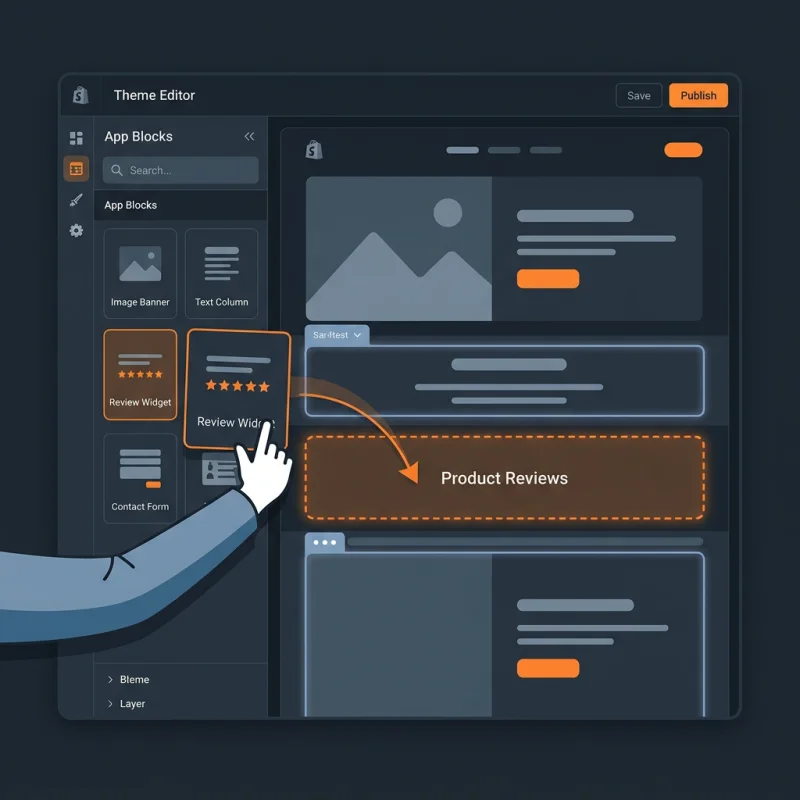
An App Block is a modular theme component introduced in Shopify Online Store 2.0 that allows merchants to drag and drop app elements directly into their store layout using the Theme Editor.
Table of Contents
- Understanding App Blocks in Shopify
- How to Configure and Implement App Blocks in Shopify
- The Strategic Business Value of App Blocks
- Best Practices for Optimizing App Blocks
- Conclusion
- Frequently Asked Questions
- How do I set up an App Block in my Shopify store?
- Can I customize App Blocks without coding?
- Are App Blocks compatible with all Shopify themes?
- How do App Blocks impact SEO?
Understanding App Blocks in Shopify
In the rapidly evolving landscape of e-commerce, flexibility and customization are paramount for merchants seeking to create engaging and personalized online stores. Shopify's introduction of App Blocks as part of its Online Store 2.0 architecture represents a significant advancement in how store owners can integrate third-party functionalities seamlessly into their themes. An App Block is a modular, reusable component that allows apps to inject content, features, or interactive elements directly into specific areas of a Shopify theme, such as product pages, collection pages, or the homepage. This modularity empowers merchants to customize their storefronts without extensive coding or theme modifications.
Unlike traditional app integrations that often require complex theme edits or custom code snippets, App Blocks leverage Shopify's flexible theme architecture, enabling a drag-and-drop experience within the Theme Editor. This approach not only simplifies the customization process but also enhances the store's scalability, as merchants can add, remove, or reposition app functionalities with ease. From promotional banners to product recommendations, App Blocks serve as the building blocks for creating dynamic, engaging, and conversion-optimized storefronts.
How to Configure and Implement App Blocks in Shopify
Implementing App Blocks within your Shopify store involves a series of straightforward steps, primarily through the Shopify Theme Editor and app integrations. Here's a detailed walkthrough:
- Ensure Your Theme Supports Online Store 2.0: Before proceeding, verify that your theme is compatible with Shopify's Online Store 2.0 architecture. Themes like Dawn are built with this support in mind. You can check this by navigating to Shopify's theme documentation.
- Install a Compatible App: Choose an app that offers App Block functionality, such as product review apps, promotional banners, or custom content apps. Many apps now include native support for App Blocks, simplifying the integration process.
- Access the Theme Customizer: Go to Online Store > Themes in your Shopify admin, then click Customize on your active theme. This opens the Theme Editor, where you can modify your store's layout.
- Navigate to the Desired Section: Select the page or section where you want to add the App Block, such as a product page or homepage. Use the theme's sidebar to locate the specific area.
- Add a New Block: Within the section, click Add block. If your app supports App Blocks, it will appear as an option in the block list. Select the app's block type, which could be labeled according to its function, like "Product Reviews" or "Promotional Banner."
- Configure the App Block: Customize the block's settings, such as content, layout, or appearance, directly within the Theme Editor. Many apps provide intuitive interfaces for this purpose.
- Rearrange or Remove Blocks: Drag and drop App Blocks to reposition them or delete them as needed. This flexibility allows for rapid experimentation and optimization.
- Save and Preview: Once satisfied, click Save and preview your store to ensure the App Block appears correctly and functions as intended.
For more detailed guidance, Shopify's official documentation offers step-by-step tutorials: Shopify App Blocks Documentation.
The Strategic Business Value of App Blocks
App Blocks are not merely technical features; they are strategic tools that can significantly enhance your e-commerce business. Here's how:
- Enhanced Store Customization: App Blocks enable merchants to tailor their storefronts precisely to their branding and marketing strategies without extensive developer intervention. This flexibility supports A/B testing, seasonal redesigns, and targeted campaigns.
- Improved User Experience: By integrating dynamic, relevant content through App Blocks, stores can create more engaging shopping experiences. For example, adding product reviews, related products, or promotional banners directly within product pages can boost conversion rates.
- Faster Deployment of Features: With App Blocks, new functionalities can be added quickly, reducing time-to-market for new campaigns or features. This agility is crucial in competitive markets where responsiveness can determine success.
- Scalability and Maintenance: Modular components simplify ongoing maintenance and updates. Merchants can update or replace individual App Blocks without disrupting the entire site, ensuring consistent performance and user experience.
Real-world examples include brands that utilize App Blocks for personalized product recommendations, countdown timers for flash sales, or custom content sections that align with marketing campaigns. These implementations often lead to measurable improvements in engagement and sales metrics.
Furthermore, integrating App Blocks with structured data markup (schema.org) can enhance SEO by providing search engines with detailed information about your content, improving visibility in search results. For more on SEO best practices, visit Google's Structured Data Documentation.
Best Practices for Optimizing App Blocks
To maximize the benefits of App Blocks, consider the following tips:
- Maintain Consistency: Ensure that the design and functionality of App Blocks align with your overall branding and user experience standards.
- Optimize for Speed: Use lightweight app blocks and optimize images and scripts to prevent slow page load times, which can negatively impact SEO and conversions.
- Test Responsiveness: Verify that App Blocks display correctly across devices and screen sizes. Responsive design is critical for mobile shoppers, who constitute over 70% of e-commerce traffic (source: Statista).
- Leverage Analytics: Track how App Blocks influence user behavior and conversions using tools like Google Analytics or Shopify's built-in reports. Use insights to refine your layout and content.
- Stay Updated: Regularly review app updates and Shopify's platform enhancements to ensure compatibility and access to new features.
By adhering to these practices, merchants can ensure their App Blocks contribute effectively to their overall e-commerce strategy, driving growth and customer satisfaction.
Conclusion
App Blocks are a transformative feature within Shopify's Online Store 2.0 framework, offering unprecedented flexibility and control over storefront customization. They empower merchants to integrate third-party functionalities seamlessly, enhance user experience, and adapt quickly to market trends. As e-commerce continues to evolve, leveraging App Blocks effectively can be a key differentiator, enabling brands to deliver personalized, engaging, and high-performing online stores.
For developers and store owners alike, understanding and utilizing App Blocks is essential for staying competitive in today's digital marketplace. Explore Shopify's official resources and community forums to stay informed about new capabilities and best practices.
Frequently Asked Questions
How do I set up an App Block in my Shopify store?
To set up an App Block, first ensure your theme supports Online Store 2.0. Install an app that offers App Block functionality, then access your Shopify admin and navigate to Online Store > Themes. Click Customize on your active theme, go to the relevant section (like product or homepage), and add a new block. Select the app's block type from the list, customize its settings, and save. Preview your store to confirm the App Block appears correctly. Many apps provide detailed instructions within their documentation, making setup straightforward for most merchants.
Can I customize App Blocks without coding?
Yes, most App Blocks are designed to be customizable through Shopify's Theme Editor, which offers a drag-and-drop interface. Once an App Block is added to a section, you can modify its content, layout, and appearance using the built-in settings. This no-code approach makes it accessible for store owners without technical expertise. However, for advanced customization or unique functionalities, some familiarity with Liquid, Shopify's templating language, or CSS may be beneficial. Always back up your theme before making significant changes to prevent data loss or layout issues.
Are App Blocks compatible with all Shopify themes?
App Blocks are specifically supported by Shopify's Online Store 2.0 themes, such as Dawn, Shopify's flagship free theme. Older themes built before the release of Online Store 2.0 may not support App Blocks natively. If you are using a legacy theme, consider upgrading to an Online Store 2.0-compatible theme to leverage App Block functionality fully. Shopify's theme store and documentation provide guidance on compatibility and upgrading options.
How do App Blocks impact SEO?
App Blocks can positively influence SEO by allowing merchants to add structured data, optimize content placement, and improve page load times. Properly implemented App Blocks with semantic markup can enhance search engine understanding of your content, leading to better visibility in search results. Additionally, dynamic content via App Blocks can increase user engagement and reduce bounce rates, indirectly benefiting SEO. Ensure that App Blocks are optimized for speed and accessibility to maximize their SEO potential. For detailed SEO strategies, visit Google's Structured Data documentation.

About David Chen
Technical SEO engineer focused on structured data, indexing optimization, and Core Web Vitals. David turns complex technical requirements into actionable Shopify solutions.