
Quick View
Quick Definition
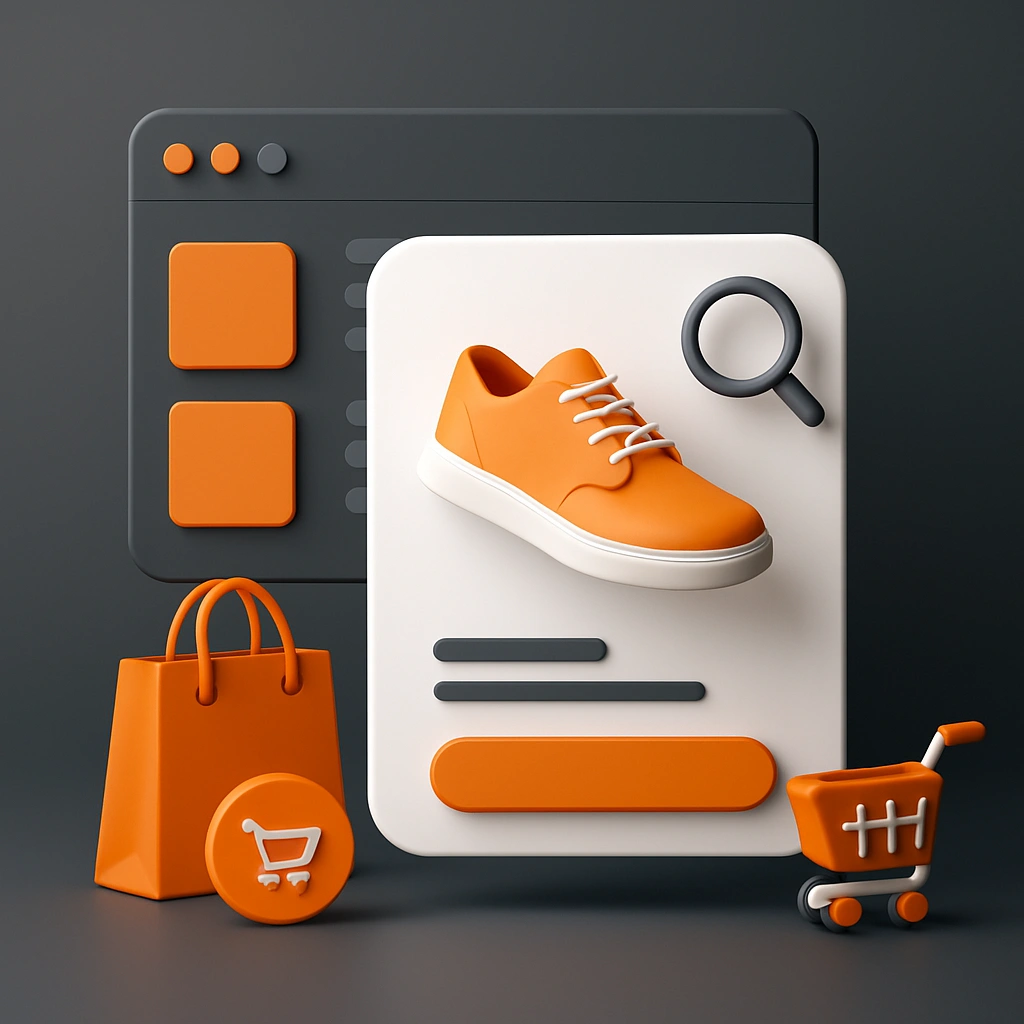
Quick View is a storefront feature that displays a product summary popup (image, price, variants, Add to Cart) without navigating away from the collection or search results page.
Table of Contents
- Understanding Quick View in Shopify
- Implementing Quick View in Shopify: Step-by-Step Guide
- Accessing Theme Settings
- Enabling Built-in Quick View
- Installing Third-Party Apps
- Customizing Quick View Popups
- Strategic Business Value of Quick View
- Optimization Tips for Effective Quick View Usage
- Conclusion
- References
- Frequently Asked Questions
- How do I set up Quick View on my Shopify store?
- What are the best practices for designing Quick View popups?
- Can Quick View improve my store's conversion rate?
Understanding Quick View in Shopify
Quick View is a vital feature in modern e-commerce storefronts, especially on platforms like Shopify. It allows customers to preview product details - such as images, pricing, variants, and descriptions - without leaving the current collection or search results page. This functionality significantly enhances user experience by reducing the number of clicks needed to access product information, thereby decreasing bounce rates and increasing conversion rates.
In essence, Quick View acts as a modal popup or overlay that provides a snapshot of the product, enabling shoppers to make quicker purchasing decisions. It is particularly beneficial for stores with extensive product catalogs, where navigating to individual product pages can be time-consuming. According to recent studies, implementing features like Quick View can boost conversion rates by up to 20%, as it streamlines the shopping process and keeps customers engaged.
From a technical standpoint, Quick View is often implemented via JavaScript, AJAX, or Shopify apps that dynamically load product data. This feature not only improves the shopping experience but also offers store owners opportunities for customization, such as adding promotional banners, upsell suggestions, or quick add-to-cart buttons within the popup.
Implementing Quick View in Shopify: Step-by-Step Guide
Accessing Theme Settings
To enable or customize Quick View, start by navigating to your Shopify admin panel. Go to Online Store > Themes. Select your active theme and click on Customize. Many Shopify themes come with built-in Quick View options, which can be accessed through the theme editor. If your theme supports Quick View, you'll typically find the setting under Product Grid or Collection Pages.
Enabling Built-in Quick View
If your theme includes a native Quick View feature, activate it by toggling the relevant switch. For example, in the Shopify theme editor, look for options like Enable Quick View or Show Quick View Button. Adjust the position, style, and behavior of the Quick View button to match your storefront design.
Installing Third-Party Apps
If your theme lacks a native Quick View feature, consider installing a Shopify app. Popular options include Quick View apps such as Quick View, Quick View & Sticky Add to Cart, or Ajaxify. These apps typically offer easy setup, customizable modal styles, and advanced features like product variants preview, image zoom, and mobile responsiveness.
Customizing Quick View Popups
Once enabled, customization involves editing the popup layout, content, and triggers. Many apps and themes allow you to modify the appearance via theme settings or custom CSS. For advanced customization, developers can override default templates by editing product-quick-view.liquid or similar snippets within the theme files. Ensure that your Quick View implementation is mobile-friendly, as a significant portion of e-commerce traffic originates from smartphones.
Strategic Business Value of Quick View
Implementing Quick View offers tangible benefits for online retailers. It improves user engagement by providing instant access to product details, which encourages quicker decision-making. This feature reduces friction in the shopping process, leading to higher conversion rates and increased average order value.
From an SEO perspective, Quick View can positively impact your store's performance by decreasing bounce rates and increasing time spent on your site. Moreover, it enables you to showcase multiple products simultaneously, capturing customer interest without overwhelming the page load time. The ability to customize Quick View popups also allows for targeted promotions, cross-selling, and upselling, which are proven strategies to boost revenue.
Real-world examples demonstrate that stores utilizing Quick View report up to a 15-20% increase in sales. For instance, fashion retailers often use Quick View to allow customers to see size options, color variants, and add-to-cart options seamlessly, resulting in a smoother shopping experience.
Optimization Tips for Effective Quick View Usage
- Ensure Mobile Responsiveness: With over 50% of e-commerce traffic coming from mobile devices, your Quick View popup must be optimized for small screens. Test across various devices to ensure usability.
- Limit Popup Load Time: Optimize images and scripts to prevent delays, which can frustrate users and lead to cart abandonment.
- Customize Content Strategically: Include essential product details like price, variants, and a compelling call-to-action. Avoid cluttering the popup with unnecessary information.
- Use Clear Call-to-Action Buttons: Make sure the Add to Cart button is prominent and functional within the Quick View popup.
- Test and Iterate: Regularly analyze user interactions with Quick View using tools like Google Analytics. Adjust the design and functionality based on data-driven insights.
Conclusion
Quick View is a powerful feature that enhances the shopping experience by providing instant access to product details without navigating away from the collection or search results page. Proper implementation and customization can lead to increased engagement, higher conversion rates, and improved customer satisfaction. As e-commerce continues to evolve, features like Quick View are becoming essential for competitive online stores aiming to deliver seamless, fast, and engaging shopping journeys.
References
Frequently Asked Questions
How do I set up Quick View on my Shopify store?
Setting up Quick View on your Shopify store involves choosing the right approach based on your theme and technical skills. If your theme supports native Quick View, enable it through the theme customization settings. For themes lacking this feature, install a compatible Shopify app from the Shopify App Store. After installation, configure the appearance and behavior of the Quick View popup via the app's settings or theme editor. Customizations may include adjusting button placement, popup size, and content. Testing across devices ensures a seamless experience. For advanced users, editing theme code to create a custom Quick View modal is also an option, but it requires familiarity with Liquid, JavaScript, and CSS.
What are the best practices for designing Quick View popups?
Designing effective Quick View popups involves balancing aesthetics with functionality. Keep the layout clean and uncluttered, highlighting key product details such as images, price, variants, and a prominent Add to Cart button. Use high-quality images optimized for fast loading. Ensure the popup is mobile-responsive, with easy-to-tap buttons and readable text. Incorporate trust signals like reviews or badges if applicable. Avoid overwhelming users with too much information; instead, focus on essential details that facilitate quick purchasing decisions. Consistent styling with your overall theme enhances brand cohesion. Regularly test the popup's usability and load times to optimize performance and user satisfaction.
Can Quick View improve my store's conversion rate?
Yes, implementing Quick View can significantly improve your store's conversion rate. By allowing customers to preview product details instantly, it reduces the number of steps needed to add items to the cart, decreasing cart abandonment. Quick View also enables shoppers to compare multiple products quickly, increasing engagement and the likelihood of purchase. Data from various e-commerce studies indicate that stores with Quick View features see up to a 20% increase in conversions. Additionally, it enhances the overall shopping experience, encouraging repeat visits and positive reviews. Properly optimized Quick View features, combined with strategic placement and compelling content, are proven to boost sales and customer satisfaction.

About Priya Sharma
Content marketing expert and Shopify ecosystem authority. Priya has helped 200+ stores grow organic traffic through strategic blog content and keyword targeting.