How to Edit Shopify Collection SEO Fields
Discover how to edit Shopify collection SEO fields to improve search visibility, align titles and descriptions, and optimize product order effectively.
You open a Shopify collection expecting a quick SEO improvement, then find the customer-facing name, description, URL handle, search preview, featured image, and product order in different parts of the admin. If you're learning how to edit Shopify collection SEO fields, the first step is knowing which field controls which part of the shopper's experience.
Most Shopify collection SEO problems don't come from a lack of keywords. They come from editing the wrong field or treating a collection page like a product page. You change the title, but Google still shows the old result, and you start wondering whether your theme or Shopify is overriding the work.
This guide covers the exact path through Products > Collections, the fields that affect search and merchandising, and the checks that show whether your update reached the live store. wRanks adds an AI-powered SEO layer for reviewing collection titles, meta tags, and related content across a larger catalog, while Shopify remains the source record.
Fix the Collection Fields That Control Search Visibility and Clicks
You can improve a search result while leaving the collection page unclear. A shopper may see a polished listing for “Women’s Running Shoes,” then land on a page with a vague title, no useful description, and poorly ordered products.
Each field supports a different part of the journey. Your collection title and description explain the page to shoppers, while the SEO title and meta description shape the result they choose. The strongest update keeps every field aligned with the same collection intent.

How do you separate page copy from the search-engine listing
Your visible title appears on the collection page and should identify exactly what shoppers will find. Your description adds context, such as fit, materials, use cases, or shipping expectations. The search listing needs a concise promise that earns the click without repeating unclear page copy.
Weak example: Title: Shoes. SEO title: Shoes | Store Name. Meta description: Shop our shoes online.
Strong example: Title: Women’s Waterproof Running Shoes. SEO title: Women’s Waterproof Running Shoes | TrailStep. Meta description: Shop women’s waterproof running shoes with cushioned support for wet trails and daily training.
Changing only the search preview may improve relevance before the click, but the page can still disappoint shoppers if its title and description provide no useful context. wRanks can review collection titles and meta tags across your catalog, although you still need to confirm that AI-generated suggestions match each collection’s products.
How many characters should a title and description use
Shopify allows a page title of up to 70 characters, according to Shopify’s SEO guidance. To reduce the chance of shortening in search results, Shopify recommends keeping that title to 60 characters.
“Shopify recommends keeping a page title up to 60 characters to avoid shortened titles in search engine results,” according to Shopify.
Shopify recommends a meta description of 160 characters and says each description should be unique, plain, and direct. Use those limits as editing targets, not permission to fill every character.
What happens when you change the handle, image, or product order
Your handle changes the collection URL, not the wording displayed in the search result. A featured image affects visual presentation, while product order affects merchandising and which items shoppers see first. None fixes unclear collection copy.
Weak example: changing the handle to /premium-running-shoes while keeping the title “Shoes” and leaving clearance products first.
Strong example: use /womens-waterproof-running-shoes, match it with clear collection copy, choose a relevant image, and place the best in-stock products first.
Practical rule: Make every field support the same collection intent, then preview the result before saving.
Choose the Shopify Editing Route Before You Start
Start by separating content from merchandising. Your title, description, URL handle, SEO title, and meta description shape search intent. Your featured image and product sort order shape what shoppers see after they arrive.
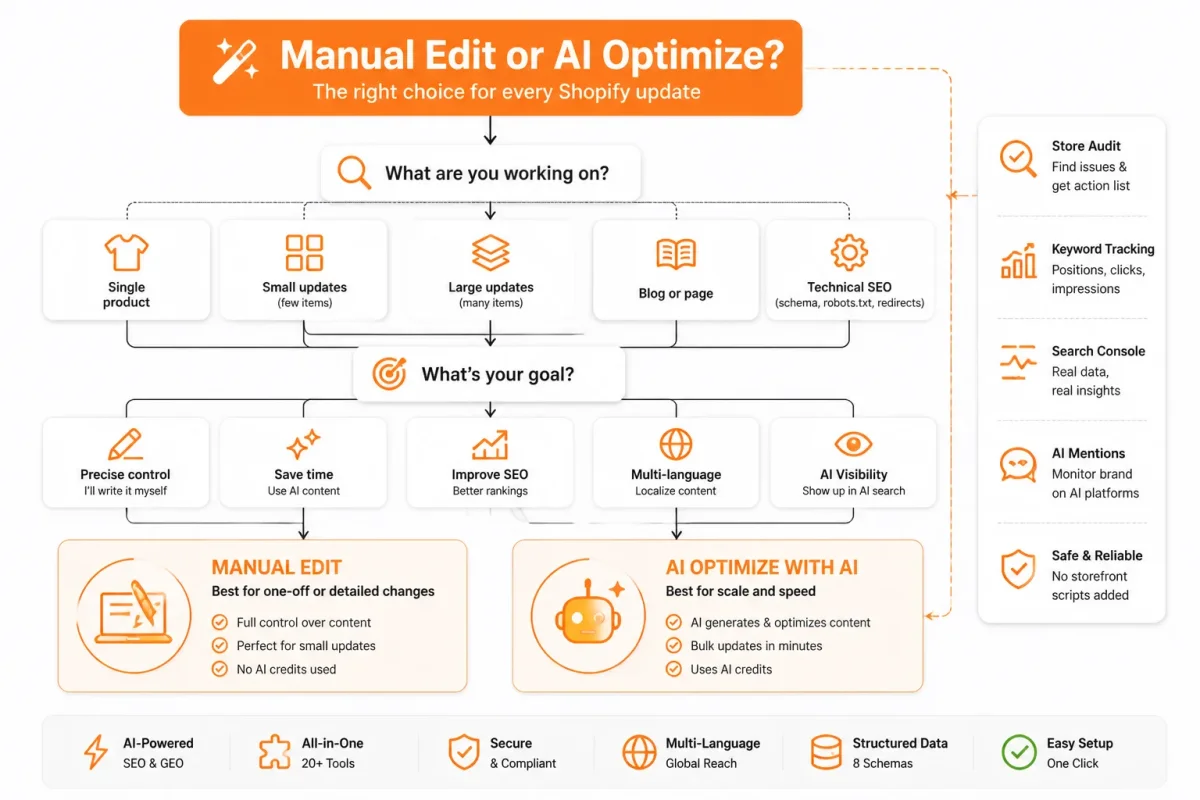
A one-off collection usually needs careful manual editing. A large catalog benefits from a repeatable review process that keeps metadata, keywords, structured data, and Search Console insights together.
Use the collection editor for storefront content and images
Open Products > Collections when you need to change the customer-facing collection title or description. Shopify’s documentation confirms that you select the collection, edit the existing title or description, and save the record. You can also change the featured image and product display order there.
Product order is merchandising, not SEO copy. Shopify states that new collections use Most relevant by default, and your selected sort order controls how products appear when the collection is featured. If “Women’s Rain Jackets” shows clearance items first, changing its meta description won’t fix the shopping experience.
Use the search listing editor for the SEO title, description, and handle
Open the collection’s Search engine listing section and select Edit when you need a distinct SEO title, meta description, or URL handle. These fields control the search preview rather than the visible collection heading.
Weak example: SEO title “Jackets | Northstar,” meta description “Shop our jackets,” and handle /collections/jackets. Strong example: SEO title “Women’s Waterproof Rain Jackets | Northstar,” meta description “Shop lightweight waterproof rain jackets for commuting, hiking, and wet-weather travel,” and handle /collections/womens-waterproof-rain-jackets.
Use wRanks for repeated collection reviews
For many collections, wRanks provides an AI-powered SEO review layer for metadata, keyword tracking, structured data, image alt text, and Google Search Console insights. It helps you find inconsistent fields and prioritise improvements, but it doesn’t replace human approval for brand language, search intent, or URL changes.
Use manual editing when one collection needs judgment. Use wRanks when your Shopify store needs the same review across dozens of collections. A companion keyword cannibalization guide for Shopify fits this workflow when several collections target similar terms.
| situation | better move |
|---|---|
| One collection needs a clearer customer-facing title or description | Use Products > Collections and edit the collection record directly |
| The Google preview needs a distinct SEO title or meta description | Open the collection's Search engine listing section and select Edit |
| The image or product presentation is wrong | Change the featured image or collection sort order in the collection editor |
| Many collections need consistent SEO review and prioritization | Use wRanks for AI-assisted review, keyword tracking, and Search Console-informed optimization, with human approval |
Prepare the Collection Record and Baseline Before Editing
Before changing a field, capture what your collection currently says and where it sends shoppers. You need a reliable before-and-after record, not a vague memory of the old title or search preview.
Spend a few minutes on this audit, then confirm the editing route and assign one person to make the change. You'll know what changed, why it changed, and whether the result matches your target search intent.
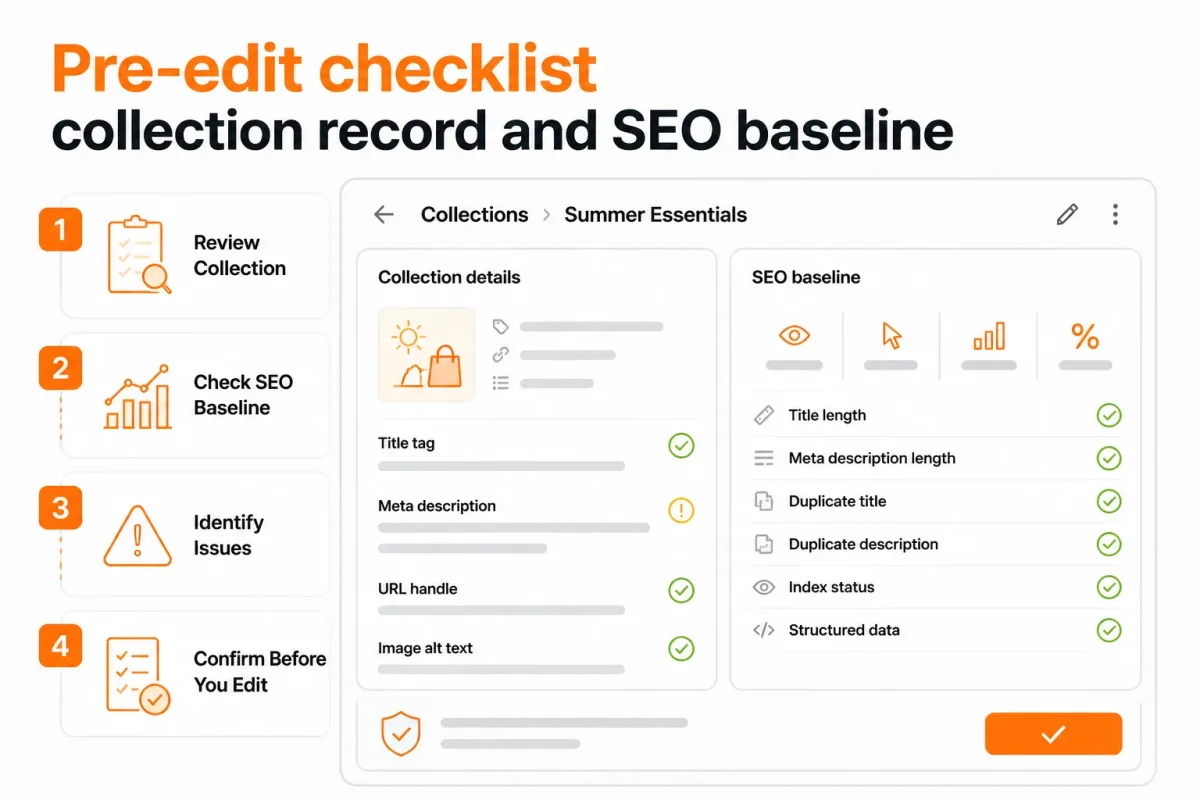
Record the current collection URL and search preview
Open the collection in Shopify and record the live URL, visible title, description, handle, SEO title, meta description, featured image, and product sort setting. You can use a screenshot, a shared document, or your SEO worksheet, but capture every value before selecting Save.
- Collection URL: Copy the live address and check that it points to the intended collection.
- Visible content: Record the customer-facing title and description exactly as they appear.
- Search listing: Save the current SEO title, meta description, and preview text.
- Merchandising: Note the featured image and current product sort setting.
Shopify displays collection products in pages of 60 products per page inside the Collection items area, according to Shopify’s collection layout documentation. You may need deliberate page-by-page review when product order matters.
Choose one primary phrase and supporting product language
Choose one phrase that accurately describes the products in your collection and matches the search intent. You can record related product terms as supporting language, but don't turn the title into a list of loosely connected keywords.
Weak example: “Shoes, Sneakers, Running Footwear, Athletic Shoes.”
Strong example: “Women’s Trail Running Shoes” with supporting terms such as “grippy soles,” “water-resistant uppers,” and “wide-fit options.”
A Shopify meta description example guide fits this preparation step because you can use its patterns while recording your current and proposed search listing.
Confirm whether you are editing a collection or the collections index
Check the URL before you begin. An individual collection usually has a path such as /collections/womens-trail-shoes, while the broader /collections index may require theme-level handling rather than a normal collection record edit. Don't treat the index page like an ordinary collection.
Set a clean handoff for staff and approval
Ask whether another team member, agency, or app is editing the same collection. Record the assigned editor, target phrase, proposed changes, and approval status so two people don't overwrite each other's work.
- Editor: Name the person responsible for the Shopify change.
- Approval: Confirm who reviews the copy and search listing before publication.
- Baseline: Attach your screenshot or notes before touching Save.
Edit the Collection SEO Fields in Shopify Admin
Your baseline gives you a safe starting point. Now you can update the collection record without losing its current URL, merchandising order, or search data.
Shopify separates shopper-facing content, collection imagery, product order, and search-engine fields. Work through them in sequence, save each change, and check the result before moving on.
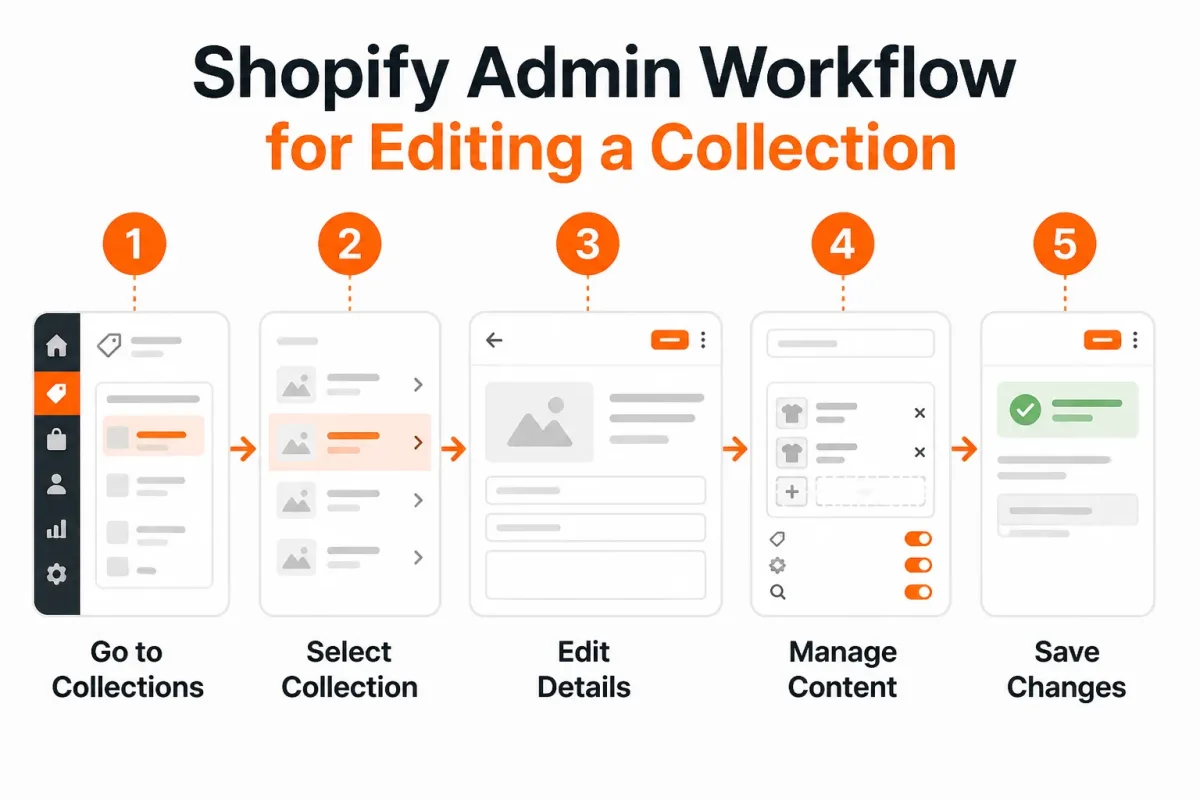
1. Edit the collection title and description
To edit a collection, open Products > Collections, select the collection, change its title and description, then select Save. Keep the title specific, such as “Women’s Running Shoes,” and explain the products naturally in the description.
Failure check: If your edits disappear, return to the collection and confirm that you selected Save before leaving the page.
2. Update the storefront copy and collection image
Use the same collection screen to update the visible name and copy your shoppers see. You can also replace the collection image from the image menu, but the image itself is not the same as image alt text.
Before: “Shoes” with a generic sneaker photo.
After: “Women’s Running Shoes” with a clear running-shoe image and copy about fit, cushioning, and road running.
Your image-alt-text workflow fits this step too, and this guide to Shopify product image alt text covers the related accessibility and search task.
Failure check: If the image changes but accessibility text does not, edit the relevant image alt text separately.
3. Change the collection image in Shopify
Open the collection’s image control, choose Change or Remove, select the replacement image, and save the collection. Check the storefront afterward to confirm the theme uses that collection image.
Failure check: If the homepage still shows the old image, the theme section may use a separate image setting or cached content.
4. Edit the handle and search-engine listing fields
Change the handle only when the URL needs a clear correction. Then scroll to Search engine listing, select Edit, and enter the SEO title and meta description. Shopify’s documented workflow places these fields on the collection page under that search listing section. Shopify Merchants Community describes this editing path.
Before: Handle: collections/shoes; SEO title: “Shoes | Store Name.”
After: Handle: collections/womens-running-shoes; SEO title: “Women’s Running Shoes | Store Name.”
Failure check: An accidental handle change can create broken links or redirect work. Restore the original handle or confirm Shopify’s redirect before publishing.
5. Change the product order on the Shopify website
In the collection, use the sorting control and choose Manually, then drag products into the order shoppers should see. This order applies when the collection appears on the storefront or in a featured collection section.
Failure check: If the order looks unchanged, check whether the theme section applies its own product source or sorting rule.
6. Change the product order on the Shopify home page
Set the collection to manual sorting, save it, and confirm that the homepage section is displaying that same collection. Put the strongest products first when the section uses collection order.
Failure check: If the homepage differs, inspect the section settings rather than changing the collection repeatedly.
Save, preview, and compare the before-and-after record
Save after the content, image, handle, SEO listing, and product-order changes. Preview the collection, check the live URL, and compare every field with your baseline.
- Content: The visible title and description match the intended target phrase.
- URL: The handle is correct, and any changed URL has a confirmed redirect.
- Search listing: The SEO title and meta description remain populated after saving.
- Merchandising: The featured image and product order appear correctly on the collection and homepage.
- Google timing: The saved search preview may not appear in Google immediately because crawling and reprocessing take time.
Apply the Same Collection SEO Logic Across a Larger Catalog
Editing one collection is manageable. You need a controlled pattern when your Shopify store has dozens or hundreds of collections, because repeated manual work can create uneven titles, missing descriptions, and accidental URL changes.
Your goal is consistency without making every collection sound identical. Shopify confirms that you can set a meta description for collection pages, and it identifies four key keyword locations: page titles, meta descriptions, image alt text, and body content. That gives you a practical field framework, not permission to publish duplicate copy.
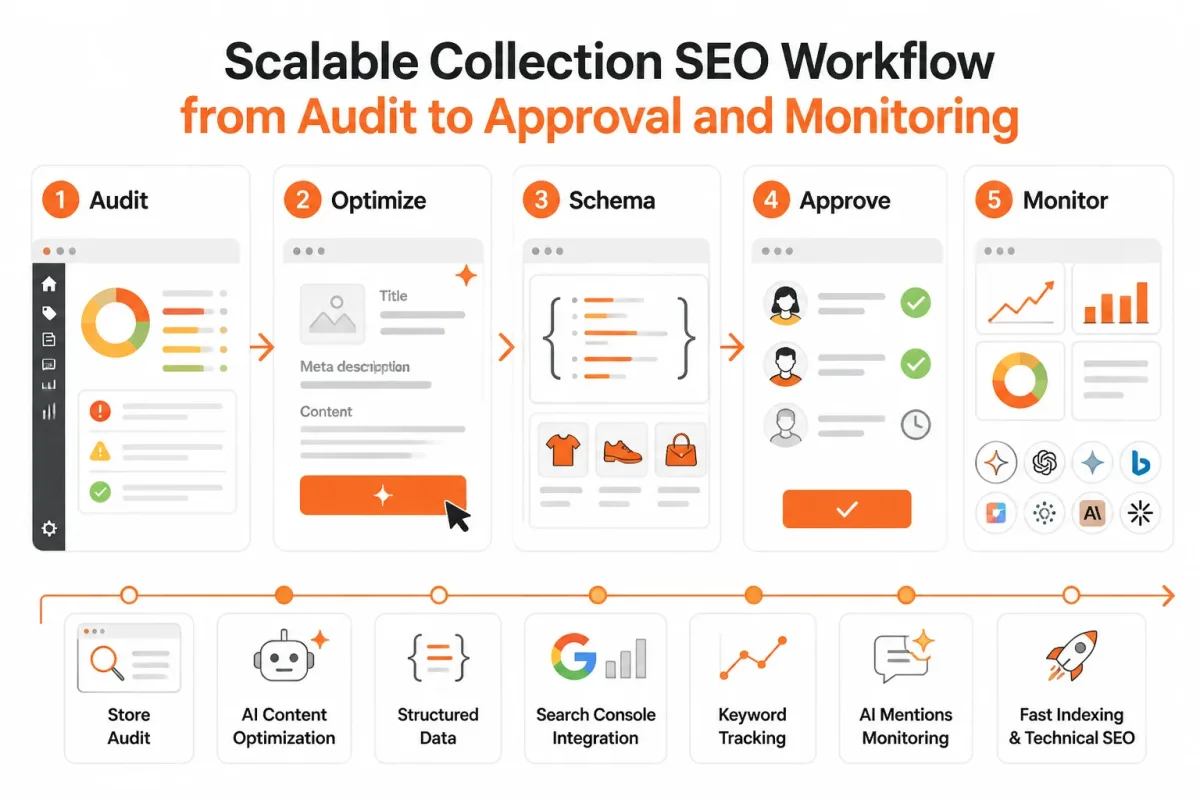
Build a collection-field template without creating duplicate copy
Start by grouping collections by type, such as women’s shoes, men’s shoes, and running accessories. For each group, define the expected title length, description purpose, search listing format, image standard, and handle style. Then approve one representative collection before applying the pattern elsewhere.
Weak example: “Shoes | Store Name” with “Shop our shoes” in the description and a handle such as /collections/shoes-new.
Women’s Running Shoes: “Women’s Running Shoes | Lightweight Training Styles” with a description explaining cushioning, fit, and available brands, using the stable handle /collections/womens-running-shoes.
Use wRanks to prioritise and review collection improvements
wRanks can help you identify missing meta tags, weak keyword coverage, structured data gaps, image alt text issues, and collections that need stronger AI-generated content. You can combine keyword tracking with Google Search Console insights, then prioritise collections with impressions but weak clicks. AI assistance improves coverage, but you still approve the final copy.
What works
- Batching: You update similar collection types together while preserving each collection’s actual products.
- Review points: You check titles, descriptions, images, and search listings before publishing.
- Measured changes: You compare keyword and Search Console data after each approved batch.
What fails
- Duplicate templates: You publish the same description across collections with different shopping intent.
- Unreviewed claims: You allow generated copy to promise materials, delivery, or features the products do not provide.
- Bulk URL edits: You change handles without confirming redirects and live URLs.
Keep human approval for handles, claims, and brand language
Automation saves time, while manual review protects merchandising nuance. You should require approval for seasonal wording, product claims, brand tone, and every handle change. Never bulk-change handles without a redirect and live-URL review.
Handle the collections index page as a separate theme-level case
Your collections index is not just another collection record. Theme sections, navigation links, featured imagery, and visible headings may control its presentation. Review that page separately, and confirm that generated copy matches the collections your shoppers actually see.
Diagnose Shopify Collection SEO Failures by Their Visible Symptoms
You can save a new Shopify value and still see an old Google result, unchanged homepage order, or a broken storefront path. Those outcomes don't always mean your edit failed. Separate the saved collection record, the live page, and the version a search engine or theme section chooses to display.
Shopify explains that longer page titles and descriptions may be shortened in search results, while Google may also select different text. Shopify also recommends readable phrases and sentences instead of random keyword placement. Use the symptom, not guesswork, to choose your first fix.
| symptom | likely cause | first fix |
|---|---|---|
| Google still shows the old title | The page has not been recrawled, or Google selected a different title | Confirm the saved search listing and live source, then request or await recrawl |
| The description reads like a keyword list | Keywords were added without natural phrasing | Rewrite it as unique, plain, direct language that explains the collection |
| The new handle produces a broken URL risk | The URL changed without checking links or redirects | Test the old and new URLs and confirm the redirect before promoting the new address |
| The homepage product order did not change | The featured section uses another collection or sort setting | Verify the homepage section's collection and the collection's saved sort order |
| The collection image changed but the theme section did not | The theme section has its own image setting | Open the affected theme section and check whether it overrides the collection image |
Old search text appears after the Shopify field was saved
If Shopify shows your new SEO title but Google displays the old one, check the saved search listing and the live page source first. You may be seeing a delayed recrawl or a rewritten result, not a failed Shopify update. Shopify confirms that search engines can shorten longer titles and descriptions.
Don't keep changing the title every few hours. Record the saved version, inspect the live collection page, and request a recrawl in Google Search Console when appropriate. Then give the result time to refresh.
The collection ranks for the wrong phrase
A keyword-stuffed description can make your collection unclear to shoppers and search systems. Shopify advises using natural phrases and readable sentences, so replace the list with one direct explanation of the products and shopper intent.
Weak: Running shoes, women's running shoes, sneakers, athletic shoes, running footwear.
Strong: Women's running shoes for daily miles, tempo sessions, and comfortable training.
The homepage product order does not match the collection order
If your collection order changed but the homepage did not, open the homepage section and confirm that it points to the intended collection. Then check the collection's saved sort order. A homepage section may show another collection or apply its own display setting.
The image or URL change creates a storefront problem
A changed handle can break links if you don't test both addresses and confirm the redirect. Check navigation, campaign links, and the live old URL before promoting the new one. If the collection image changed but a theme section did not, inspect that section's separate image setting.
Check Shopify's saved fields, the live storefront, and Google Search Console separately. That will show whether the problem sits in the record, the theme, or search display.
Verify the Change in Shopify, Search Console, and the Live Store
You can save a collection and still show shoppers the wrong title, image, URL, or product order. Google may also keep an older search listing until it revisits the page.
Use a three-layer check instead of treating Save as proof of success. You need alignment between Shopify, the live collection page, and the search data before you mark the edit complete.
Confirm every field saved in the Shopify admin
Return to the collection record and check each value after saving. You should see the intended collection title, description, handle, featured image, product sort, SEO title, and meta description. Your record is ready when every field matches the copy and merchandising decision you documented.
- Collection title: You see the customer-facing name that matches the collection's products.
- Description: You see readable copy that explains the collection's search intent.
- Handle: You see the intended URL path without an accidental change.
- Featured image: You see the image selected for the collection record.
- Product sort: You see the intended order or automated sorting rule.
- Search listing: You see the saved SEO title and meta description in the preview.
Inspect the live collection and featured placement
Open the collection page in a private browser window, then check what your shoppers actually receive. Confirm the page heading, description, image, product order, and URL. Inspect the page source when appropriate to compare the canonical URL, title element, and meta description with your saved Shopify values.
For example, a weak listing may read:
Women’s Shoes | Store Name
Women’s Running Shoes for Road Training | Store Name
The stronger version makes the collection purpose clearer. Your live page should also show the same intent through its products and featured placement.
Use Search Console to compare indexing and query signals
After Google has recrawled the page, inspect its URL in Google Search Console. You can compare indexing status, indexed URL details, queries, impressions, clicks, and average position with your baseline. Don't expect the search result to change immediately, and don't treat an unchanged report as proof that Shopify failed.
Revisit the field when Google rewrites the listing
Google may rewrite your title or description even when Shopify saved your text. Compare the entered copy with the live page, then shorten or clarify it when the wording is repetitive, vague, or mismatched.
For example, you might replace:
Shop All Products | Store Name
Women’s Running Shoes for Road Training | Store Name
wRanks can help you review meta tags and Search Console signals across Shopify stores, although Google still controls the final search display. Record a pass or fail note for your collection so the next catalog edit has a clear verification standard.
Get Direct Answers to the Remaining Shopify SEO Questions
Whether Kim Kardashian uses Shopify
There is no reliable public evidence that lets you confirm which platform Kim Kardashian uses for a particular store. Even if a celebrity did use Shopify, that fact would not change your collection editing steps or prove a useful SEO strategy. You'll get better guidance by reviewing your own titles, descriptions, URLs, structured data, and Search Console results.
Adding meta keywords in Shopify
Shopify does not provide a separate merchant-controlled meta-keywords field in its standard SEO editing workflow. Shopify’s documented SEO guidance focuses on page titles, meta descriptions, image alt text, and useful body content. You should use natural language around the search topic instead of adding keyword lists, which can make your collection copy repetitive and unclear.
Editing SEO on Shopify
You edit Shopify SEO by reviewing the relevant resource, such as a collection, product, page, or blog post, then updating its available search listing fields and customer-facing content. Store-wide SEO also includes images, structured data, internal links, performance, and Google Search Console. wRanks can help coordinate optimization across these areas, but you still approve the underlying changes.
Changing SEO on Shopify
To change SEO on Shopify, choose the resource that needs attention rather than treating the whole store as one record. Collection SEO focuses on the collection name, description, handle, and search listing. Product, page, and blog SEO require separate reviews. After you save a change, check the live page and return to the single-collection test before expanding the update.
Start With One Collection and Repeat the Proven Sequence
You don't need to rebuild your Shopify catalog to improve collection SEO. Start with one representative collection, complete every related edit, and use the result to establish a repeatable standard for your store.
The goal isn't more keywords. Your title, description, search listing, handle, image, and product order should all support the same search intent. That shared purpose gives you a better pattern to repeat.
Choose one representative collection
Open Products > Collections and choose a collection with meaningful products, clear commercial intent, and enough traffic or revenue to make review worthwhile. Record its current title, description, handle, search listing, featured image, and sort order before changing anything.
- Select: Choose one collection that represents a common category in your Shopify store, such as women’s running shoes.
- Record: Copy the current customer-facing fields, search-engine listing, URL handle, image, and product order into your working notes.
- Focus: Choose one accurate target phrase that matches what shoppers expect to find on the page.
Edit and save every relevant field
Improve the visible collection copy and search listing together. Keep the wording specific to the products, confirm the handle before saving, replace the image only when it supports the collection, and set the intended product order for featured placements.
Weak example: “Running Shoes | Store Name” with “Shop our best running shoes and more.”
Strong example: “Women’s Running Shoes | Store Name” with “Shop women’s running shoes for daily miles, treadmill workouts, and race training.”
Save only after the fields agree. Keyword insertion without matching products creates a poor customer experience, not stronger SEO.
Verify the live result before scaling the pattern
Open the live collection page after saving. Check the heading, description, image, URL, product order, and search listing, then document what changed and what still needs review. Your approved first collection can become a template for a wRanks-assisted catalog review, while you retain final control over brand language and URLs.
- Inspect: Confirm that the live page reflects the saved content and displays the intended products first.
- Document: Record the approved wording, field choices, and any follow-up task.
- Repeat: Apply the proven pattern to the next collection only after the first result passes your check.
If you want a faster way to do this, wRanks uses AI-powered SEO tools to review meta tags, structured data, image alt text, and keyword performance for Shopify stores. Explore Shopify SEO guidance from wRanks while keeping final approval of your store’s language and URLs.

Digital growth consultant specializing in AI-powered commerce strategies. Amira bridges the gap between cutting-edge AI tools and practical Shopify store growth.