How to Add a Collapsible Product Description in Shopify
Shopify collapsible product description techniques improve product page structure, keeping key info visible while supporting details stay accessible and
Your shopper lands on a product page from a phone, then keeps scrolling. Specifications come first, followed by shipping details, care instructions, and FAQs. A shopify collapsible product description can keep that information available without pushing the purchase controls below a wall of text.
Most Shopify merchants don't have a content problem. They have a product-page structure problem. The answer isn't deleting details that help someone buy. It's keeping the value proposition and purchase path clear while placing supporting information where shoppers can open it when needed.
The real goal is better information architecture. Collapsed content should stay product-specific, accessible, and available to search systems. It shouldn't become vague JavaScript text or duplicated template copy.
This guide covers Online Store 2.0 themes, metafields, product templates, and native HTML, then shows how to test one product before a wider rollout. wRanks can help you review meta tags, structured data, image alt text, keyword visibility, and Google Search Console performance.
Why Collapsing Product Content Must Not Mean Hiding It
You can make a Shopify product page easier to scan without burying the details that answer purchase objections. When you hide the product promise, key benefits, or price context, your customer may miss the reason to buy before opening any row.
A Shopify Community discussion about adding a collapsible description drew 1.4k views and included two linked responses. That signals recurring merchant demand, not proven SEO performance. Your layout must balance mobile usability with crawlable, accessible product information.

How do you keep the product promise and primary keywords visible
Keep your product name, primary benefit, material, fit, price context, and main buying reason visible. Search systems and AI platforms can understand expandable content, but your most valuable information shouldn't depend on a shopper opening a control.
Weak visible copy: "Premium jacket for outdoor use."
Strong visible copy: "TrailShell Rain Jacket keeps commuters dry with a waterproof 3-layer shell, sealed seams, and an adjustable hood."
Shopify's Collapsible Row block can be edited in Online Store > Theme > Customize.
Shopify Community documents that editing path in its July 2022 discussion. You can review the related guide to adding product schema in Shopify when your product page also needs structured data checks.
What should you use collapsible content for
Use expandable rows for supporting information that helps a confident buyer confirm details. Good candidates include fabric specifications, washing instructions, delivery windows, returns, sizing guidance, and product-specific FAQs.
Weak row: "Shipping information."
Strong row: "Ships from Columbus, Ohio within 2 business days. Standard delivery takes 3 to 5 business days."
Shopify Community also explains that a Collapsible Row suits content shared across product pages. You need a product data source, such as metafields, for details that change between a TrailShell jacket and another product.
What rule should you apply before editing
Practical rule: Keep the product promise, primary benefits, price context, and essential decision information visible; place secondary specifications, care instructions, shipping details, and FAQs in expandable rows.
Before publishing, check keyboard access, mobile tap targets, crawlable text, structured content, image alt text, metadata, keyword tracking, and Google Search Console signals. wRanks can help review those SEO elements and visibility in AI search, but your store still needs a real usability test on the product template.
Choose the Shopify Collapsible Method That Matches Your Store
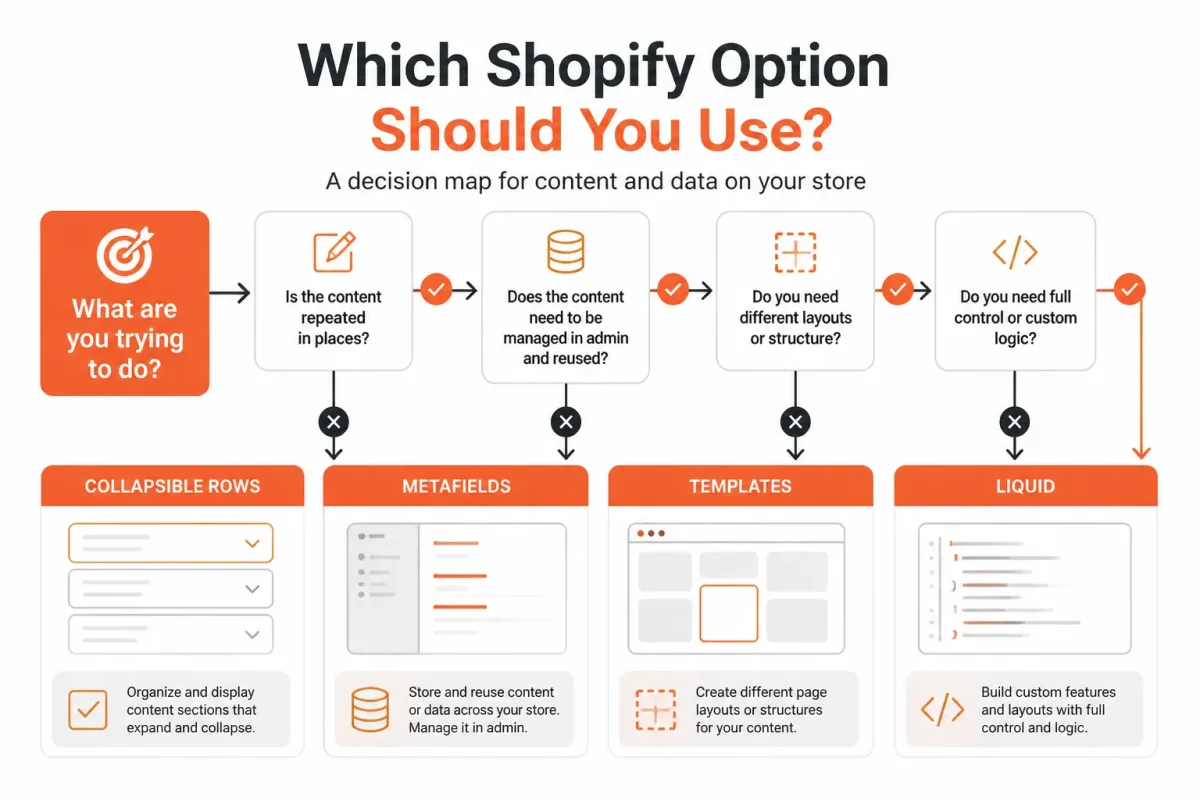
How you split product descriptions in Shopify depends on whether the content is shared or unique. A shipping policy can serve every product, while materials, dimensions, and product-specific FAQs usually cannot.
Your theme's default product template is shared across assigned products. Shopify Community guidance confirms that a Collapsible Row added there can appear across those products. The right method separates reusable presentation from product-level content.
Use a Collapsible Row for content shared by products on one template
Use the Theme Editor's Collapsible Row when you want the same care, shipping, warranty, or returns explanation on many products. Shopify Community describes these rows as connected to the shared product template, so hard-coded text can repeat wherever that template is assigned.
Weak example: a row titled "Details" contains "Free shipping and easy returns" directly in the template.
Strong example: a row titled "Shipping and returns" contains your approved "Free shipping over $75. Returns accepted within 30 days" policy across the relevant products.
Use product metafields for unique descriptions and Shopify accordion FAQ content
Use a product metafield when each product needs different specifications, materials, or FAQs. Create a text or rich-text metafield in Shopify admin, then connect the Collapsible Row through Insert dynamic source. Shopify Community guidance confirms that this approach gives each product unique expandable content without changing theme code.
Weak example: every product's "Materials" row says "Made with premium materials."
Strong example: the "Materials" row draws "14-ounce organic cotton canvas with recycled polyester lining" from each product's metafield.
A Page reference can suit reusable education or policy content, but it's a poor fit for product-specific specifications. If you support many unique products, metafields are usually the easiest content model to maintain.
| situation | better move |
|---|---|
| The same shipping, care, or warranty explanation belongs on many products | Use a Theme Editor Collapsible Row with shared content |
| Each product needs different specifications, materials, or FAQs | Create a product metafield and connect the row through Insert dynamic source |
| A small product group needs a different section structure | Create a separate product template and assign it selectively |
| The theme editor cannot provide the required reusable behavior or markup | Use native Liquid with details and summary in the product template |
Use a new product template or Liquid when layout control matters
Use a separate product template when a small group needs a materially different section structure. Shopify Community notes that multiple templates are possible, but this becomes harder to maintain across a large catalog than metafields.
Use native Liquid with details and summary when your theme editor cannot express the required behavior, markup, or reusable logic. You gain control, but you also take responsibility for keyboard access, mobile tap targets, and maintainable code. For most Shopify stores with many unique descriptions, product metafields offer the better balance.
Prepare Your Shopify Product Before Editing the Collapsible Description
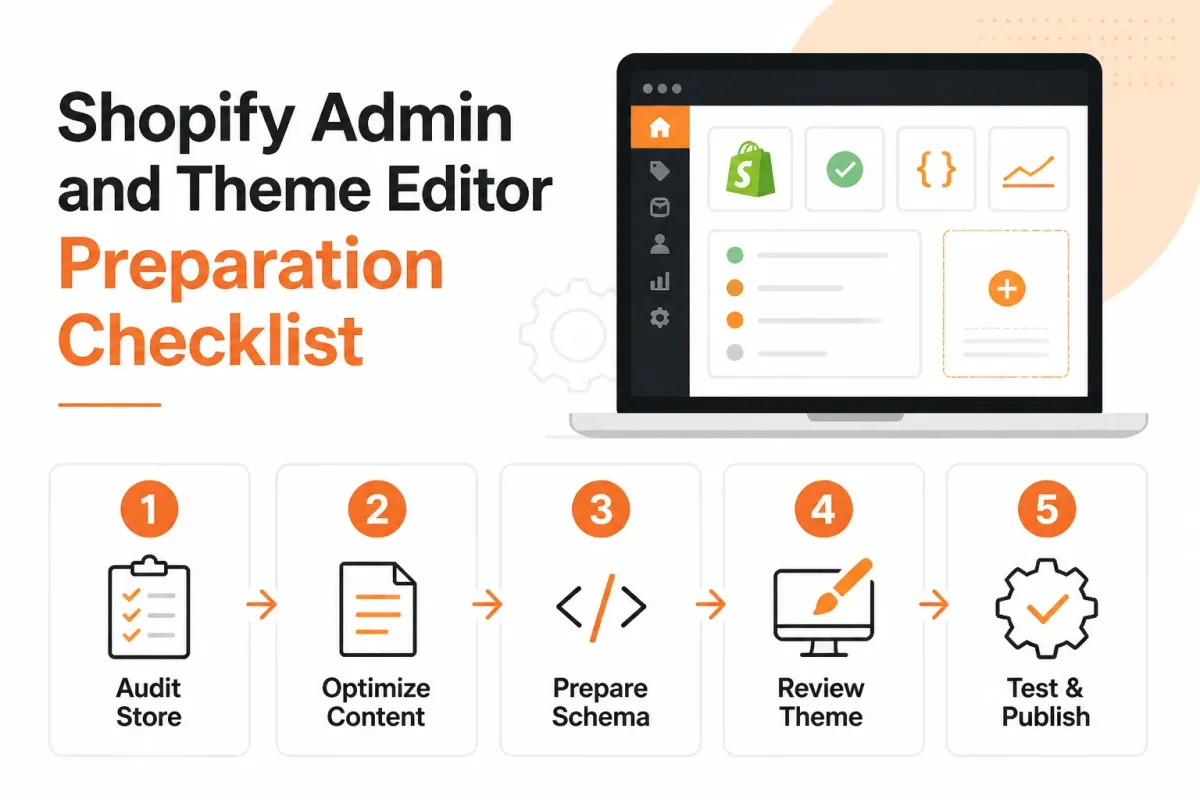
Before changing your Shopify product page, confirm where the current description appears and how the assigned template controls it. A theme preview is safer than testing on your live storefront, especially when your product content affects mobile buying decisions.
You need a clear content route before adding collapsible rows. Shared details may belong in a page reference, product-specific information may suit a metafield, and the core product explanation usually belongs in the main description. This keeps your collapsible product description useful for shoppers and readable for search engines.
Show the product description in Shopify
You show a product description through the product template in Online Store > Themes > Customize, where the standard product information section usually contains a Description block. Edit the product's Description field in Shopify admin, and the assigned template displays that content on the product page.
Check the product template preview before adding anything. If the Description block is missing, the theme may use a custom block, a metafield, a page reference, or Liquid code instead. Record which source renders the visible copy, because adding a second description source can create duplicate or confusing content.
Create a new product template in Shopify
Create a new product template from the theme editor by opening the product template selector, choosing Create template, naming the template, and basing it on the closest existing product layout. Assign it from the product's theme-template setting in Shopify admin, though the exact location can vary between admin interfaces.
First, duplicate your current live theme from Online Store > Themes. Identify whether you use Dawn, Sense, Crave, or another Online Store 2.0 theme, then record the product template assigned to your test product. A new template is useful when only a product group needs a different structure. Metafields usually suit a larger catalog with varied content.
Prepare headings, images, links, and accessible row labels
- Theme copy: Duplicate the live theme and work only in the unpublished copy.
- Content route: Classify each detail as unique product copy, shared information, or reusable policy content.
- Row labels: Prepare clear labels such as "Materials," "Sizing," "Shipping," and "Care instructions."
- Media: Check product images, alt text, and links before placing them inside expandable content.
- Copy quality: Replace vague text with useful product-specific wording.
Weak version: "Details: Premium materials and easy care."
Materials and care: "Made from 100% organic cotton. Machine wash cold and tumble dry low."
Preview one representative product on desktop and mobile before publishing. You'll see whether the description, row labels, images, links, and purchase controls remain usable at both screen sizes.
Add a Unique Collapsible Product Description With the Theme Editor
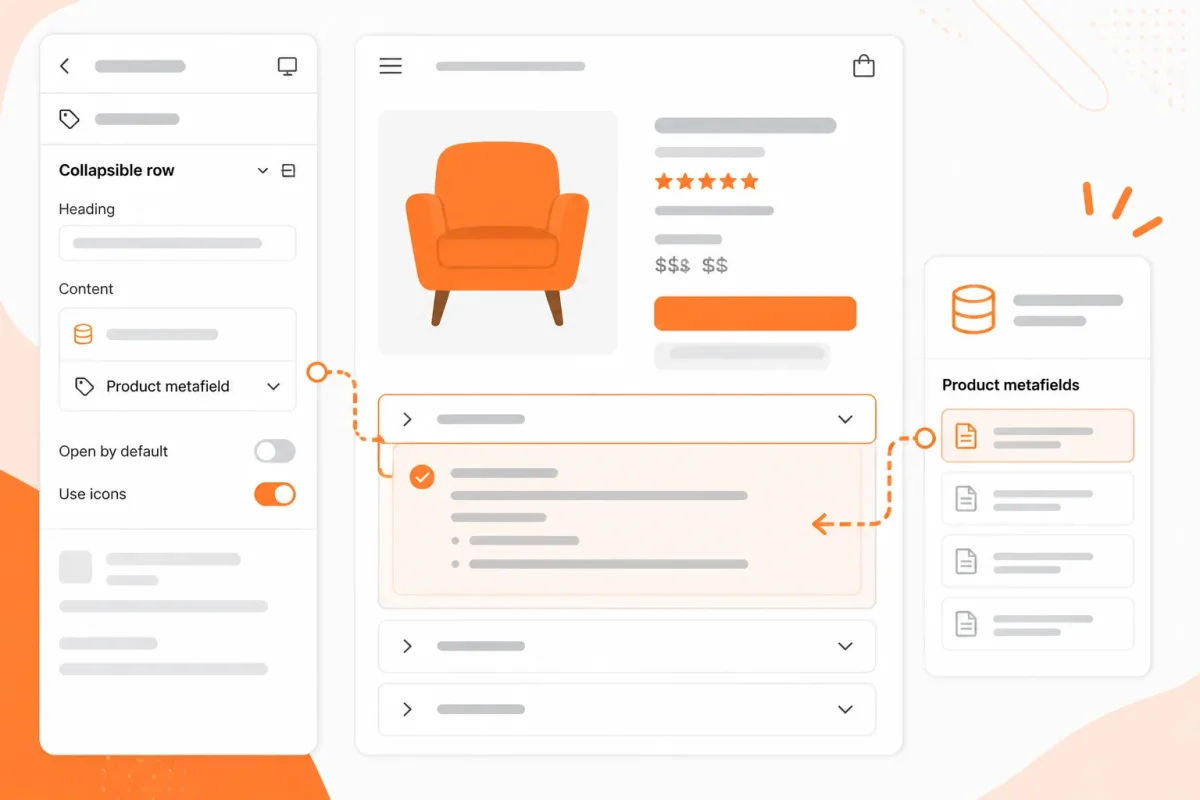
With the content route prepared, connect unique details to the right Shopify product template. Create one reusable field, fill it for a test product, and connect that field to a collapsible row.
A row filled directly in the theme editor appears across every product using that template. A dynamic source keeps the heading consistent while giving each product its own content.
Create the product metafield for collapsible content
Start in Shopify Admin and select Settings > Metafields > Products, then create a multi-line text definition. Use a stable name such as "Product Details" with a namespace and key such as custom.product_details. Don't change that key after products are populated.
Open a test product and enter useful, product-specific copy. Avoid repeating the visible value proposition.
Weak version: "Details: Premium materials and easy care."
Strong version: "Materials and care: Made from 100% organic cotton. Machine wash cold and tumble dry low."
The Shopify Community recommends creating product metafields, adding content to each product, and connecting the row through Insert dynamic source. That workflow gives you unique collapsible content without creating separate templates for every product.
Add a collapsible product description section in Shopify
In Online Store > Themes > Customize, open the product template assigned to your test product. Add a Collapsible Row, set a clear heading such as "Materials and care," and select Insert dynamic source in the row's content field. Choose your product metafield.
When it's set up correctly, the row appears on the product preview, and opening it displays the test product's specific text. If you type text directly into the row instead, every product using that template receives the same details.
Add an image without making the row harder to scan
To add an image to a collapsible row in Shopify, use the row's image setting when your theme provides one. Choose a relevant product image, not a decorative file that slows scanning.
If your theme has no image setting, add an image-capable block or use a rich-text metafield strategy supported by that theme. You can also review this guide to Shopify product image size because the same image preparation affects clarity inside expandable content.
Add an image to a Shopify collapsible row
Your image should support the nearby copy, such as a close-up of fabric care or a sizing diagram. Check that its alt text describes the image for someone who cannot see it, and keep the row label specific.
Preview the product page before publishing
Preview the test product on desktop and mobile before publishing. Open and close the row, tab to its control, and confirm the content exists in the rendered HTML.
- Metafield: The product has specific text in the new multi-line field.
- Dynamic source: The row pulls from the metafield rather than shared template text.
- Mobile layout: The label, image, copy, and purchase controls remain usable.
- Accessibility: Keyboard focus is visible, and the row control has a clear label.
- Search content: The important product information remains present in the page source.
Shopify Community guidance confirms that unique row descriptions require product metafield definitions and dynamic-source connections. You can use wRanks afterward to review related meta tags, structured data, and search visibility, although it doesn't replace theme testing.
Use Native Shopify Accordion Code When the Theme Editor Is Not Enough
Your theme editor may not expose the product description structure you need. When one reusable accordion must serve many Shopify products, you can place native HTML around the description in the product template instead.
You get more control over layout and markup, but you also take on theme maintenance. Keep the content in Shopify data and the presentation in one shared template implementation.
Wrap the description with native details and summary elements
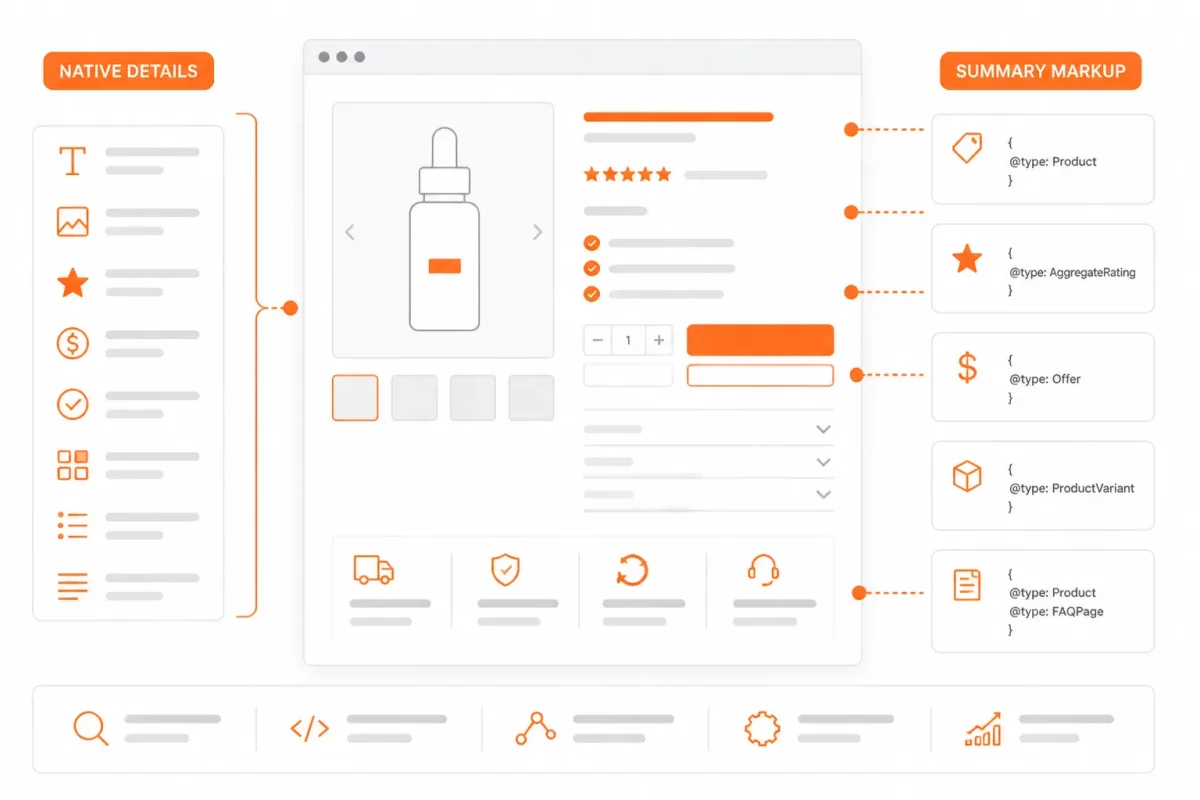
Use a <details> element around the product description, with a keyboard-operable <summary> label and the description content inside it. Shopify Community reported that the GemPages solution replaces the description section in main-product.liquid with this built-in HTML pattern in January 2023, according to Shopify Community.
In the relevant product section, replace only the existing description wrapper. A weak implementation uses a clickable paragraph such as "Read more" with custom JavaScript. Strong example: use <details>, then <summary>Materials and care</summary>, followed by the product description and its meaningful subheadings. Native controls provide keyboard interaction without requiring a click-only script.
Keep the heading hierarchy intact. If the description contains a heading, use a level that follows the surrounding product-page structure. Don't turn every label into a heading, and keep visible focus styles so you can see the active summary on a keyboard.
Keep Liquid changes scoped to the product template
Product description Shopify code usually belongs in the product section or a file named something like main-product.liquid, although your theme may use another filename. Duplicate your live theme first, then inspect the existing description block before editing it.
If you use Dawn, you can add the accordion through a Custom Liquid block instead of editing theme files directly, a route Shopify Community described in January 2023. That option makes testing easier, while direct Liquid changes give you tighter control over placement.
Bulk edit product descriptions in Shopify
Bulk edit the product data through Shopify's product editor or import workflow, while keeping one shared accordion implementation in your template. Don't paste accordion HTML into every description. Repeated markup makes future changes harder.
What works
- Native behavior: You get built-in keyboard interaction through the details and summary pattern.
- Shared presentation: One product template controls the accordion across your catalog.
- Separate content: You can update descriptions without copying layout markup between products.
What fails
- Unscoped edits: Changing unrelated product sections can break purchase controls or app blocks.
- Click-only scripts: Replacing native behavior with JavaScript can weaken keyboard access.
- Unclear labels: A summary such as "More" gives you poor context on mobile and for assistive technology.
Test code changes against theme updates and product templates
Preview the duplicated theme on desktop and mobile, then test the summary with a keyboard, a screen reader, and different product templates. Check that the description remains in the page source, the accordion opens reliably, and your structured data and purchase controls still render.
Reusable Liquid code scales better than editor blocks, but it needs stronger testing after theme updates. You can use wRanks to review related meta tags, structured data, and search visibility after publishing, although it can't replace accessibility and template testing.
Fix the Symptoms That Make Shopify Accordions Fail
A Shopify collapsible product description usually fails in a visible way. You may see the same copy on every product, an empty row, awkward phone controls, or a section that keyboard users cannot open.
Start with the symptom, not a full theme rewrite. Isolate the product data, template connection, mobile layout, crawlability, or accessibility issue before changing working sections.
| symptom | likely cause | first fix |
|---|---|---|
| Every product shows the same collapsible copy | The row contains shared template content | Connect the row to a product metafield or assign a genuinely different product template |
| A product’s expandable section is empty | The metafield is unpopulated or the dynamic source points to the wrong field | Populate the product field and verify its namespace, key, type, and connection |
| The accordion is awkward to use on phones | Cramped controls, small tap targets, or excessive nested content | Increase control spacing, simplify the row content, and test common mobile widths |
| Keyboard or screen-reader users cannot operate the row | Custom JavaScript replaced native semantics and state behavior | Use details and summary or add correct keyboard, focus, role, and expanded-state behavior |
| Search checks do not show expected product information | The content is missing from rendered markup or is disconnected from the product data | Inspect the rendered page, confirm the text is present, and review metadata and structured content in wRanks |
Check duplicated content caused by a shared product template
If every product displays identical expandable copy, inspect the row before editing the text. Literal template content affects every assigned product, while a product metafield gives each item its own description. Shopify Community documented a Sense-theme request involving 400+ products, showing why you need a scalable connection rather than manual edits. Shopify Community published that discussion in January 2023.
Check empty dynamic sources and incorrectly typed metafields
An empty row often means your metafield has no value, not that the accordion code failed. Check the namespace, key, field type, and product assignment, then confirm the theme block uses that exact dynamic source.
Weak example: Harbor Mug points to an unpopulated "details.text" field. Strong example: Harbor Mug connects to "custom.product_details," a populated rich-text field assigned to the product template.
Check mobile tap targets, image sizing, and content order
On a phone, narrow summary controls, nested rows, oversized images, and late-loading media can make the row jump or become difficult to open. Give the summary room to breathe, keep product images constrained, and place purchase-critical details before secondary information.
Check crawlability, keyboard access, and screen-reader labels
Inspect the rendered HTML and confirm meaningful product text exists without a user-agent-specific workaround. Headings and links should remain understandable when collapsed. Native details and summary elements are usually safer than custom JavaScript because they provide built-in interaction semantics.
Weak example: Harbor Mug uses a custom button fixed at aria-expanded="false". Strong example: Harbor Mug uses a native details row, visible focus, and an open state that updates for keyboard and screen-reader users. wRanks can review related meta tags, structured data, and search visibility, but it can't replace accessibility testing.
Retest one simple product, one metafield-driven product, and one mobile-heavy product. Open each row by keyboard, inspect the rendered text, check the page source, and confirm the buy controls still work.
Answer the Shopify Questions That Do Not Change This Setup
Some Shopify searches lead toward celebrity stores, monthly income, product demand, or platform costs. You can answer those questions separately without changing how your collapsible product description works.
Your theme, product template, accessibility checks, and rendered SEO content still follow the same process. Business analysis decides whether Shopify fits your store. It doesn't decide where your product details appear.
Kim Kardashian's Shopify usage
You should treat Kim Kardashian's Shopify usage as unconfirmed unless current, verifiable evidence establishes it. Celebrity platform use can change, and public store technology records may be incomplete. You don't need that answer to choose a Shopify theme, assign a product template, or build accessible collapsible content for your own store.
Making $10k a month on Shopify
You can make $10k a month on Shopify, but the platform doesn't create that result by itself. Your outcome depends on product-market fit, margins, traffic, fulfillment, repeat purchases, and seasonality. Before changing your product layout, check whether your offer and acquisition costs support the target. A shorter page cannot repair weak economics.
Products that sell fast on Shopify
You can't identify one product type that sells fast for every Shopify store. Demand depends on your audience, price, differentiation, seasonality, advertising, and fulfillment speed. Use sales data, search behavior, and customer feedback to test demand. Then use collapsible sections to answer product questions without hiding the details buyers need.
The world's number-one-selling item
You need to define the category before naming a number-one-selling item. Units, revenue, geography, time period, and product type can produce different answers. A best-selling consumer product isn't automatically the best opportunity for your store. Your product research should match your customers and margins, not a universal sales ranking.
Shopify's fee on a $100 sale
You can't calculate one universal amount from a $100 sale. Your cost depends on the Shopify plan, payment method, location, currency, and any Shopify Payments or third-party transaction fees that apply. Check Shopify's current pricing and payment terms for your account before forecasting margin. Those fees don't change your accordion implementation.
Whether Shopify is worth it in 2026
Shopify can still be worth it in 2026 when its total cost, operational tools, conversion performance, SEO results, and growth requirements fit your store. Compare those factors with your products, team, and sales channels. Once that decision is made, return to the tested collapsible-content setup and confirm your product information remains visible to shoppers and search systems.
Publish One Tested Product Template Before Scaling the Pattern
A working Shopify collapsible product description isn't ready for your whole catalog until you test its content source, template behavior, and customer experience together. Reduce risk by proving the pattern on one representative product first, not by editing every product at once.
Your first page should reveal whether the value proposition stays visible, the expandable copy renders in the page source, and keyboard or screen-reader users can operate each row. That evidence gives you a safe pattern to repeat.
Duplicate the theme and choose one representative product
Duplicate your live theme, then record the current product template assigned to your test item. Choose a product with a typical description, several purchase questions, and the same template used by most of your catalog.
For a Sense theme catalog with 400-plus products, standardize the pattern before scaling it. A representative page exposes template or metafield mistakes early.
Build and test the collapsible content path
Choose one model: a shared row, product metafield, separate template, or native details and summary elements. If each product differs, create and populate the metafield before connecting it in the Theme Editor.
Weak setup: Details connected to one fixed paragraph for every product.
Strong setup: Materials connected to the "Materials and Care" product metafield for the Harbor Cotton Overshirt.
Connect the Theme Editor Collapsible Row through Insert dynamic source, or add tested native code inside the correct product section. Check that the main promise remains outside the collapsed rows.
Validate search, mobile, and accessibility behavior
- Rendered content: You can expand the row and see the complete text in the rendered page.
- Search structure: You can confirm headings, metadata, structured data, and internal links remain appropriate.
- Mobile layout: You can read and operate the control on a narrow screen without horizontal scrolling.
- Keyboard access: You can reach, open, and close every row without a mouse.
- Screen-reader output: You hear a useful label and the expanded state correctly.
- Search monitoring: You can inspect indexing and queries in Google Search Console.
Start with one product page in the Shopify Theme Editor
- Duplicate: You duplicate the live theme and record the existing product template.
- Choose: You select the content model that matches shared and product-specific information.
- Populate: You create and fill the metafield where product copy differs.
- Connect: You add the dynamic source or tested native code.
- Test: You check desktop, mobile, keyboard, screen-reader, crawlability, and visible value proposition behavior.
- Monitor: You review image alt text, meta tags, structured data, headings, and internal links with wRanks, then watch Google Search Console.
Publish one tested product template first. Expand only after your content model and quality checklist stay stable on that page.
If you want a faster way to optimize product metadata, structured data, image alt text, and search visibility, wRanks provides AI-powered SEO tools for Shopify stores, with keyword tracking and Google Search Console insights covered in its Shopify SEO guides.

Content marketing expert and Shopify ecosystem authority. Priya has helped 200+ stores grow organic traffic through strategic blog content and keyword targeting.