Why Shopify Search Impressions Are Not Increasing
Shopify search impressions not increasing often signals visibility issues like indexing or query mismatch.
When Shopify search impressions are not increasing, you may publish a product, refine its title, and check Google Search Console before your next meeting, only to find that the impression line barely moves. The URL is live, so you start rewriting the description, title, and collection copy at once, hoping one change will finally make Google notice.
Most Shopify merchants don't have a traffic problem first. They have a visibility diagnosis problem. The page may be unindexed, disconnected from a valuable query, too thin to compete, or difficult for Google to discover through the store structure.
The fix starts with the order of your checks, not another round of random edits. Separate indexing failures from weak query targeting, missing content, and weak internal links, then use wRanks to turn those findings into repeatable SEO work across meta tags, structured data, alt text, content, and keyword tracking.
Why Flat Shopify Search Impressions Usually Mean a Visibility Failure Before a Traffic Failure
A flat impression line can look like a traffic issue, prompting you to change titles, descriptions, or publishing plans. That can waste time if Google cannot index the page or match it with a real query. Your store may also have a separate Shopify search problem, where shoppers search successfully but receive no useful product results.
Identify which search system is failing first. Google Search Console shows external visibility through impressions and queries. Shopify on-site search shows whether shoppers can find products after they arrive, so a no-results page is a separate diagnostic branch, not proof that Google excluded your URL. For a broader reference, review the Shopify search impressions guide while you compare both systems.
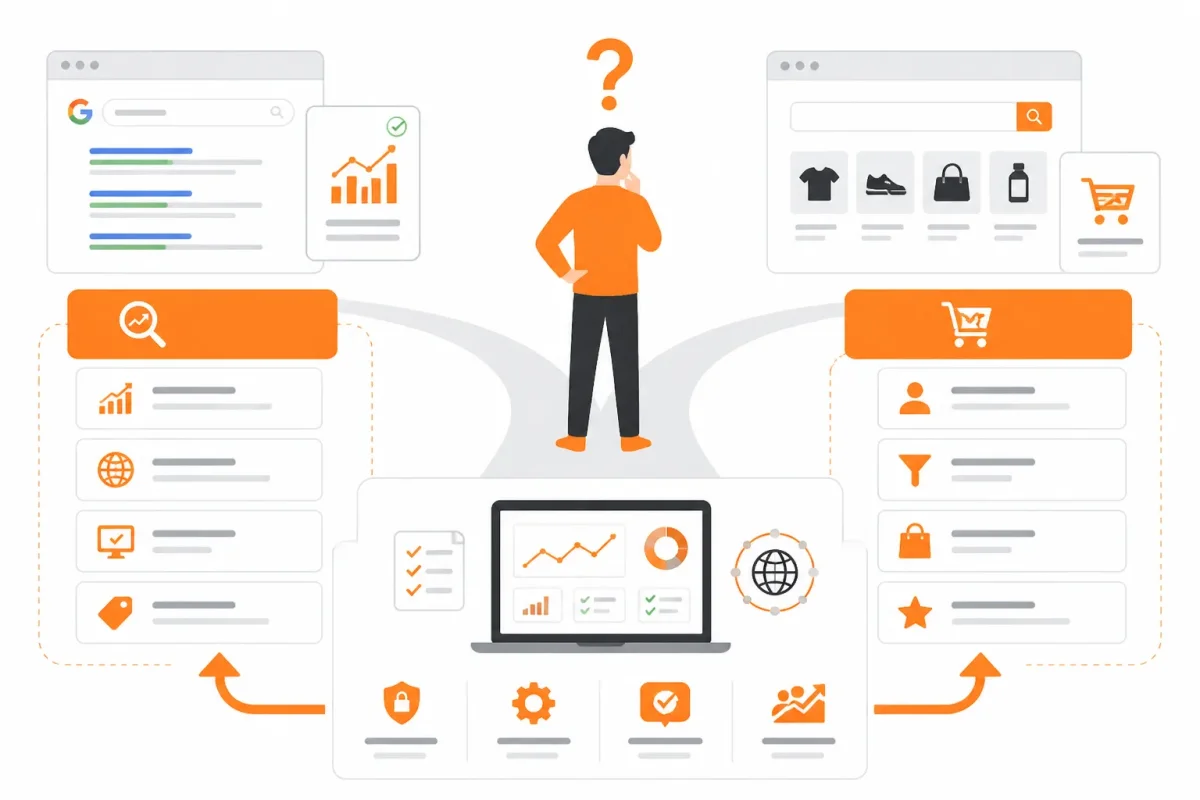
How do Google impressions differ from Shopify on-site search activity
Baymard Institute’s 2026 ecommerce search UX benchmark found that 56% of ecommerce sites do not adequately support shoppers’ search needs. That finding concerns on-site search experiences, not Google rankings, so you shouldn't use it as evidence of an indexing failure.
“56% of ecommerce sites inadequately support shoppers’ search needs,” according to Baymard Institute’s 2026 benchmark.
Coveo’s 2025 Commerce Relevance Report found that 72% of shoppers abandon a site when search results do not meet their needs. For your U.S. store, that makes internal search worth checking, but it doesn't explain a flat Google impression line by itself.
What happens when you use the first Search Console pattern to choose a repair path
Start with the pattern, not the page copy. If a URL has no impressions and is not indexed, check indexing and discovery first. If it is indexed but has no meaningful queries, investigate search intent, page coverage, and internal links. If impressions exist but clicks remain weak, inspect query alignment and the title or meta description.
No-results experiences, search-to-conversion rates, and relevance metrics can point to different problems. Check Google Search Console for external visibility, then test Shopify search separately before changing content across your store.
How do you apply the visibility-before-traffic rule
Changing copy before identifying the failed system can hide the original cause. wRanks can help you track keywords and optimize meta tags, structured data, image alt text, and content across Shopify stores, although you'll still need to inspect indexing and on-site search behavior directly.
Practical rule: Identify whether Google visibility or Shopify on-site search is failing before changing your page copy.
Prepare the Evidence Pack Before Changing a Shopify Page
Before editing a page with flat impressions, record its current state. You can then show whether a change fixed visibility, query targeting, or neither.
Gather the evidence in one focused review session. You should leave with one clear label for the page: not discovered, not indexed, indexed with zero impressions, or indexed for the wrong queries.
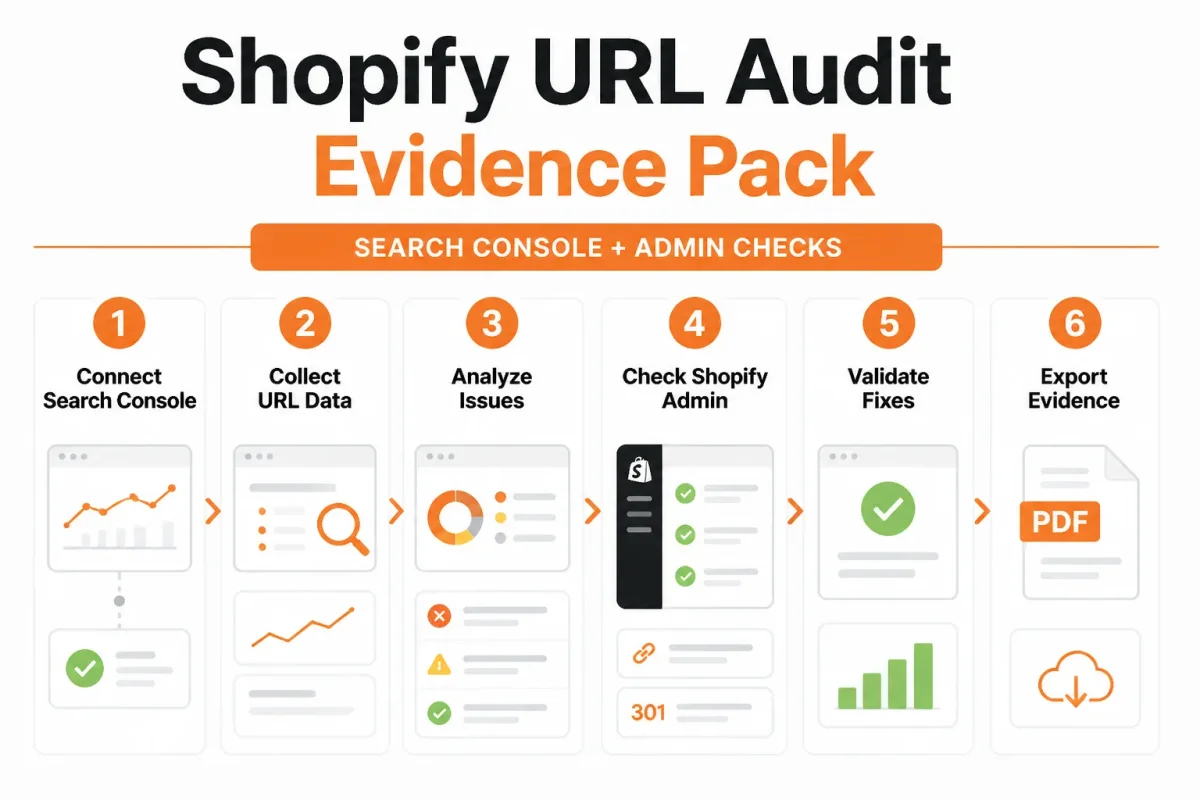
Collect one affected URL and one comparison URL
Choose the Shopify URL with flat impressions and a similar page that receives visibility. Save the Google Search Console property, comparison date range, exact URL, and screenshots or exported notes before making edits.
- Search Console property: Record the property type and confirm it includes the affected Shopify URL.
- Date comparison: Save the current period and an earlier equivalent period, using the same filters for queries, pages, countries, and devices.
- URL Inspection: Capture indexing status, canonical information, crawl details, and the latest available inspection result.
- Sitemap evidence: Note whether the URL appears in the submitted sitemap and whether Google reports sitemap processing issues.
- Page findings: Save the live-test result or page-source notes, including robots directives, canonical tags, rendered content, and structured data.
- On-page inventory: Record the current title, meta description, structured data, image alt text, and internal links pointing to the page.
Record the four Search Console visibility states
Classify the failure before changing copy. A page marked not discovered needs discovery signals; not indexed needs an indexing diagnosis; indexed with zero impressions needs query and demand analysis; wrong queries needs a relevance review.
Shopify explains that a product can exist yet remain unavailable to search because it has not entered the search index. Shopify also says search may return no results when a product is out of stock, hidden, archived, or unpublished.
Capture Shopify publication, availability, and search settings
Check that the product or collection is published to the Online Store sales channel, active rather than archived, available for purchase, and discoverable through Shopify Search & Discovery. Record stock status, synonyms, filters, and any collection or product visibility rule that could suppress results.
- Publication: Confirm the item is active and assigned to the intended sales channel.
- Availability: Record inventory status and whether out-of-stock behavior hides the item.
- Search settings: Save relevant synonyms, filters, and Search & Discovery configuration.
- Audit trail: Keep screenshots or exported notes so your SEO or development team can attribute later changes to the correct fix.
Trace Stagnant Impressions from Indexing to Queries to Internal Links
Use your evidence pack as a strict ladder. First, confirm that Google can index your URL. Then check whether your page matches the queries already producing impressions, and improve the content and links that support it.
Change one major variable at a time. That way, you can connect a visible improvement to the Shopify SEO fix that caused it.
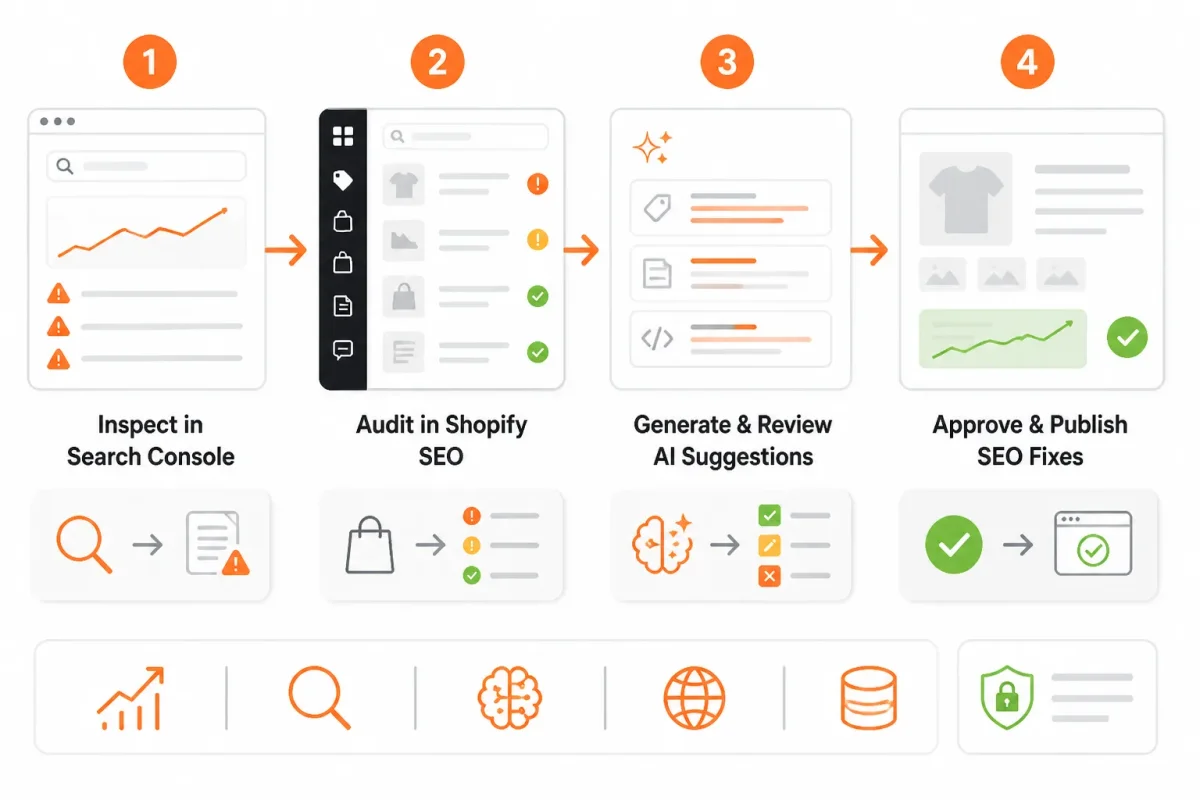
Inspect the affected URL and classify its indexing state
Step 1: Inspect your product or collection URL in Google Search Console. If Google hasn't indexed your URL, has selected the wrong canonical, or has blocked it, content changes won't fix stagnant impressions. Correct the canonical, remove an accidental noindex signal, and confirm that your page is active on the intended sales channel. You're done when Search Console reports the preferred URL and shows a live, indexable page.
Align the page with the query it can genuinely satisfy
Step 2: Review the queries that already produce impressions for your page. Search the exact phrase and compare it with your product title, description, tags, and collections. Check whether your wording supports the query.
For example, your collection aimed at “women’s waterproof hiking boots” will miss the mark when its title only says “Outdoor Footwear.”
Weak: Outdoor Footwear | TrailPeak.
Women’s Waterproof Hiking Boots: Waterproof women’s hiking boots with grip, ankle support, and sizing details.
Add missing content and structured signals with wRanks
Step 3: If your impressions come from related terms but your page lacks useful attributes, add category copy, waterproofing details, materials, and fit information. Use wRanks to add structured data, clearer meta tags, and image alt text. Include related terms and common misspellings where they make sense, but don't confuse terminology gaps with changes to your on-site search settings or Google rankings.
Link the page from relevant Shopify hubs and request validation
Step 4: If your collection has few impressions after indexing, add contextual links from hiking boots, trail footwear, and buying-guide pages. Request validation or recrawling in Search Console, then record the date and change in your tracking log.
- Indexed: You can see the intended canonical URL in Search Console.
- Relevant: Your title and copy directly answer the target query.
- Connected: Relevant Shopify pages link to your collection.
- Tracked: You record the recrawl date and single major change.
Fix the Failure That Matches the Symptom, Not the One You Expect
Broad edits can hide the real fault when impressions stay flat. Use the smallest test that separates a tracking problem from an indexing, query, linking, or product-availability problem.
Start with the pattern in Google Search Console. The fix should explain the symptom, not simply change every element that might affect visibility.
No data, no indexing, and zero impressions are different symptoms
Check the exact property, hostname, protocol, and canonical URL before treating missing Search Console data as an SEO failure. For product visibility, Shopify says a “No results found” page appears when your store search returns no matching products, which can point to unavailable or unindexed content. Check availability and indexing separately.
| symptom | likely cause | first fix |
|---|---|---|
| Search Console shows no data for the checked URL | The wrong property, hostname, protocol, or URL variant is being reviewed | Verify the exact Shopify domain property and inspect the canonical live URL |
| The page is indexed but impressions remain at zero | The page has little or no coverage for an aligned search topic | Compare the intended query with the title, headings, product attributes, and collection copy |
| Impressions increase for irrelevant queries | The page targets the wrong search intent or uses ambiguous wording | Rewrite the primary title and supporting copy around the actual product or collection intent |
| A collection receives little discovery | Relevant Shopify pages do not link to it contextually | Add one useful link from a related collection, product, or buying guide |
| A product is missing from search results | It is unpublished, out of stock, archived, unindexed, or hidden by filters | Confirm active status, inventory, correct sales channel, index status, and filter behavior |
Wrong-query impressions reveal an intent mismatch
If impressions rise for “women’s hiking shoes” while the page sells men’s waterproof boots, Google is finding words but not the buyer you want. Test the query manually, then align the title, headings, attributes, and copy.
Weak example: “Trail Footwear | Summit Peak.”
Men’s Waterproof Hiking Boots | Summit Peak gives Google and shoppers a clearer product promise.
Change the title and supporting copy first. Keep the URL, structured data, and internal links unchanged, so you can identify whether the wording repaired the mismatch. Tools such as wRanks can help compare keyword coverage and meta tags, although automated suggestions still need a human intent check.
Unlinked pages and unavailable products need different first fixes
A collection with no relevant internal links needs discovery, not another title rewrite. Add one contextual link from a hiking boots collection, a trail footwear product page, or a buying guide. A product with no visibility needs an availability audit first. Shopify recommends confirming that the item is active, in stock, and published to the correct sales channel. It also advises removing filters one at a time when size, color, price, availability, or location settings may hide results.
- Change one variable: Do not alter the title, URL, structured data, and internal links together.
- Record the test: Note the edited field, inspection date, query pattern, and next Search Console comparison.
- Keep the cause visible: If impressions improve, you will know which repair worked instead of guessing.
Start Today with the Five-Check Visibility Recovery Plan
A product URL can stay live while its search visibility remains unchanged. You don't need another broad SEO reset. You need one affected page, one observed pattern, and one controlled repair that gives your next Google Search Console comparison a clear meaning.
Your first task isn't rewriting the whole store. Open the evidence for one page and follow the failure it reveals.
Run the five checks in order
- Select one URL: Choose the product, collection, page, or blog URL with flat impressions and leave other pages unchanged.
- Inspect and classify: Use Google Search Console’s URL Inspection report, then classify the issue as indexing, query relevance, content coverage, or internal linking.
- Make the smallest matching change: Repair only the field connected to the observed pattern, such as a title, canonical setting, heading, or missing product detail.
- Strengthen one internal link: Add one relevant link from a collection, buying guide, or related page using descriptive anchor text.
- Record the follow-up date: Annotate the edit, inspection date, target query pattern, and the comparison date you will use.
Change one visibility blocker at a time
A weak title such as “Blue Bottle” gives Google little context. Strong version: “Insulated Stainless Steel Water Bottle, 32 oz” identifies the product and its useful attributes. Keep the same discipline for structured data, image alt text, keywords, and supporting content.
- URL selected: The affected page is recorded, with no simultaneous edits on nearby URLs.
- Repair matched: The Shopify change directly reflects the Search Console pattern you observed.
- Link added: One relevant internal link points to the page from a useful related resource.
- Follow-up scheduled: You have recorded a suitable comparison period instead of expecting movement immediately after requesting recrawling.
Start with the affected URL’s Inspection report
Open the page’s URL Inspection report now. Use that evidence to decide whether Shopify needs an indexing repair, better query targeting, stronger content, or a clearer internal path. wRanks can organize the resulting title, structured data, alt text, keyword, and content work across your store, but Google Search Console remains the evidence source.
If you want a faster way to organize AI-powered SEO work, wRanks helps Shopify stores manage product, collection, page, and blog optimization across meta tags, structured data, alt text, and keywords. Its Shopify SEO guides and resources support the workflow without replacing your Search Console checks.

AI & GEO specialist helping brands maximize visibility across AI platforms like ChatGPT, Gemini, and Claude. James pioneers generative engine optimization techniques for e-commerce.