Shopify Product Image Alt Text: A Practical Guide
Shopify product image alt text improves accessibility and SEO by describing product images clearly for all shoppers, including those using screen readers.
You open your Shopify store between customer calls and find a polished product page that still leaves shoppers guessing. A screen reader announces a file name, a failed image reveals nothing useful, and three colour variants sound identical. You can see the difference in the photos, but your shoppers may hear none of it.
Most Shopify stores don't have an image problem. They have a product-description problem hiding inside their media fields. A weak label such as "IMG_4821" tells you nothing about the product. Black leather crossbody bag with adjustable strap gives a screen-reader shopper useful context.
Shopify product image alt text is more than an SEO field. You need to describe product and theme images, handle variants, audit CSVs and large catalogues, and review AI suggestions with human judgment. The guide to what image alt text means with Shopify examples fits that workflow. After you understand the quality standard, wRanks can support the wider SEO work across products, collections, and pages.
What Accurate Shopify Product Image Alt Text Protects and What Missing Text Costs
When a product photo cannot be seen, your shopper still needs to understand what matters. Missing or vague alt text can leave a screen-reader user without the colour, material, shape, or product detail that helps them decide whether to buy.
Alt text also gives shoppers a fallback when media fails to load and gives search systems useful context about the image. It doesn't promise rankings, but a clear description keeps product information available in more than one situation.
Write for the shopper who cannot see the image
Shopify explains that assistive technology uses alt text to describe an image to a visually impaired customer. Shopify also says alt text appears when the media item cannot load, so your wording should work as a short product description in either case.
"Alt text should be brief and descriptive," Shopify advises.
Ask whether your shopper would lose meaningful information if the image disappeared. For a product photo, that may include the item type, colour, material, pattern, or visible feature.
Weak version: Image of product, black bag, Shopify store.
Strong version: Black leather crossbody bag with a gold clasp and adjustable strap.
Use Shopify's 125-character recommendation as a ceiling, not a formula
Shopify sets the maximum product image alt text length at 512 characters and recommends 125 characters or fewer. Treat 125 characters as a practical publishing ceiling for your product team, not a target that requires filler.
Practical rule: Describe the image in the shortest wording that preserves the product information your shopper would otherwise miss.
Your description can be shorter when the image is simple. It can approach the recommendation when a variant or important visual feature needs more context.
Treat SEO as a result of clarity rather than repetition
Useful specificity can support image SEO because search systems can better interpret a relevant image. Repeating your store name and target keyword adds no meaning and makes the text harder for your shopper to use.
Weak version: Black leather crossbody bag, buy black leather crossbody bag from Acme Bags Shopify store.
Strong version: Black leather crossbody bag with a gold clasp, shown from the front.
wRanks can help you review image alt text alongside meta tags and structured data, although AI suggestions still need a human check for variant details. The best test is simple: if the image vanished, would the sentence preserve the detail that affects the purchase?
Choose the Shopify Alt Text Pattern That Matches the Image's Job
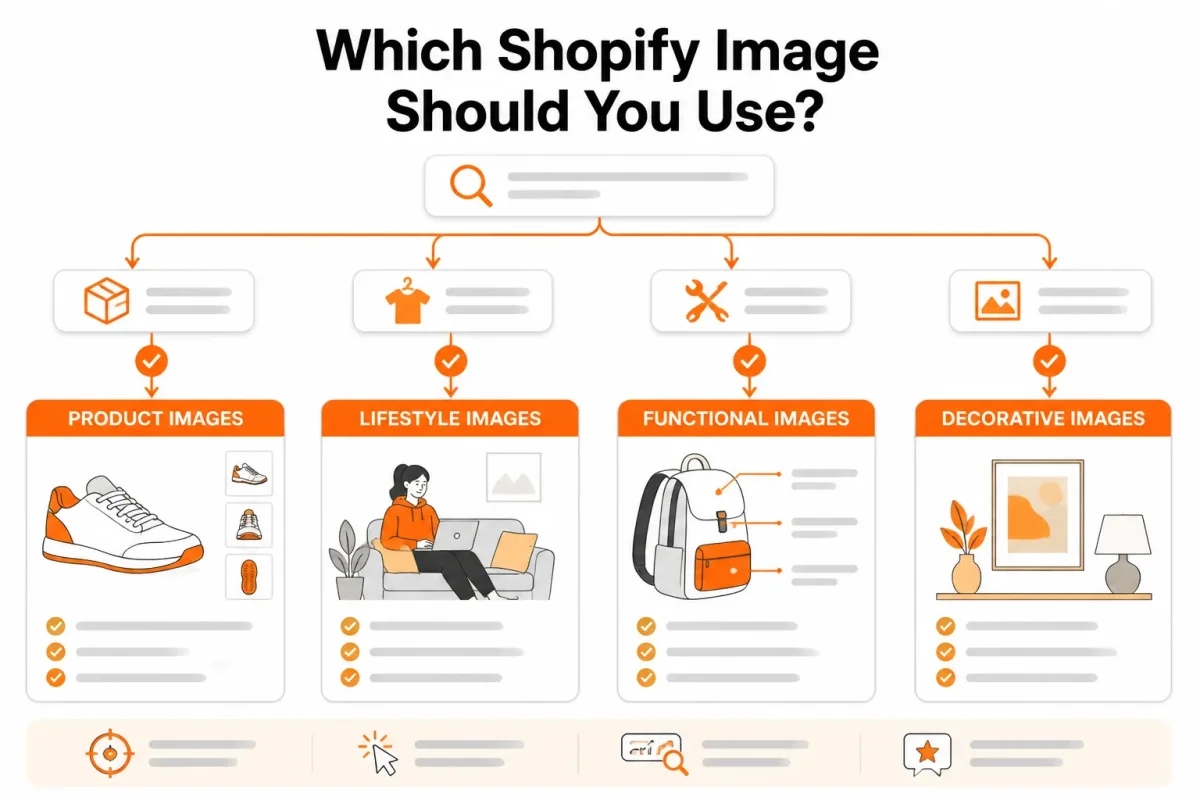
Useful Shopify product image alt text starts with the image's purpose, not the file name. A hero photo identifies the product, while a close-up may explain one feature that affects the purchase.
That choice keeps your gallery consistent without forcing every image into the same sentence pattern. Empty alt text is correct when your shopper loses no information without the image, not whenever writing a description feels inconvenient. The same principle applies to visual portfolios, where Bradley Johnson Productions represents creative work that benefits from clear context rather than unexplained filenames.
Product and variant images need identifying detail
For a hero image, describe the visible product and add one distinguishing detail when it helps your shopper separate it from similar items. For a variant photo, name the colour or material that matches the selected option. Shopify says an image carrying information your reader would lose needs descriptive alt text.
Weak version: Crossbody bag product image.
Black leather crossbody bag with gold clasp. This version helps your shopper identify both the product and its relevant variant detail.
Shopify's guidance also supports describing useful information when an image fails to load, rather than stuffing in repeated keywords. The same logic applies to collection cards and product galleries.
| situation | better move |
|---|---|
| Hero product photo | Describe the visible product and its important distinguishing feature, such as "tan leather crossbody bag with adjustable strap". |
| Variant photo | Name the differentiating colour or material, such as "black leather crossbody bag with gold clasp". |
| Detail or close-up shot | Describe the useful feature shown, such as a gold clasp or stitched seam. |
| Lifestyle image | Describe the product in its meaningful context, without cataloguing decorative background details. |
| Linked logo or functional image | Describe the destination or action, such as "wRanks SEO platform homepage", rather than the logo's appearance. |
| Purely decorative image | Leave alt text empty when the image adds no information and repeats no essential content. |
Lifestyle and close-up images need useful context
Your close-up should name the feature shown, such as a gold clasp, stitched seam, or waterproof zip. Your lifestyle image should explain the product in meaningful context, not list the table, wall, plant, and other background objects.
Shopify's July 24, 2026 guidance says information-carrying images need descriptive alt text. That gives you a practical test: if the image disappeared, would your shopper lose a product fact or useful context?
Functional and decorative images need different treatment
When your image links somewhere, describe the destination or action instead of its appearance. Shopify recommends this approach for functional images, so "wRanks SEO platform homepage" is more useful than "blue wRanks logo".
A decorative banner, texture, or repeated product image can use an empty alt attribute when it adds no information beyond nearby content. Apply that decision consistently across your product gallery, collection cards, banners, and theme elements.
Prepare a Shopify Product Image Alt Text Audit Before Editing
Before you edit Shopify product image alt text, you need a reliable view of what already exists. Without an inventory, you may update a theme banner instead of a product image, miss variant differences, or fill a large catalogue with copy that says little.
You can finish a small priority set manually, but a larger catalogue needs roles, records, and review rules first. Preparation keeps your audit focused on the images that affect product understanding, accessibility, and search visibility.
Separate product media from theme images
Start by separating product media from theme images in your audit board. Product media belongs to the product record, while logos, homepage banners, collection graphics, and promotional images belong to the Online Store theme editor. Shopify documents the product route as opening a media item from the product details page, choosing Add alt text, entering the text, and saving it through Save alt text, according to Shopify's product media instructions.
Theme images follow a different route. You select the image in the theme editor, choose Edit, enter the alt text, and save it, according to Shopify's theme image instructions. Mark each item as product media or theme media before you open the admin.
Record product, variant, image role, and current text
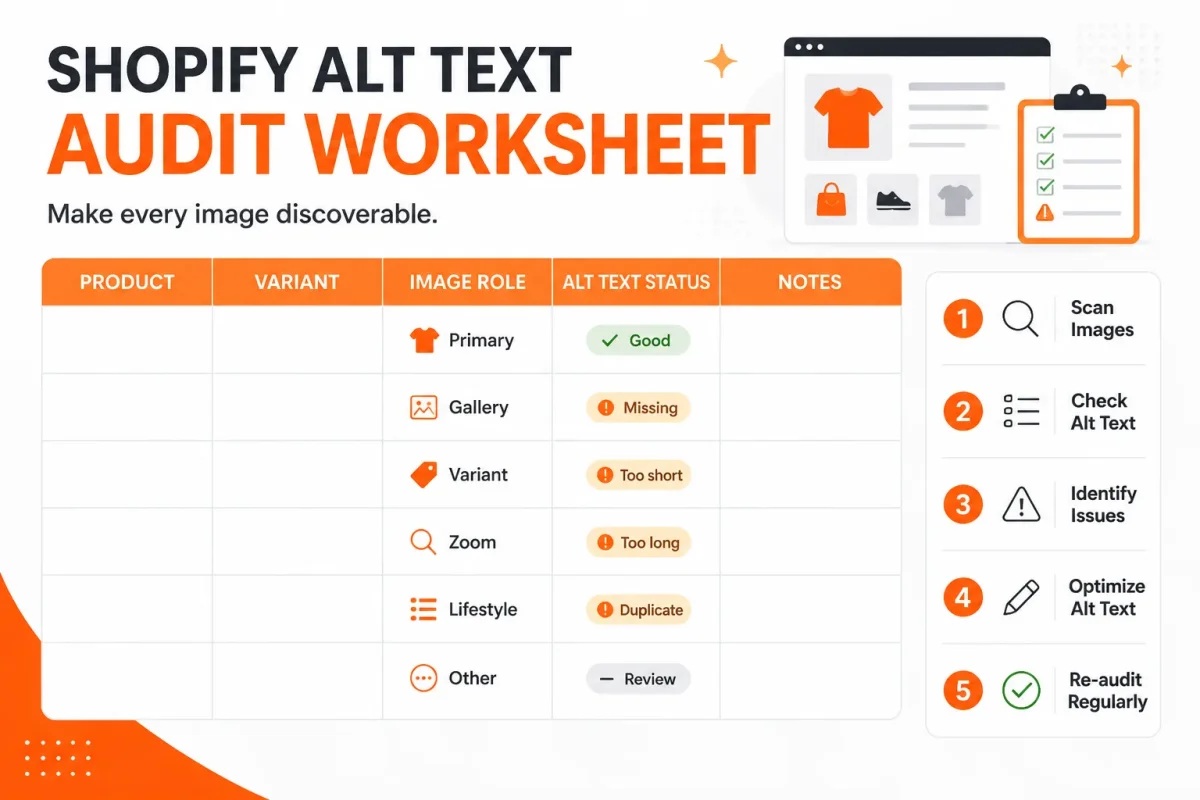
Create one audit row for each image. Include the product name, product URL, variant, image role, current alt text, and proposed action. Use roles such as hero, variant, detail, lifestyle, logo, or decorative. Record differences in colour, material, size, and pattern instead of assuming every gallery image describes the same product.
- Catalog list: Record every product and URL, then flag products with missing images or incomplete galleries.
- Variant map: Note which image shows a specific colour, material, size, or pattern.
- Image role: Label each image as hero, variant, detail, lifestyle, logo, or decorative.
- Current text: Copy existing alt text exactly, including file names, keyword strings, and empty fields.
- Audit board: Arrange rows like catalogue cards, with product, variant, role, current text, proposed text, and review status visible.
Weak example: "red-shirt.jpg." Strong example: "Women's red linen button-front shirt with rolled sleeves." The stronger version gives your shopper the product and its visible distinction.
Set an audit order for revenue and search priority
Rank products by revenue, organic traffic, accessibility importance, and priority collection. Start with products that combine high commercial value and high shopper demand, then move through the remaining catalogue by collection. Shopify also supports CSV alt-text updates, and its media editor may suggest text. Treat both as workflow options, not automatic quality control.
For a small catalogue, edit the high-priority set manually and review each storefront result. For a large catalogue, prepare structured data, naming rules, and a sampling process before using bulk updates. A companion guide to what product structured data means for Shopify fits this preparation workflow when you are organising product-level search signals.
Add and Write Alt Text for Each Shopify Product Image
Your audit becomes useful when each Shopify product image receives its own description, not one repeated sentence. In Shopify Admin, you can edit the media attached to a product, add alt text, save it, and check the result before moving to the next image.
Use the same product variant as your quality-control test. You should see enough detail to distinguish the black leather version from brown or canvas alternatives, without turning the description into a list of search terms.
Open the correct product media item
- Open the product: In Shopify Admin, select Products, choose the product under audit, and open its media gallery.
- Choose the image: Select the specific hero image, side profile, clasp close-up, or lifestyle shot you want to edit. Do not assume the first image represents the whole gallery.
- Open the alt-text control: In the media preview, select Add alt text. You should now see the control for the selected image, not a different gallery item.
Before: black bag
Black leather crossbody bag with gold clasp
The first version is too vague. It may not distinguish this item from brown or canvas variants. A failure here is editing the product title into every image or leaving a filename such as IMG_4832.jpg in place.
Describe what changes between product variants
Write what a shopper needs from that particular image. A side profile might show the strap and shape, while a clasp close-up should identify the gold hardware. A lifestyle image should describe the bag in its visible setting, rather than reuse the hero description.
Before: black bag black leather purse crossbody handbag sale
Black leather crossbody bag with gold clasp shown from the side
Keyword-stuffed text sounds unnatural and hides the useful detail. Each image deserves its own judgment, even when all images show the same variant.
Save, reopen, and verify the final text
- Save the description: Select Save alt text, then exit the media preview.
- Reopen the image: Open the same media item again and confirm the saved text remains attached to it.
- Repeat the check: Move through every product image and replace copied, missing, or filename-based text before continuing to the next product.
- Correct image: The description matches the selected gallery image.
- Variant detail: The text distinguishes the black leather version where that detail is visible.
- Natural wording: The description avoids repeated product titles and keyword stuffing.
- Saved result: The text remains after you close and reopen the media preview.
Screenshot prompt: Show a Shopify Admin product media preview with the selected product image and the documented Add alt text control visible. Do not invent additional interface labels.
Extend the Shopify Alt Text Workflow to Theme Images and Large Catalogues
Product media is only one part of your storefront. Your product audit will not cover banners, logos, collection graphics, or promotional images placed through the theme editor, so you need a separate route for those assets.
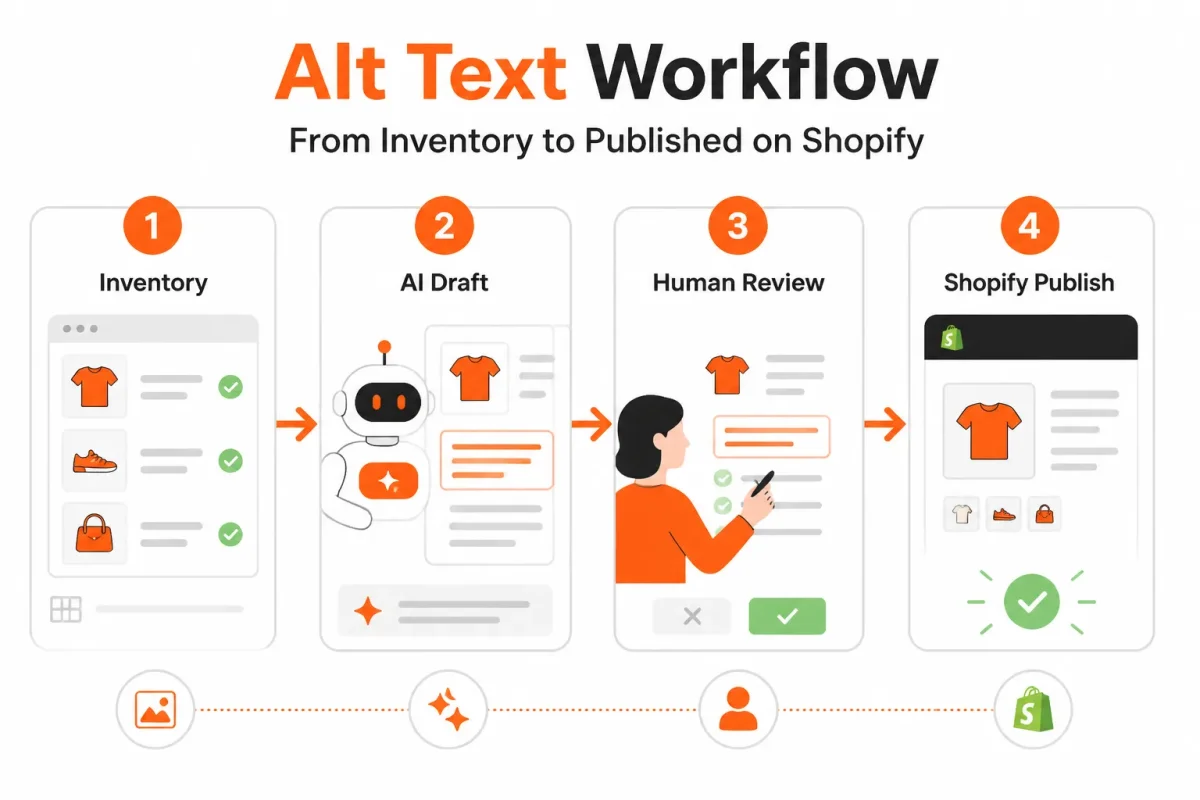
At scale, speed matters, but product detail still needs judgment. A controlled workflow combines Shopify's editing tools, CSV updates, AI-assisted drafts, and human review before your changes reach every page.
Use the theme editor for banners and other theme media
For a banner or other theme image, open Online Store, select your theme, choose Edit theme, and open the section containing the image. Select Edit on the image, enter the alt text, and save. You need to review this separately from product media because the same audit does not cover both locations.
Weak example: "Summer sale banner blue shoes."
Strong example: "Woman wearing blue running shoes beside a summer sale message."
If the graphic is purely decorative and adds no information, you may need to leave its alternative text empty rather than describe visual filler. Your decision should follow the image's purpose.
Choose manual edits, CSV, or AI assistance by catalogue size
For a small catalogue, manual editing gives you the clearest control. When your catalogue warrants structured updates, export a staging copy, preserve stable product and media matching, test a limited pilot, validate the import, and sample the storefront afterwards. A CSV can help update image alt text where the relevant product and media fields are supported, but you still need to confirm that each description stayed with the correct image.
For broader audits, wRanks can help you review alt-text opportunities across products, collections, pages, and blogs while coordinating related meta tags, structured data, keyword tracking, and Google Search Console insights. It can also support content visibility work for search and AI platforms, but AI assistance does not replace catalogue checks.
What works
- Staging copy: Test CSV changes away from your live catalogue first.
- Small pilot: Import a limited group before updating every product.
- Post-import sampling: Compare selected storefront images with their saved descriptions.
What fails
- Blind acceptance: Shopify suggestions can miss the product's visible variant.
- Unmatched media: A shifted row can attach accurate text to the wrong image.
- Theme assumptions: Completing product media does not audit banners or logos.
Review generated text for colour, material, and product identity
Shopify's media editor suggestions and AI-generated drafts can speed up first-pass coverage. You still need to verify colour, material, product identity, visible variant details, and whether the image is decorative before publishing. Human review is the safeguard between faster editing and trustworthy Shopify product image alt text.
Fix the Alt Text Failures That Make Shopify Audits Misleading
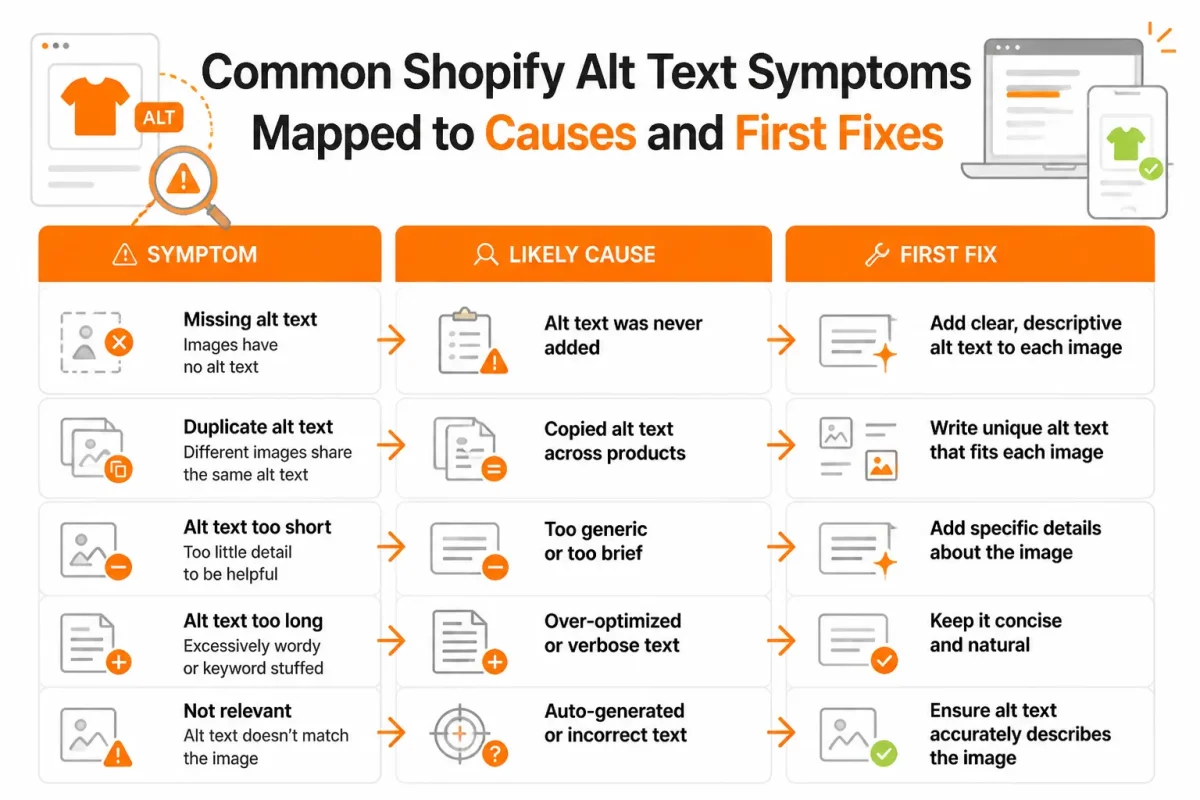
You can finish a Shopify product image alt text audit with every field populated and still leave shoppers guessing. A screen reader may announce the same product title for every gallery image, while a colour variant remains impossible to distinguish.
These failures are common in large catalogues and inherited themes. Diagnose what the shopper encounters, then correct the image's role, detail, or placement instead of trusting a filled-field count.
| symptom | likely cause | first fix |
|---|---|---|
| Every image in a product gallery says the product title | A template or bulk process copied one generic value across all media items. | Classify each image's job and rewrite only the information a shopper gains from that specific view. |
| Variant images do not identify the distinguishing colour | Alt text was written from the base product title instead of the selected variant. | Compare variants side by side and add the visible colour or material when it changes the shopping decision. |
| Decorative images receive long, noisy descriptions | A filled-field audit treated every image as informative. | Check whether the image adds information beyond nearby text; if not, use an empty alt attribute. |
| Theme banners and promotional images remain untouched | The team audited Products but did not inspect Online Store theme sections. | Open the theme editor and review image sections separately from product media. |
| The saved text does not match the image being reviewed | The edit was made on a neighbouring media item or the wrong product. | Reopen the exact media preview, confirm the thumbnail and product, then save the corrected description. |
When every variant sounds identical
Open two variants side by side before rewriting anything. If the gallery shows a black jacket and a sand-coloured jacket, your alt text should help shoppers tell those images apart. The product title alone cannot do that.
Weak: "Ridgeway Quilted Jacket."
Strong: "Ridgeway quilted jacket in sand, front view."
Use the visible colour, material, or pattern only when it changes the shopping decision. A filled-field count measures coverage, not usefulness. wRanks can help identify image alt text gaps across Shopify stores, but automated suggestions still need a visual check for variant accuracy.
When the field is filled but the description is useless
Some descriptions add noise rather than access. If a decorative texture sits beside a heading that already says "Winter Sale", repeating every shape and colour forces your shopper through information with no shopping value.
Weak: "Blue snowflake background with white stars, soft gradients, angled lines, and a glowing winter effect behind the Winter Sale heading."
Strong: ""
Use an empty alt attribute when nearby text already provides the message and the image adds no independent information. For an informative image, describe what your shopper gains from that specific view, not every visible detail.
When product media and theme media are confused
Your product audit covers product media, not automatically every banner, logo, collection card, or promotional block. Reopen the theme editor and check those sections separately. Then sample products, variants, collection cards, and theme images before trusting a bulk update.
If a saved description does not match the preview, stop and reopen the exact media item. Confirm the thumbnail, product, and selected variant before saving again. This small check catches edits applied to a neighbouring image or the wrong product. A sample-based audit gives you a more trustworthy result than a populated-field total alone.
Verify the Shopify Storefront Result Before Calling the Audit Done
Saving Shopify product image alt text only confirms that a value was stored. You still need to check what shoppers receive on the rendered page, especially when variants change, images fail, or a screen reader reads the gallery aloud.
A reliable audit follows the image from the Shopify admin record to storefront rendering and then to spoken output. A filled-field count is useful for operations, but it cannot show whether your descriptions are distinguishable, concise, and useful.
Inspect the rendered product page
Open a sample of high-priority products across collections, product types, templates, and image roles. Inspect more than your highest-revenue SKU, because a theme or import problem may affect an entire product group.
- Product coverage: You have checked priority products, collection examples, and products using different templates.
- Gallery clarity: You can distinguish each informative image without reading the adjacent title or caption.
- Decorative media: You find no unnecessary announcement for backgrounds, flourishes, or purely decorative graphics.
- Rendered output: You see the expected image and description on the live product page, not only in Shopify Admin.
If image dimensions or cropping appear wrong during the review, this Shopify product image size guide fits the same storefront-check workflow.
Test variant changes and image fallbacks
Select several colour, size, or material variants and confirm that the visible image and its description change together. You should also test an unavailable image or failed-image state where practical, so you know whether the fallback still conveys the product information.
Follow the path from admin record to storefront rendering to spoken output. If you use wRanks to review image alt text across a catalogue, remember that automation can flag coverage but cannot replace this rendered-page check.
Rework descriptions that pass a field check but fail a shopper check
A weak description may be present yet repeat the product title without telling you what the image contributes.
Weak: "Harbor Canvas Tote."
Strong: "Natural canvas tote bag with brown leather handles, shown from the front."
Use a screen reader or accessibility testing workflow to confirm that informative images are concise and decorative media is skipped. Your acceptance rule is simple: a shopper who cannot see the image still receives the product information it contributes, without unnecessary announcements.
Shopify Product Image Alt Text Answers for Common Edge Cases
Adding alt text to an image
Yes, you can add alt text to product media and theme images in Shopify. For product photos, you use the media settings attached to the product in Shopify Admin. For banners, logos, and other theme images, you use the theme editor. This lets you describe each image where it serves shoppers, rather than treating every storefront image the same way.
Choosing PNG or JPEG for Shopify
Neither format is universally better for Shopify, because your choice depends on the image. JPEG often suits photographic product images because it can reduce file size, while PNG helps when you need transparency or crisp graphic details. You still need descriptive alt text for either format. A smaller file does not tell your shopper what the image shows.
Qualities of good alt text
Good alt text is concise, specific, and written in natural language that communicates the image's useful content. For a product variant, "black leather crossbody bag with gold clasp" tells you more than "bag" or "product image." Describe visible details that affect a buying decision, but avoid stuffing keywords or repeating information your shopper already receives nearby.
Specifying alternate text for an image
You specify alternate text in the product media item's alt-text field under Products in Shopify Admin. For a theme image, open that image's Edit control in the theme editor and enter its description there. In the storefront HTML, the same value is held by the image's alt attribute. Check the rendered page so you know your description reaches shoppers.
Start Your Shopify Alt Text Audit With One Priority Product
You don't need a perfect catalogue-wide process before improving your Shopify product image alt text. Choose one high-priority product page, prove the workflow on its complete image set, and document the pattern you can repeat across your store.
Your best starting point is a best seller, a high-traffic landing page, or a product with several visually distinct variants. Image-specific descriptions serve shoppers better than mass-filled fields, even when bulk editing produces a higher completion percentage.
Inventory one product's complete image set
Open one product in Shopify Admin and list every attached image before editing. You should know which image shows the main product, each variant, a detail, a scale reference, or packaging.
- Complete media set: You have recorded every product image attached to the selected page.
- Image purpose: You have classified what each image helps your shopper understand.
- Variant detail: You have identified the colour, pattern, size, or finish shown in each relevant image.
Write and save the first variant-aware descriptions
Draft concise descriptions that identify the product and the visible detail that affects a buying decision. Shopify allows up to 512 characters, while Shopify recommends 125 or fewer, so use those limits as drafting guardrails, not targets to fill.
Weak example: "Blue backpack product image."
Strong example: "Navy canvas commuter backpack with black leather clasp, shown from the front."
Save each description in the relevant media item, not in one repeated field. Then view the product page as a shopper and confirm that each description matches the image and selected variant.
Use the verified pattern across the catalogue
Once your first page works, apply the same six-step sequence to related products. You can use CSV workflows or wRanks for an AI-assisted audit across products, collections, pages, and blogs, with keyword tracking and Google Search Console context. Keep human review in place so generated text reflects the product truth.
- Inventory: Record the complete image set for one priority product in Shopify Admin.
- Classify: Mark each image by its job, such as hero, variant, detail, scale, or packaging.
- Draft: Write concise, image-specific, variant-aware descriptions.
- Add: Enter and save each description in Shopify's media settings.
- Verify: Test the rendered storefront page and confirm every description matches its image.
- Scale: Extend the verified pattern through CSV or wRanks, with human review for product accuracy.
If you want a faster way to audit your Shopify content, wRanks helps Shopify stores optimize products, collections, pages, and blogs with AI-powered SEO, image alt text, keyword tracking, structured data, and Google Search Console context. Start with one page, test it, document the pattern, and expand.

Technical SEO engineer focused on structured data, indexing optimization, and Core Web Vitals. David turns complex technical requirements into actionable Shopify solutions.