Move a Shopify Collection Description to the Bottom
Move a Shopify collection description to the bottom of the page to enhance product visibility while preserving SEO value and clear collection titles.
A shopper lands on your Shopify collection page, meets a large block of category copy, and starts scrolling before seeing a single product. If you want to move a Shopify collection description to the bottom of the page, the problem is usually layout, not the value of the content.
Most Shopify merchants don't have a content problem. They have a content-placement problem. You don't need to delete useful collection copy or strip away search relevance. Put product discovery first, then let shoppers reach the fuller explanation below the grid.
Keep one clear collection title and meaningful, crawlable copy while placing longer guidance after the products. That gives shoppers a quicker route to the merchandise without abandoning the collection's search purpose.
Why moving a Shopify collection description can improve the page without hiding SEO value
A long category description can answer useful questions, but it can also delay the moment shoppers reach the products. They should understand the collection without scrolling past a wall of copy before comparing items.
Moving the longer explanation below the grid doesn't remove relevance. You keep the collection's purpose clear, preserve meaningful crawlable text, and give product discovery the first position on the page.
How do I keep the collection title at the top
Your collection H1 should remain near the top because it identifies the page for shoppers and search engines. Keep a concise introduction there too, such as the collection's product type, use case, or defining material.
Weak version: “Running Shoes” followed by five paragraphs before the first product.
Strong version: “Women’s Trail Running Shoes” followed by “Shop women’s trail running shoes with grippy soles, waterproof options, and cushioning for uneven ground.”
“Shopify displays products in paginated admin lists of 60 products per page in the Collection items section,” according to Shopify’s documentation. Shopify documents the collection administration layout.
That figure describes your Shopify admin list, not the number of products shoppers must see on your storefront. Editing collection items and changing the order of storefront sections are separate tasks.
Where should I place useful category copy
Your longer description can cover fit guidance, buying considerations, materials, and related searches beneath the products. Shoppers who want detail can keep reading, while those ready to browse reach your merchandise sooner.
Practical rule: Keep the H1 and concise, meaningful crawlable copy above the grid, then place the longer collection description below the products.
What happens when description placement becomes a theme-layout change
You're changing where content renders, not hiding it with CSS or deleting it from the page. CSS hiding can create accessibility and maintenance problems, while a genuine section move gives your theme a clearer structure.
Afterward, use wRanks to monitor organic performance, queries, and indexing rather than assuming rankings will change automatically. Its Google Search Console integration fits this workflow, and this guide to Shopify Search Console verification covers the setup your store needs.
Choose the right route for your Shopify theme and editing access
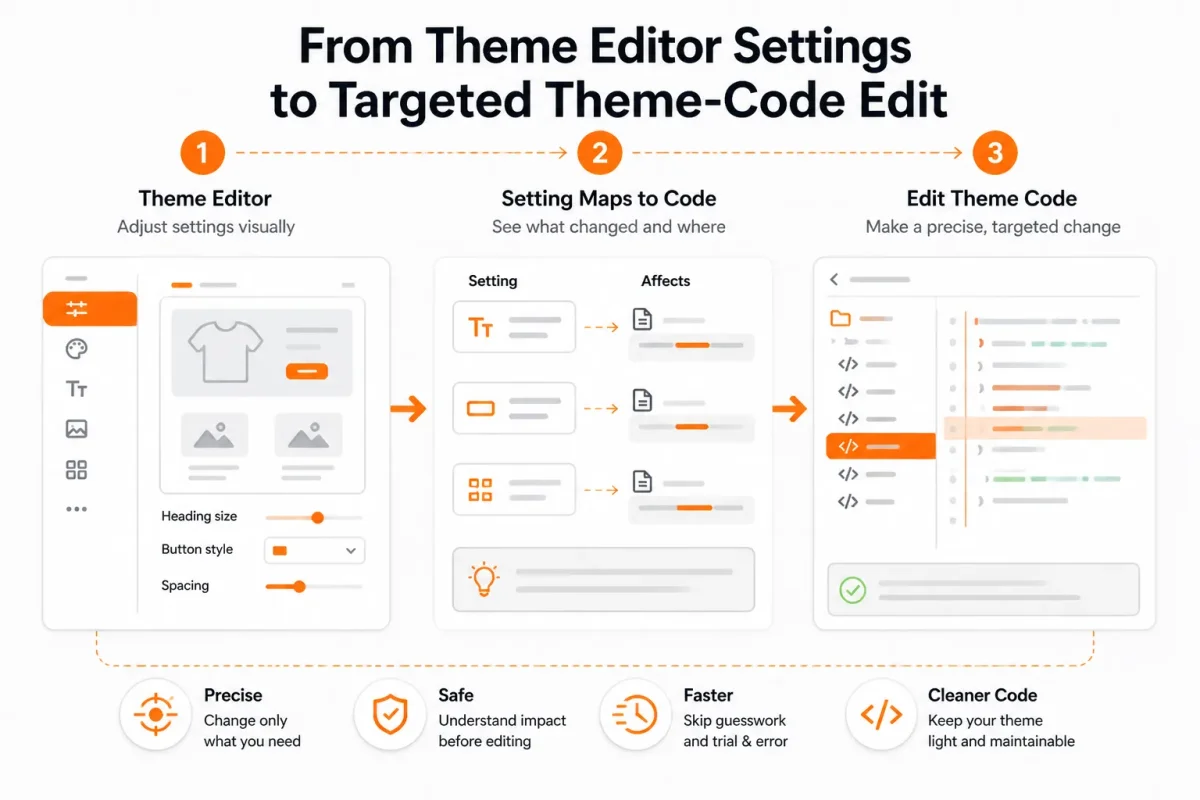
You have three practical ways to move a Shopify collection description to the bottom of the page: use the Theme Editor, add a separate Custom Liquid section, or edit the theme code. The right choice depends on your theme version, available settings, and comfort with template changes. For related guidance, see our Shopify SEO guide.
For most Dawn and other Online Store 2.0 themes, a separate description block gives you the cleanest result. Keep the collection title in its banner, place the description below the product grid, and preserve the copy for shoppers and search engines.
Custom Liquid for Dawn and Online Store 2.0 themes
If your theme lets you disable the original description in the Collection Banner, add a Custom Liquid section after the Product grid. In that section, use the collection description output rather than moving the whole banner. Theme labels vary by version, so you may see “Collection banner,” “Collection information,” or similar wording.
Weak version: Collection Banner description remains enabled, while a second block also outputs “collection.description.”
Strong version: Collection Banner description is disabled, and one Custom Liquid block displays “collection.description” beneath the Product grid.
Reordering the entire collection banner can move the H1 with the description. A separate block moves only the supporting copy, so the collection title stays in its original heading position.
Theme code for themes without a suitable section
When your theme cannot add or position Custom Liquid, a targeted code edit may be necessary. Move only the collection description output, not the banner, title, filters, or product grid. You get more control, but you'll also need to test collection templates and screen sizes.
Weak version: Move the entire collection banner below the product grid to take the description with it.
Strong version: Keep the banner and H1 in place, then render the collection description beneath the product grid in the collection template.
Why CSS-only reordering is the fragile route
CSS can change the visual order without changing the template structure. Keyboard users, screen readers, and future theme updates may still encounter the original order. Use a real section move whenever your theme allows it.
| situation | better move |
|---|---|
| Dawn or another Online Store 2.0 theme exposes Custom Liquid and Collection Banner settings | Add collection.description below the Product grid and disable the original description in the banner |
| Reordering the banner and product-grid sections would move the collection title | Use a separate description block so the H1 remains in the banner |
| The theme cannot add or position a suitable Custom Liquid section | Use a targeted template-code edit that moves only the description output |
| The merchant has limited coding confidence | Use the Theme Editor on a duplicated theme and preview before publishing |
Before any code change, duplicate your Shopify theme and make the edit on that copy. Compare the collection title, product grid, description, filters, and mobile layout before publishing.
Prepare the Shopify collection template before changing anything
Before you move a Shopify collection description to the bottom of the page, identify which template controls that collection. A description may appear missing because it's assigned to another template, hidden by a section setting, or positioned below the product grid.
Take a short preflight pass first. You'll protect the published storefront, choose the correct editing route, and have a rollback path if the layout behaves differently on a phone.
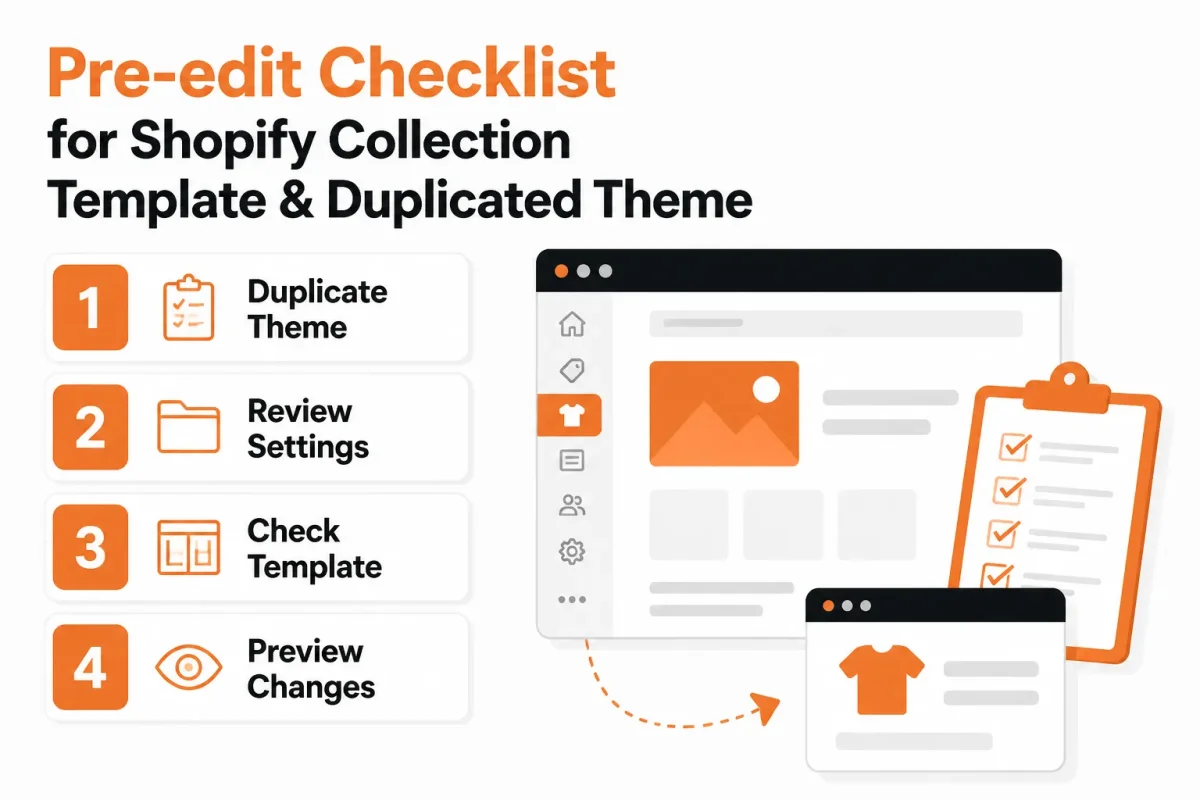
Confirm the template and theme architecture
Open the target collection in Shopify admin and check its assigned template. Then open the Theme Editor and confirm whether you use Dawn or another Online Store 2.0 theme. In the collection template, locate the Collection Banner and Product Grid sections before changing their order.
Weak setup: The “Men’s Jackets” collection uses the default collection template, so a change may affect unrelated collections.
Strong setup: The “Men’s Jackets” collection uses a dedicated “collection-jackets” template, so you can test the description position without changing every collection page.
- Template: You have recorded the exact template assigned to the target collection.
- Theme: You have confirmed whether your store uses Dawn or another Online Store 2.0 theme.
- Sections: You can see the Collection Banner and Product Grid sections in the collection template.
- Access: You have permission to edit the theme, or you know who will apply a code change.
Duplicate the theme before a code change
If the Theme Editor can't place the description correctly, duplicate your live theme before editing code. The duplicate gives you a rollback path without changing what shoppers currently see. Rename it with a clear label such as “Dawn collection description test” so you can find the working copy later.
Preview the duplicate on desktop and mobile. A layout that looks balanced across a wide screen can create excessive blank space, cramped text, or awkward wrapping on a phone.
Record the current title, description, and product-grid order
Before saving anything, record the collection title, description text, product-grid position, filters, and sorting controls. Check the rendered preview or page source after each test. If the description is absent from the editor, inspect its visibility setting. If it appears in the preview or source below the grid, it moved rather than disappeared.
You can proceed when the correct template is identified, the duplicate theme exists for code work, and both viewport previews are available. If any item is unclear, stop before saving.
Move the collection description below the product grid in Dawn
Your Dawn collection template can show the description before products by default. You can change that order without removing the collection copy or its search relevance.
Use the Theme Editor first. The intended result keeps the title visible, places the product grid next, and shows the description underneath.
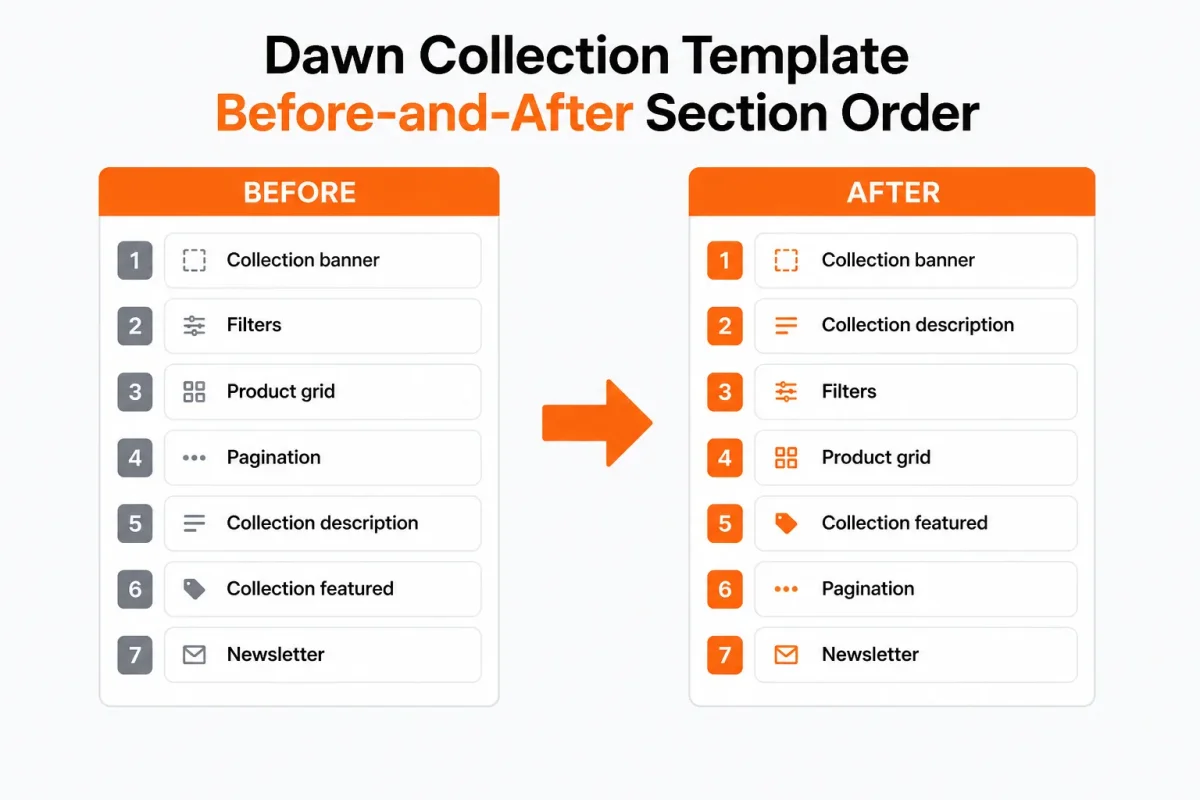
Open the Default collection template
- Open the template: In Shopify admin, go to Online Store > Themes, select your Dawn theme, and choose Customize. Use the template selector to open Collections > Default collection. If your change appears nowhere, you edited the wrong collection template.
- Check the heading: Confirm that the Collection Banner still displays your collection title. If you hide the title while adjusting the banner, your collection can lose its visible H1.
Add the description below the Product Grid
- Add the section: Select Add section below Product grid, choose Custom Liquid, and enter
{{ collection.description }}. Save the draft or preview it before publishing. If the section is above Product grid, drag it below the grid. - Control the width: If your copy stretches across the full screen, place the output inside Dawn’s standard layout container:
<div class="page-width">{{ collection.description }}</div>. Exact spacing can differ between Dawn versions and custom theme settings.
Before the change, your Dawn page may show title, description, product grid. After the change, it should show title, product grid, description. The second order presents products first while keeping the copy on the same page.
Hide the original Collection Banner description
- Disable the duplicate: Open Collection Banner and turn off its description display, while leaving the title enabled. A second visible description means the original banner output wasn't disabled.
- Save the template: Select Save, then inspect the collection preview. If the description disappears entirely, check the Liquid expression and confirm that the collection itself contains description text.
Preview the desktop and mobile result
- Desktop order: Confirm that you see the collection title, product grid, and description in that order on your desktop preview.
- Mobile order: Confirm that filters, products, and the description remain usable on a narrow screen.
- Final checklist: Confirm the correct template, one visible description, a visible H1, the expected section order, and both viewport previews before publishing.
Use a targeted theme-code edit when the editor cannot place the copy
If your theme offers no suitable Custom Liquid section, you can still move the collection description with a narrow Liquid edit. Treat this as a controlled fallback, not the first choice, because your theme's template structure may differ from Dawn.
Before you change anything, duplicate your live theme. You'll then have an untouched version for rollback while you preview one representative collection on desktop and mobile.
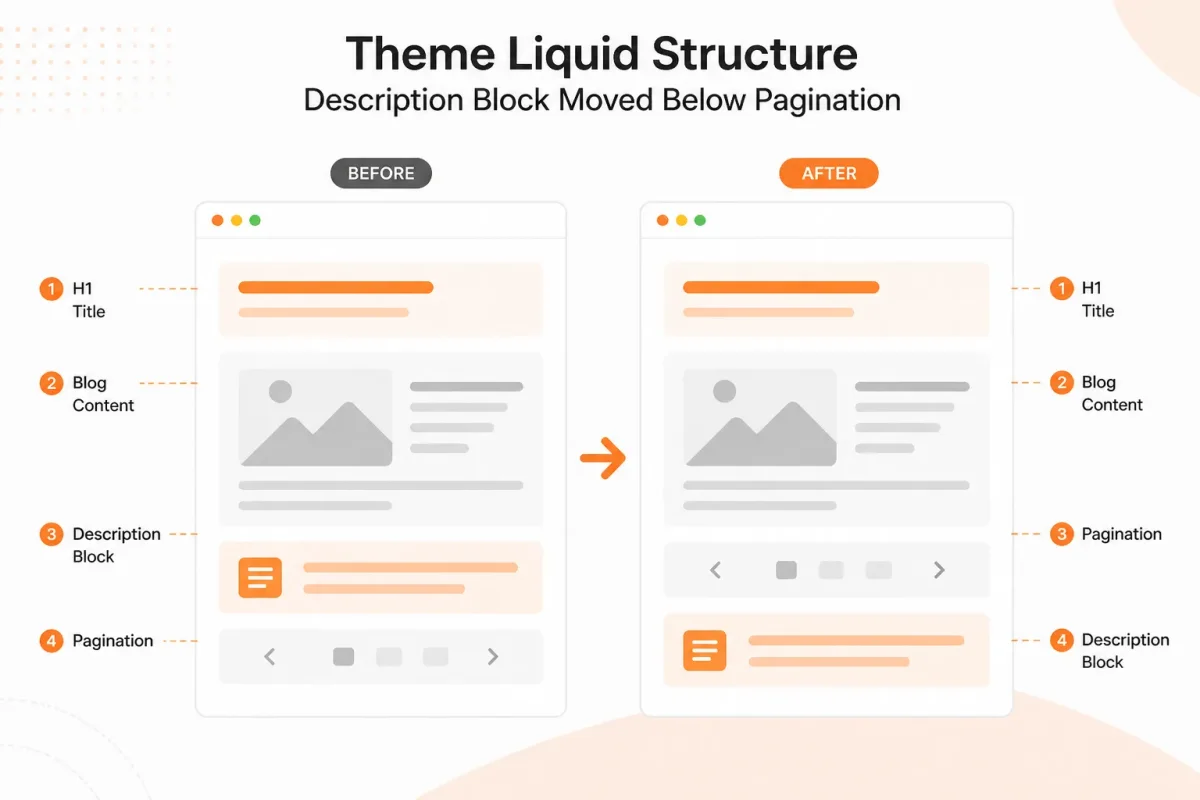
Move only the description output
Open the collection template or section that renders the description. Find the exact Liquid output, then move only that output below the product loop or pagination. Leave surrounding markup intact, and check whether your theme places the description inside a wrapper that also contains the title.
Weak: A copied banner block containing collection.title, collection.description, and heading markup is moved below the products.
Move only this: Your theme's existing collection.description output moves below the product loop, while the original wrapper and unrelated sections stay in place.
Preserve one H1 in the banner
Your collection title should remain in its original banner location as the page's H1. Only the descriptive copy belongs below the products. Check the rendered page source or accessibility tree to confirm that you still have one visible, meaningful H1.
Older Dawn Community guidance sometimes moved the H1 between files while reordering collection sections. That workaround can create a missing title or duplicate titles, and it becomes harder to maintain after theme updates.
Avoid copying the entire collection banner
Copying the full banner may seem faster, but it can duplicate breadcrumbs, images, headings, or theme settings. Liquid structure differs by theme, so don't paste a Dawn snippet into an unrelated theme without checking its markup and section settings.
What works
- Precise placement: You control the description's position without hiding its text from search engines.
- H1 control: You keep the collection title in the banner and avoid unnecessary heading changes.
- Small edit: You reduce the chance that unrelated collection features will move or break.
What fails
- Update risk: A later theme update may replace the file containing your edit.
- Markup mismatch: You may break layout or output if you use code from a different theme.
- Developer dependency: You may need technical help when the description is assembled across several sections.
Maintain the change across theme updates
Preview the edited duplicate with a collection that has a long description, several products, and pagination. If the title disappears, appears twice, or the description shows above the grid, restore the duplicate and reassess the exact output before publishing.
Keep a short record of the changed file and Liquid expression. When you update your theme, you can compare that record against the new template instead of rebuilding the change from memory.
Fix the symptoms that make the move look broken
You may finish the change and still see a page that looks wrong. The collection title may move with the description, the H1 may vanish, or the copy may appear twice. These symptoms often point to one template setting, not a need to redesign your Shopify store.
Check one affected collection at a time. Keep the first fix narrow and reversible so you can isolate the template, section, or setting causing the problem.
Description and title both move
If your title and description shift together, you probably reordered the entire banner with CSS or moved the whole section. That changes the position of both outputs instead of moving only the description.
Weak setup: A CSS rule moves the complete collection banner below the product grid.
Separate output: Your collection banner keeps the H1, while a dedicated description section appears below the intended product grid.
The H1 disappears or appears twice
When you rearrange Dawn sections, you can accidentally remove the banner title or create a second title output. Check the affected collection template first. Restore the banner title and keep the H1 in its original banner location before changing anything else.
| symptom | likely cause | first fix |
|---|---|---|
| The title and description both move together | CSS or whole-section reordering was used instead of moving only the description output | Remove the reorder on the affected collection template and use a separate description section |
| The H1 disappears after Dawn sections are rearranged | The banner and its title were moved or the original title output was removed | Restore the collection banner title and keep the H1 in its original banner location |
| The description spans the full viewport | The Custom Liquid output is outside the theme’s standard layout container | Wrap the output in the theme’s existing layout container for that section |
| The description appears twice | The original Collection Banner description remains enabled after adding a second output | Disable the original description setting in Collection Banner |
| The description appears below the wrong product-grid area | The Custom Liquid section was added to another template or placed after an unrelated grid section | Move the section within the target collection template directly below the intended Product grid |
The description stretches wider than the grid
A full-width description usually means your Custom Liquid section sits outside the theme's standard layout container. The copy may still render correctly, but its edges won't align with the products. Add the theme's existing container to that section rather than applying a broad store-wide CSS rule.
Weak setting: Custom Liquid outputs “Shop winter jackets” directly inside the page without the collection container.
Aligned setting: Custom Liquid outputs “Shop winter jackets” inside the same layout container used by your product grid.
The description appears twice or not at all
Two copies usually mean the original Collection Banner description remains enabled after you added a second output. No copy usually means the section was added to another collection template, or the description setting was disabled in both places. Check the affected template, disable the original banner description when needed, and confirm that the target collection uses that template.
After each fix, retest your H1, product grid, pagination, and mobile spacing. The copy should sit below the correct products without disturbing the page structure.
Dawn Theme Answers for Older and Theme-Specific Searches
If you're following a Dawn tutorial, the menu labels may not match your Shopify admin exactly. The setup remains simple: the collection description appears after the product grid, the page keeps one clear collection title, and you preview the result before publishing.
Moving a Shopify collection description to the bottom of the page in the Dawn theme
In the Dawn theme, add a Custom Liquid section below Product grid, output your collection description there, and turn off the original description in Collection Banner. Weak setup: Collection Banner description stays on while Custom Liquid outputs a second copy. Strong setup: Keep the Collection Banner title on, disable its description, and show one description below Product grid. Preview your desktop and mobile layouts before publishing.
Moving a Shopify collection description to the bottom of the page in Dawn
In Dawn, use the Theme Editor to place a Custom Liquid section below Product grid, then use that section to display your collection description. Keep one collection H1 or title in the banner. Weak setup: the banner title and a second heading appear with the copy. Strong setup: Keep one title in Collection Banner and place only the description below the products, checking the preview on your store.
Moving a Shopify collection description to the bottom of the page in Shopify 2022
If you're following a 2022 Shopify guide, it may refer to collection.json ordering or moving the H1 between section files. Those code locations and labels can differ by theme version. Weak setup: moving the H1 creates a duplicate or removes it. Strong setup: Put the description after Product grid, keep one H1, and document edits in a duplicate theme. A theme update may change the section structure.
Put the next collection page in the right order
The safest next move isn't a live code edit. Prove the layout on one low-risk collection, watch how shoppers respond, and keep the original theme untouched while you test.
Shopify treats description content and storefront section order as separate tasks. Shopify says you edit a collection description from Products > Collections, select the collection, change its existing description, and save it. You change where that content appears through the collection template.
1. Duplicate the theme
Open your Shopify theme settings and duplicate the active theme before making changes. Name the copy clearly, such as “Dawn Collection Description Test,” so you know which version contains the experiment.
2. Choose the editor or code route
Use Custom Liquid when your theme lets you add a collection description below Product grid. If that section is unavailable, choose a targeted Liquid edit instead of a store-wide CSS rule. Keep the change limited to the collection template.
Shopify also says products in a new collection use Most relevant sorting by default. That product order is separate from description placement, so you don't need to reorder products to move the copy.
3. Move and hide only the required output
Place the description after Product grid, then hide the original description output in Collection Banner. Keep one H1 and one visible description. Avoid hiding the copy with CSS alone because search engines and assistive tools may receive an unclear page structure.
Weak setup: the “Organic Cotton Tees” template uses display: none on every collection header, removing the H1 and description together.
Strong setup: the “Organic Cotton Tees” template keeps one H1, places its 120-word description after Product grid, and suppresses only the duplicate banner output.
4. Preview one collection before publishing
Check the duplicated theme on desktop and mobile before publishing it. Shopify supports manually moving a product to the end of a collection through Move, then To the end, but that action changes product order, not where your description appears.
- Template: One low-risk collection uses the duplicated Default collection template.
- Output: One H1 and one collection description appear on the page.
- Placement: The description sits below the complete product grid.
- Mobile: Products remain easy to reach without awkward blank space.
- Tracking: You record the page's impressions, clicks, queries, and indexing status before publishing.
Start with the duplicated Default collection template
- Duplicate: Copy your live theme and use one low-risk collection for the test.
- Identify: Confirm which collection template controls that page.
- Choose: Add Custom Liquid or use a narrow code edit.
- Reposition: Put the description after Product grid.
- Hide: Remove only the original description output.
- Preview: Check desktop and mobile before publishing.
- Measure: Review Google Search Console and wRanks for impressions, clicks, queries, indexing, and AI-search visibility.
That sequence gives you evidence before a wider rollout. Rankings won't change instantly, so judge the move through organic signals and shopping behavior, not one early position check.
If you want a faster way to optimize Shopify collections, products, pages, and blogs, wRanks provides AI-powered SEO tools for meta tags, structured data, image alt text, keyword tracking, and Google Search Console insights. The Shopify SEO workflow guides explain how those tasks fit together.

AI & GEO specialist helping brands maximize visibility across AI platforms like ChatGPT, Gemini, and Claude. James pioneers generative engine optimization techniques for e-commerce.