How to Fix Excluded Shopify Pages
Discover how to fix excluded Shopify pages by identifying the right source of exclusion and applying targeted SEO fixes to improve Google indexing.
You open Google Search Console between orders and spot several Shopify URLs under “Excluded.” A product page appears beside a cart URL, a duplicate product URL, and a private campaign page, but the label gives you no clear answer. Are valuable sales pages missing from Google, or are private and utility pages correctly left out?
Most Shopify stores don't have an indexing problem. They have a classification problem. When you're figuring out how to fix excluded Shopify pages, the answer depends on the exact URL, its Search Console reason, its Shopify resource type, and whether you want it visible in organic search. Google indexing and Shopify storefront search are separate systems, a distinction competitor guidance often blends together.
Start with one URL. Confirm the live result, make the narrowest source-level change, and validate it without forcing every excluded page into Google.
Use Search Console Before Changing Shopify SEO Settings
You can make an excluded Shopify URL harder to find by fixing the wrong layer first. A blanket noindex tag, robots.txt edit, or theme change may hide a collection that should rank while leaving a private campaign page exposed to Google.
First decide whether the URL should disappear from Google, Shopify search, both, or neither. Search Console supplies the reason, and the URL type supplies the context. Together, they show whether to preserve the exclusion or investigate it.
Classify the URL before touching the theme
Start with the exact URL in Google Search Console, then identify its Shopify resource type. A discontinued product may deserve exclusion. A size guide may need to remain available inside your product template, while a collection intended to rank needs investigation rather than concealment.
Shopify says all Shopify stores include a preconfigured and optimized robots.txt.liquid template, so you shouldn't edit it without a specific Search Console reason, according to Shopify's SEO documentation. wRanks can help you inspect indexing signals across products, collections, pages, and blogs, but it can't decide whether your discontinued product belongs in search.
“All Shopify stores have a preconfigured and optimized robots.txt.liquid template,” according to Shopify's SEO documentation.
Separate Google indexing from Shopify storefront search
Your Google visibility and Shopify storefront search use separate controls. Shopify explains that a metatag can hide a product or page from search engines while keeping it visible in storefront search, according to Shopify's guidance on hiding pages.
Weak setting: Add noindex to the “Summer Size Guide” page because it shouldn't rank, even though customers still need it from product pages.
Stronger setting: Keep the “Summer Size Guide” available through your Shopify theme and storefront search, while using the documented metatag approach to keep it out of Google.
The practical rule for valid exclusions
Changing the wrong layer can reduce discovery, create confusing reports, or remove useful customer paths. Review the Search Console reason before changing meta tags, robots.txt, or theme code.
Practical rule: Preserve a valid exclusion, and investigate only when the URL should appear in Google but Search Console says it cannot.
Fix an Excluded URL at the Right Source
You can fix an excluded Shopify URL faster when you follow the evidence instead of changing several settings at once. Start with the exact URL in Google Search Console, then trace the issue back to its Shopify resource and source.
The goal isn't to force every URL into Google. Separate an intentional exclusion from a page that should be indexed but can't be crawled, understood, or selected.
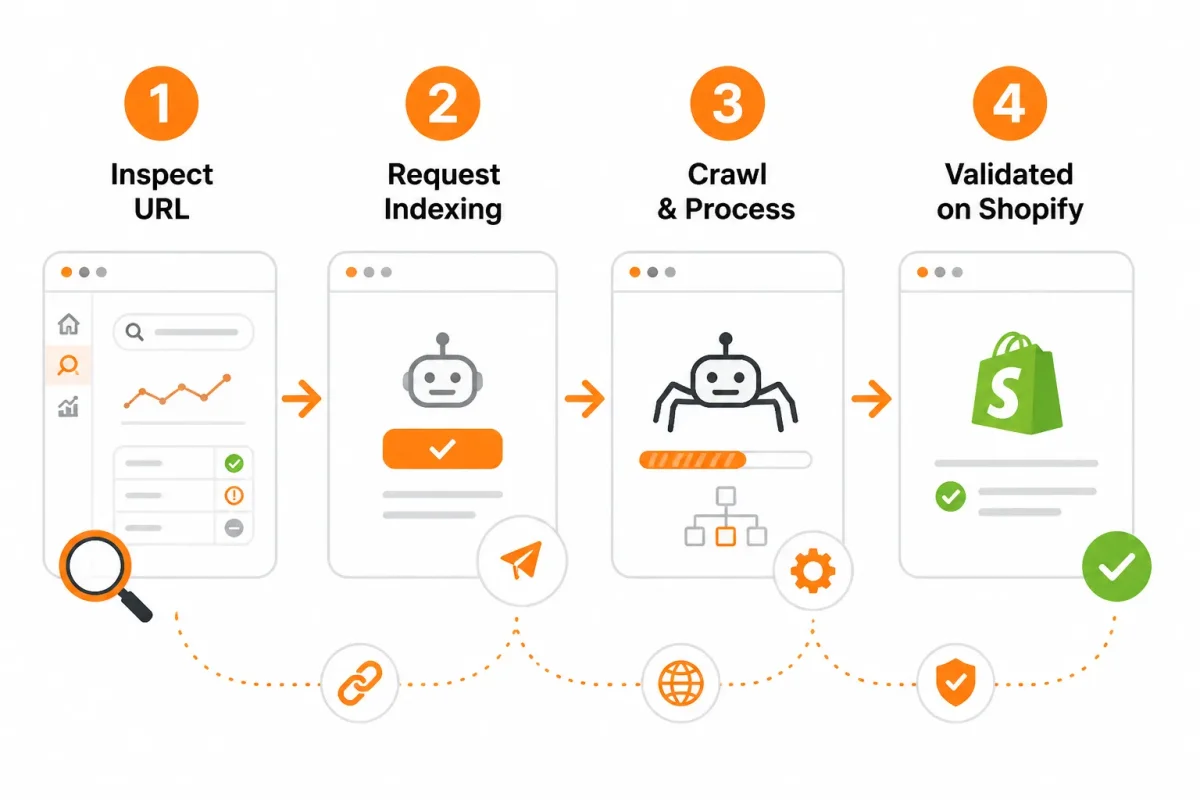
Inspect the excluded URL and its Search Console reason
Step 1: Enter the affected URL in Search Console's URL Inspection tool. Test the live page and record the exclusion reason, selected canonical, crawl availability, and indexability before editing Shopify.
Choose noindex, unlisted status, canonical correction, or content repair
Step 2: Classify the URL as a product, collection, blog post, page, or utility URL. If you intend to hide it, Shopify documents a robots noindex metatag in theme.liquid. You can target a page handle without removing storefront search access, according to Shopify's SEO documentation.
Before: A campaign page has no exclusion setting. After: Add a robots noindex metatag for summer-sale when customers still need the page on your storefront.
For supported content, setting the seo.hidden custom metafield to 1 removes it from sitemaps, search engines, and online store search, according to Shopify. An Unlisted product is hidden from internet search, Shopify Catalog, and the sitemap, and you can reach it only through its direct URL, according to Shopify.
Apply the fix to the correct Shopify object
Step 3: Correct the product visibility, page template, canonical, metafield, or content source that caused the unexpected exclusion. After diagnosis, you can use wRanks to review meta tags, structured data, image alt text, keyword signals, and Search Console data across priority Shopify content.
Test the live URL and request recrawling
Step 4: Publish the change, inspect the live URL again, and request validation or indexing when the page should appear. Recrawling isn't an instant ranking guarantee, so confirm that the exclusion reason changes before closing the issue.
- URL: You inspected the exact affected Shopify URL.
- Decision: You recorded whether exclusion is intentional.
- Source: You changed the correct Shopify object, not a nearby template.
- Validation: You tested the live page and requested recrawling only when appropriate.
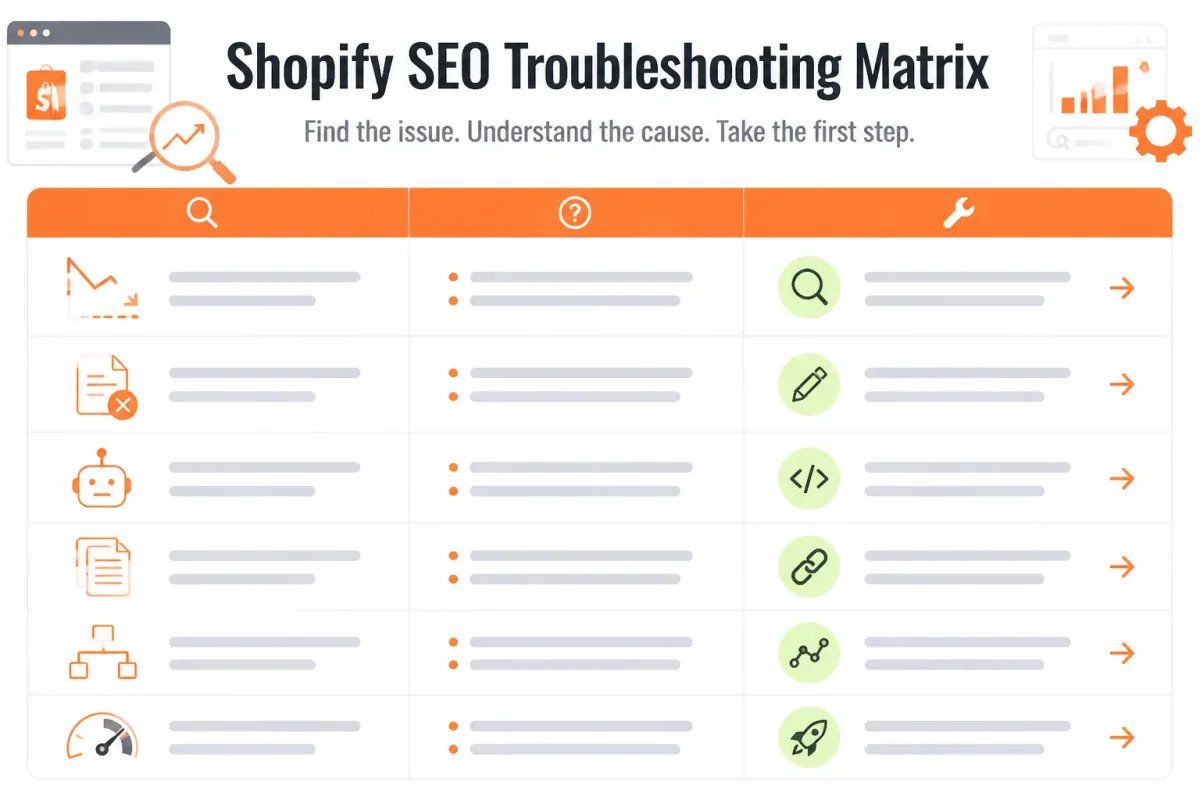
Match the Symptom to the First Fix Before Editing Code
You can waste hours changing Shopify settings when the exclusion belongs to a different layer. A Google indexing problem isn't the same as a storefront search problem, and an unlisted product isn't the same as a product that needs better metadata or internal links.
Use the narrowest first fix available. You'll reduce side effects, preserve valuable URLs, and know what to re-inspect after changing the source.
Confusing storefront search with Google search
| symptom | likely cause | first fix |
|---|---|---|
| Google Search Console reports a valuable product or page as excluded | An unintended noindex directive, canonical mismatch, or Shopify visibility setting | Inspect the exact URL and live page, then correct the Shopify source before requesting indexing |
| A page still appears in Shopify storefront search after being hidden from Google | A robots noindex metatag hides it from search engines but not storefront search | Choose a storefront-search control separately if the page should disappear from both systems |
| A custom hide metafield has no effect on storefront results | The active search template doesn't read the metafield | Update the relevant search template and wrap the complete result item, including the list element |
| A page remains at a URL containing /pages/ | The Shopify URL structure is platform-controlled | Don't treat the path as an indexing error; use a redirect only for a genuine URL change |
| Storefront search shows blank grid spaces after hiding results | Only part of the search-result item was placed inside the conditional | Wrap the entire result item so excluded entries don't leave empty layout slots |
Using noindex when the page should rank
If your product has organic-search intent, don't hide it merely because it appears in the wrong storefront results. Review its content, metadata, canonical URL, and internal links first. A noindex directive should serve a deliberate purpose, not compensate for weak optimization.
Editing the wrong template or metafield
You can create a custom hide metafield and see no change when your active search template never reads it. If you use a conditional, include the complete result item, including its list element.
Weak example: Your conditional hides only the product title, leaving the image container and grid space visible.
Strong example: Your search template checks search_result.metafields.custom.hide_from_search before rendering the complete result item.
The guide to choosing Shopify templates for SEO fits this workflow when you need to confirm which template controls the affected output.
Treating /pages/ URLs as an indexing penalty
Your Shopify page can remain under /pages/ without an indexing fault. That path is standard platform structure, so removing it isn't the same as making your page indexable. Use a redirect only when you have a genuine URL change and a replacement destination.
After changing the source, re-inspect the exact URL in Google Search Console. Confirm that the exclusion reason changed before requesting indexing again.
Questions to Resolve Before You Hide or Reindex a Shopify URL
Your Shopify page can look wrong because of its layout, storefront visibility, or Google indexing status. Identify the layer you want to change before hiding a URL or adding a noindex directive.
Changing a Shopify page layout
You change a Shopify page layout through the theme editor and its assigned template, not through Google Search Console. Check the page template in Shopify, then adjust sections, blocks, and content in the theme editor. A layout change affects presentation, but it doesn't automatically make your page indexable or remove it from Google.
Whether Shopify is still worth it in 2026
Shopify remains useful in 2026 when its commerce tools, content features, analytics, and app ecosystem fit your US business. Your SEO results still depend on useful content, correct technical settings, and measurement. wRanks can help you optimize products, collections, and blogs, although no platform can replace sound content decisions and regular Search Console checks.
Hiding pages on Shopify
You hide a Shopify page by choosing the visibility method that matches your goal. Use a noindex tag when direct access should remain but Google shouldn't index it. Use seo.hidden when the resource should be removed from storefront discovery. An unlisted product can remain directly accessible, so check both search visibility and direct access.
Weak setting: seo.hidden: 1 on every seasonal landing page. Strong setting: seo.hidden: 1 only on a discontinued campaign page that should remain reachable from a saved URL.
Hiding unavailable variants in Shopify
You hide unavailable variants through the product template and theme logic while keeping useful product content visible. Let your theme remove sold-out options or label them unavailable without hiding the entire product page. Your indexable description, specifications, and buying guidance can still serve shoppers researching the item.
Noindexing a page in Shopify
You noindex a page by applying a narrow, head-level robots directive such as noindex,follow. Use it only when Google shouldn't index that specific URL. Weak example: adding noindex across a collection template. Strong example: adding noindex to one private wholesale information page after confirming its intended audience.
Creating a hidden page on Shopify
You create a hidden page by removing it from navigation or storefront discovery, but that doesn't necessarily delete it or block direct access. If your page should remain available to customers with its URL, unlist it. If Google must also exclude it, use a carefully targeted noindex directive and confirm the result in Search Console.
Start With One Excluded URL and Follow the Five-Check Sequence
You don't need a sitewide edit to resolve an excluded Shopify page. One URL, one Search Console reason, and one carefully chosen fix give you cleaner evidence and less risk.
Use the sequence below to decide what deserves action. The goal isn't to force every URL into Google. It's to make each important page match its intended visibility.
Record the URL and exclusion reason
Open Google Search Console and copy the complete URL, including its path and parameters. Record the exact exclusion reason shown for that URL before changing Shopify settings.
- Check one: Write down the URL, exclusion status, and reported reason so you can compare the result after the fix.
- Check two: Confirm whether the URL is a product, collection, page, blog post, utility URL, duplicate, or private resource, then compare that type with the visibility you want.
Choose the narrowest fix
Apply one Shopify fix that addresses the evidence. You might correct a visibility setting, remove an unintended noindex directive, repair a canonical or template issue, or intentionally keep the URL hidden when its exclusion is valid.
- Check three: Change only the affected URL or template, not your entire store, and never use robots.txt edits to force utility, duplicate, cart, private, or intentionally unlisted URLs into Google.
Validate the live result
Inspect the published page after saving your change. You should see the intended content, canonical URL, page source directives, and storefront behavior, with search behavior that matches your decision.
- Check four: Use URL Inspection to confirm the live result, then request validation or indexing when appropriate. Monitor the outcome instead of submitting the same URL repeatedly.
Start with one high-value URL
wRanks can help you prioritize important products, collections, pages, and blogs by combining metadata, structured data, image alt text, keyword tracking, and Google Search Console signals. That keeps your first review tied to business value, not the largest exclusion count.
- Check five: Open URL Inspection for your highest-value excluded URL today and document its current status before changing anything.
If you want a faster way to prioritize excluded Shopify URLs, wRanks combines metadata, structured data, image alt text, keyword tracking, and Google Search Console signals for Shopify stores seeking focused AI-powered SEO. The Shopify SEO guides and workflows support that review.

Content marketing expert and Shopify ecosystem authority. Priya has helped 200+ stores grow organic traffic through strategic blog content and keyword targeting.