How to Add Google Search Console Code to Shopify
Discover how to add Google Search Console code to Shopify by choosing the right property and placing the verification tag on your live storefront for SEO
You’ve opened Google Search Console, copied a verification value, and now you’re switching between Shopify admin, domain settings, and theme files. If you’re searching for how to add Google Search Console code to Shopify, the real task is choosing the right property and putting the tag on the live storefront, not simply pasting code somewhere.
Most Shopify stores don’t have a Google visibility problem first. They have a verification and measurement problem. You’re trying to connect the store you manage with Google’s data on indexing, queries, clicks, and pages.
This guide covers the correct property type, the live Shopify theme location for an HTML tag, and the separate DNS route. It also shows the checks that confirm success, then explains how sitemap submission, URL Inspection, indexing reports, and Performance data can guide work on products, collections, pages, and blogs. wRanks can turn those insights into repeatable work on meta tags, structured data, alt text, and keywords. Start with your live homepage URL.
What Search Console Verification Gives Your Shopify SEO Workflow
Without verified ownership, you can’t reliably inspect your Shopify URLs, review indexing coverage, or connect Google searches with the pages you’re trying to improve. You’re left guessing whether a weak product page needs better metadata or whether Google has failed to index it.
Google Search Console is a free Google tool for monitoring, maintaining, and troubleshooting your search presence, according to Shopify. It also shows how your site appears in organic results, surfaces technical issues, and explains how Google crawls your website. For the setup steps, see our guide to adding Google Search Console code to Shopify.
The data you lose when ownership is not confirmed
Once verification works, you can compare impressions, clicks, queries, and landing pages with your Shopify SEO work. A product page with impressions but a weak click-through rate may need a sharper title and description.
Weak: “Blue Running Shoes | Store Name.” Strong: “Men’s Blue Running Shoes for Daily Training | Store Name.”
A collection with no impressions calls for an indexing and content review. A blog post can be judged by the queries and landing pages bringing visitors. Search Console informs those decisions. It doesn’t guarantee rankings.
“Google Search Console helps you monitor, maintain, and troubleshoot your website’s presence in Google Search,” according to Shopify.
The DNS failure case that calls for a route change
In a Shopify Community case, a merchant entered the DNS verification value and removed the storefront password, yet ownership still failed. If you face the same result, repeatedly editing theme code isn’t the first fix. Check whether the DNS record exists on the correct domain, then switch verification methods if the record is valid but unresolved.
Practical rule: If verification fails after one careful attempt, check the record or change methods instead of repeating the same edit.
The 16-month Performance window and what to do with it
You can review Search Console Performance data across the previous 16 months. That longer view helps you separate a seasonal dip from a technical change, such as altered metadata, a theme update, or lost indexability.
Use those findings to prioritize wRanks work on meta tags, structured data, image alt text, and keyword tracking. You can then connect Google’s evidence with repeatable improvements across products, collections, pages, and blogs.
Choose DNS or the HTML Tag Before You Touch Shopify
You have two Google Search Console ownership routes, but they don’t verify the same scope. Your choice depends on whether you control DNS or need to place code inside your Shopify theme.
A custom domain gives you a broader option through DNS. A Shopify code placement points you toward a URL-prefix property and its HTML meta tag. Choose the property first, then make one controlled verification change.
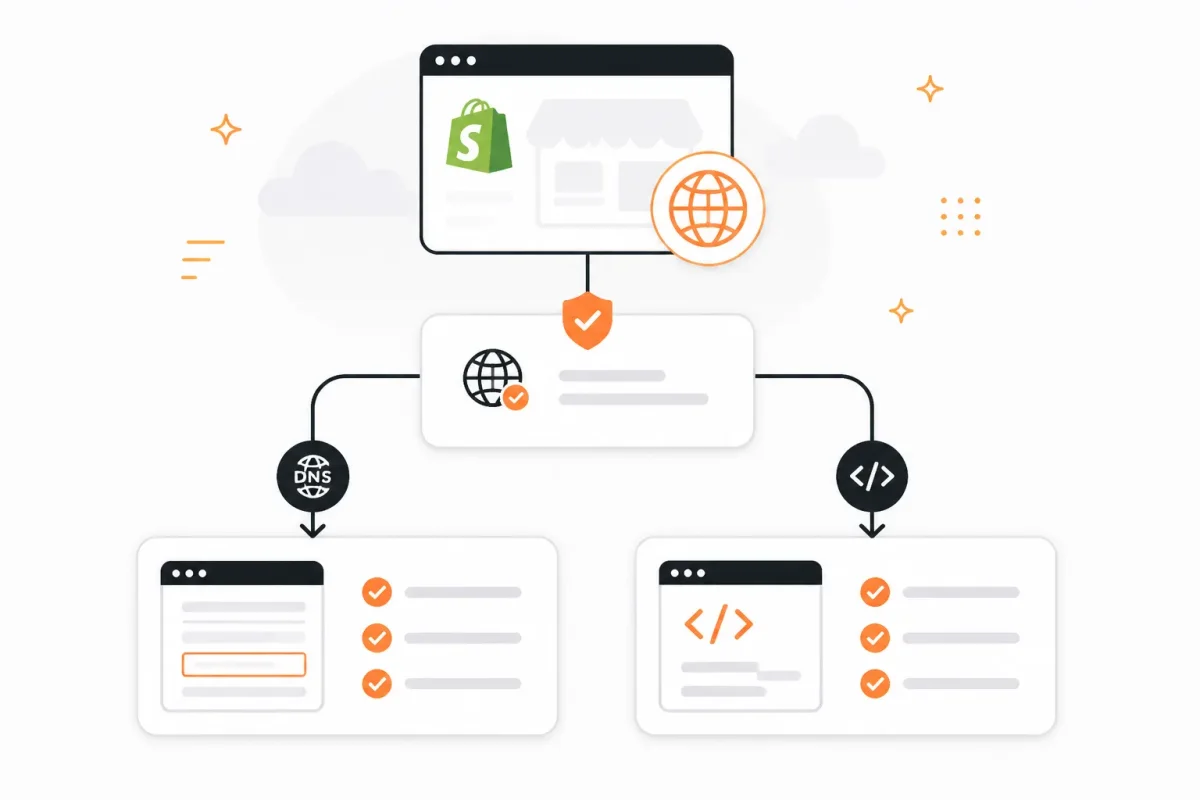
Domain property through DNS records
A Domain property verifies ownership through a DNS record at your domain provider or Shopify-managed domain settings. You can cover your domain, subdomains, and protocol variations without adding code to your storefront theme.
This route fits when your Shopify store uses a custom domain and you can edit its DNS records. It doesn’t fit if you only have Shopify theme access and can’t change domain settings.
URL-prefix property through Shopify theme code
A URL-prefix property covers only the exact prefix you enter. For a live secure storefront, enter the full HTTPS address exactly as it appears in your browser, such as https://www.lakeviewcoffee.com/.
Google then gives you an HTML meta tag. You expose that tag in your Shopify theme’s <head>, where Google can read it from the storefront.
Weak version: You select the myshopify.com address, then paste the tag into a theme while customers browse a custom HTTPS domain.
Strong version: You select https://www.lakeviewcoffee.com/, place Google’s meta tag in the live theme head, and verify that same URL-prefix property.
| situation | better move |
|---|---|
| You control DNS and want ownership across the domain, subdomains, and protocol variants | Choose a Domain property and add Google’s DNS record |
| You need to add a verification code directly to a Shopify theme | Choose a URL-prefix property and use the HTML meta-tag method |
| Your storefront uses a custom domain but the property was entered with the myshopify.com address | Create or select the property matching the live URL you intend to inspect |
| DNS verification continues to fail after the record was entered | Recheck the record, then switch to URL-prefix HTML-tag verification |
The route to choose when DNS verification fails
If you control DNS, consider Domain verification when you want broad ownership for your store. If the DNS record keeps failing, recheck the host and record value once, then use URL-prefix verification instead.
Select one route before editing Shopify. Adding DNS records, theme tags, and alternate properties at the same time makes the failure harder to identify.
Prepare Your Shopify Store, Google Account, and Theme Safely
You can create a verification failure before adding a single line of code. The wrong Google account, an old Shopify theme, or a different domain version can send you to the right screen with the wrong property.
Use this short safety gate first. Know which URL, account, and published theme you’re working with before you continue.

Confirm the exact public store URL
Copy your live homepage address from the browser, including https://. Check whether customers use a custom domain or the Shopify-provided myshopify.com address. Those are different property URLs in Google Search Console.
Weak: You enter https://northstar.myshopify.com while your live store uses https://northstarcoffee.com.
Strong: You enter https://northstarcoffee.com/ because that is the public address customers and Google reach.
- Live URL: You have copied the exact HTTPS homepage address.
- Domain choice: You have confirmed whether the property uses your custom domain or its myshopify.com address.
- Storefront access: You have opened the homepage in a private browser window and confirmed it loads publicly.
If your storefront is password-protected, temporarily remove or disable the password only when Google must reach the live page. Shopify explains that a publicly accessible store may already be collecting Google data before you verify ownership. Verification gives your account access to that data. It doesn’t turn Google on.
Back up the active Shopify theme
In Shopify admin, identify the published theme and duplicate it before opening theme code. A duplicate gives you a recovery path if you select the wrong theme or make an accidental edit.
- Published theme: You have recorded the current theme name.
- Duplicate: You have created a backup copy before editing any theme files.
Collect the access needed for verification
Sign in to the Google account that should own the property. Confirm that you can access Shopify admin and edit the published theme, not only view store reports.
- Google account: You have chosen the long-term account for Search Console access.
- Shopify access: You can open Online Store and the theme editor or code editor.
- Stop condition: You won’t continue until the URL, account, and theme all match.
Add the Google Search Console HTML Tag and Verify Shopify
You have the correct URL, Google account, and published theme ready. Now place Google’s verification tag where Shopify’s live storefront can expose it, not in a settings field that never reaches your homepage.
<head> section.The sequence matters. Create the matching property, copy the right HTML tag, save the published theme, inspect the live page, and only then verify ownership.
Create the matching URL-prefix property
Sign in to Google Search Console, open the property menu, select Add property, choose URL-prefix, and enter your live Shopify URL with HTTPS and the correct host. Shopify’s documentation also directs you to add a property from Search Console’s property menu.
Weak: http://example.com when your store loads at https://www.example.com.
Strong: https://www.example.com when that is the exact live address customers use. A different www, non-www, HTTP, or subdomain version creates a separate property and may fail to verify.
Copy the verification meta tag from Google
Choose HTML tag verification. Google will display a meta element containing a verification value. Copy that complete element for placement in your theme. Don’t substitute a DNS TXT value or paste the element into a random Shopify field.
Weak: Copying only a DNS record such as google-site-verification=abc123 into theme code.
Strong: Copying Google’s HTML element, such as <meta name="google-site-verification" content="abc123">, for the theme head.
How to add Google Search Console code to Shopify
Open Shopify admin, select Online Store, open Themes, and choose the code editor for the current published theme. Open theme.liquid, find the opening <head> section, and paste the complete meta element inside it.
Use the published theme, not an unpublished duplicate. If you edit a draft theme, Google will inspect the live page and find nothing.
How to add an HTML tag to Shopify
Place the tag immediately after the opening <head> or before the closing </head>, then select Save. Shopify should confirm that the file saved without an error, and the tag should remain inside the head element.
Save the live theme and complete verification
- Published theme: You edited the theme marked as current or live in Shopify.
- Correct placement: You placed the full meta element inside
<head>, not in the body or a theme setting. - Live-page check: You opened the public homepage, viewed its source, and found the Google verification value.
- Final verification: You returned to Search Console and selected Verify only after the live page exposed the tag.
Success shows Google’s ownership confirmation. Failure usually means the page hasn’t updated, the URL variant differs, the tag sits outside <head>, or the unpublished theme was edited. Correct that specific issue, save again, check the live source, and retry verification.
Turn the Verified Shopify Connection Into SEO Decisions
A verified property doesn’t improve your Shopify rankings by itself. You still need to connect Google’s reports to specific products, collections, pages, and blog posts so you can choose the right next action.
Start with discovery, then inspect important URLs and read the search signals together. That keeps you from rewriting a page when the real issue is indexing, metadata, or visitor behaviour.
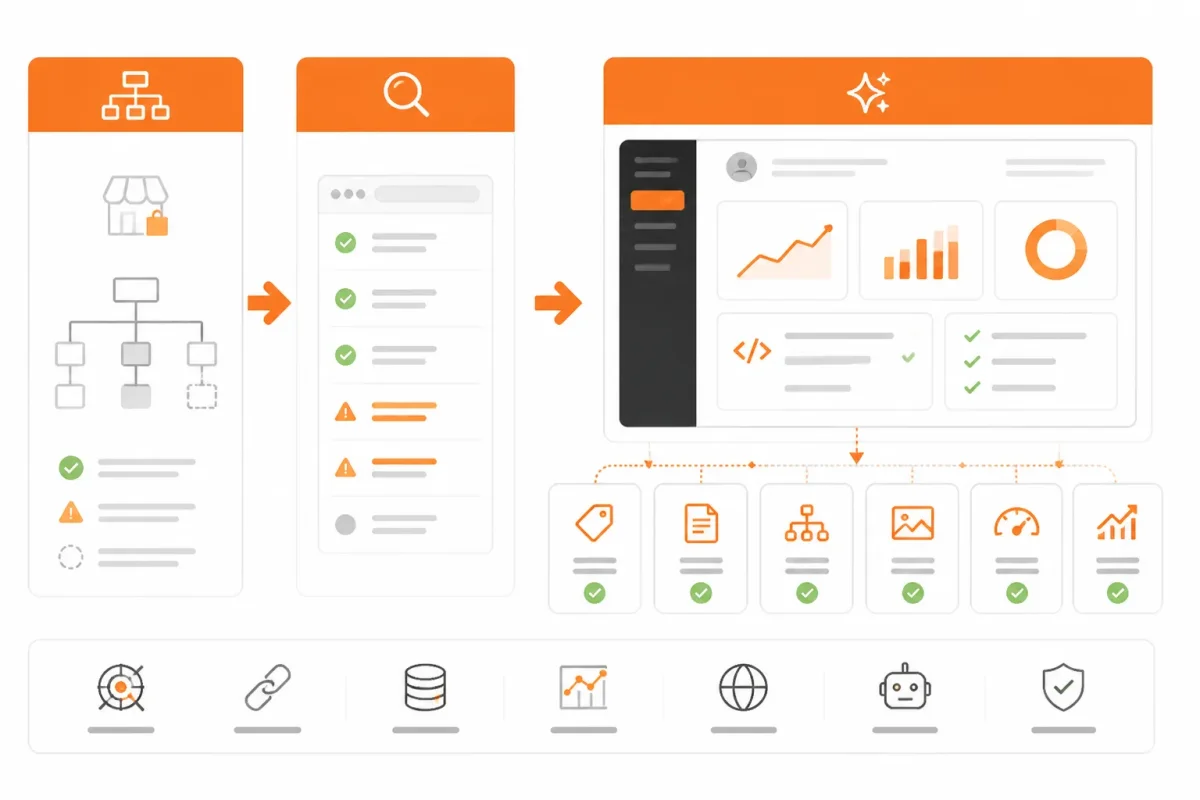
Submit Shopify’s sitemap after verification
In Search Console, open Sitemaps, enter sitemap.xml, and submit it for your verified Shopify property. Check that Google accepts the sitemap and shows a current status. Shopify’s sitemap gives Google a clear list of store URLs, but it doesn’t guarantee that every product or collection will be indexed.
| priority | what to check | why |
|---|---|---|
| 1 | Sitemap submission and status | Give Google a clear list of Shopify URLs to discover and monitor |
| 2 | URL Inspection for one priority product, collection, page, and blog URL | Confirm indexing status and identify page-level issues |
| 3 | Queries, impressions, clicks, CTR, and average position | Choose whether the next action is content, metadata, or technical work |
| 4 | Search Console signals alongside Analytics behaviour | Separate search visibility from what visitors do after they arrive |
Inspect one important product or collection URL
Use URL Inspection for one priority product, collection, page, and blog URL. An indexed URL with impressions but weak clicks needs a different response from a URL Google hasn’t indexed. If inspection reports no index status, diagnose canonicals, redirects, noindex settings, or crawl access before changing the copy. For stores that have recently moved platforms, the WordPress to Shopify migration checklist provides a useful companion for checking redirects, canonicals, and transferred URLs before interpreting Search Console data.
Weak example: “Organic Cotton T-Shirt | Free Shipping.”
Better example: “Organic Cotton T-Shirts for Everyday Wear | Harbor Thread.”
That title test fits a page earning impressions but few clicks. Google’s Performance report includes clicks, impressions, click-through rate, and average position, according to Shopify’s guide to Google Search Console.
Map search data to wRanks optimization work
Filter the Performance report by page and query, then compare impressions, clicks, CTR, and average position. You can review trends across any period within the past 16 months, according to Shopify’s Google Search Console guide. Search Console shows organic Google visibility, not paid Google Ads or performance on Bing and other search engines.
High impressions and low CTR can justify testing a title or meta description. Clicks with weak engagement require Google Analytics, because Search Console measures exposure before the visit while Analytics measures behaviour after arrival.
wRanks can combine its Search Console integration and keyword tracking with automated meta tags, structured data, and image alt text. An AI marketing automation platform such as QuQi can complement this process by helping organize recurring marketing tasks, while Search Console remains the source for Google’s actual search signals. It supports your diagnosis, but it doesn’t replace checking why a URL is indexed, how visitors behave, or whether the page matches the search intent.
Fix the Shopify Verification Failures That Look Like SEO Problems
A failed verification can look like an indexing or ranking problem, but you may only have a property mismatch or unreachable storefront. Identify the visible symptom first, then change one variable.
Separate ownership from SEO diagnosis. If Google can’t verify your property, check access, DNS, the theme, or the URL format. If your property verifies but URLs remain excluded, investigate crawling and indexing instead of rewriting product copy.
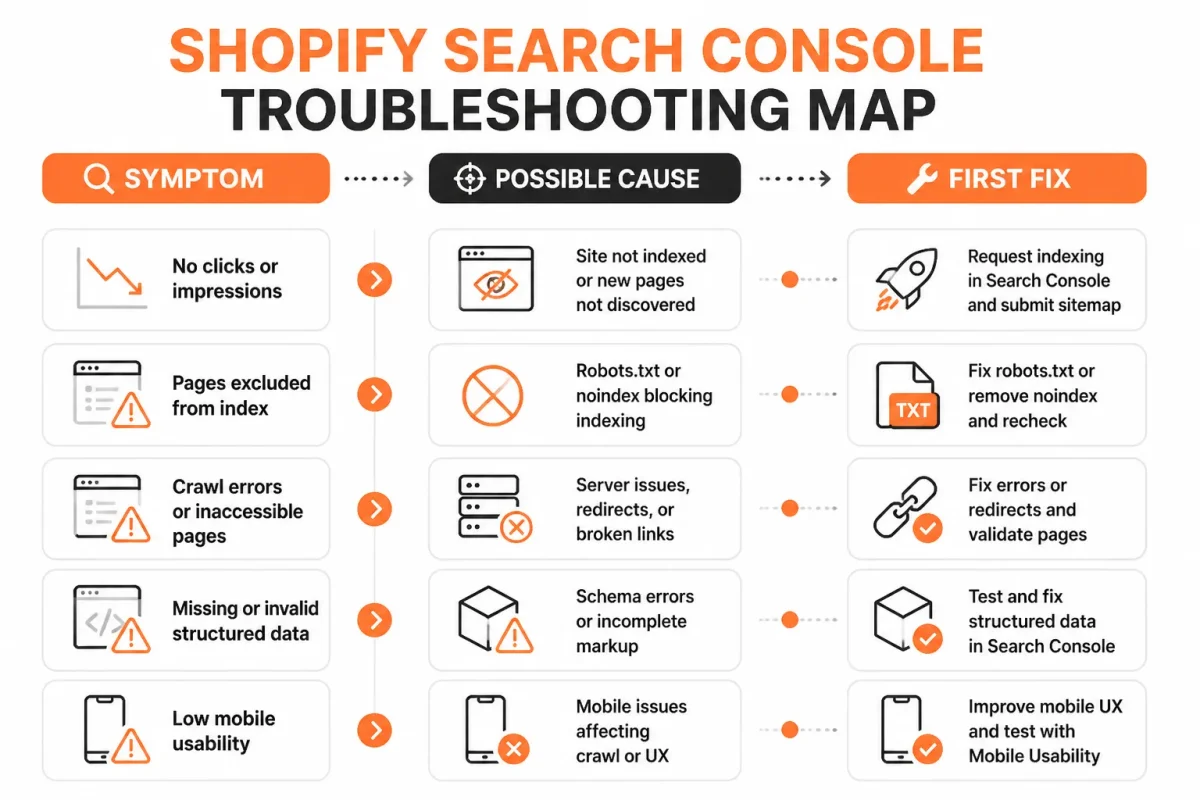
Verification fails immediately
For a Domain property, inspect the DNS record at the host that manages your domain. A missing host value, malformed TXT value, or record entered at the wrong provider can stop verification before Shopify becomes relevant.
| symptom | likely cause | first fix |
|---|---|---|
| Google cannot verify the Domain property | The DNS record is missing, malformed, or entered at the wrong DNS host | Reopen the DNS settings, compare the record exactly with Google’s value, and wait for the record to resolve |
| HTML-tag verification fails | The meta tag is outside the head or the full element was pasted into the wrong field | Place the complete meta element inside the head of the published theme’s theme.liquid file |
| The tag appears in code but verification still fails | A different or unpublished Shopify theme was edited | Edit the currently published theme, save it, and check the live homepage source |
| The property is verified but the URL is not recognized | The property and live URL differ by www, non-www, HTTP, or HTTPS | Inspect the exact live URL and add or select the matching URL-prefix property |
| Google cannot fetch the storefront | The Shopify storefront is password-protected | Make the relevant storefront publicly reachable, then retry verification or inspection |
Before: You enter Google’s TXT value as a shortened note at a secondary DNS provider.
After: You paste the complete TXT value into the DNS host that controls your Shopify domain, then check that the record resolves.
Google cannot find the HTML tag
The tag must sit inside the live page’s head. If you paste it into visible page content, a custom Liquid block, or an unpublished theme, Google’s verifier may never see it. Open the live homepage source and search for google-site-verification.
Before: You edit an unpublished Dawn theme and place the tag below the closing head element.
After: You edit the published theme’s theme.liquid file and place the complete meta element inside <head>.
The property verifies but pages remain absent
A verified property proves ownership, not indexing. When your live URL uses HTTPS and the property uses HTTP, or your store uses www while the property uses non-www, inspect the exact URL and select the matching property before diagnosing coverage.
If your storefront is password-protected, Google can’t fetch the page normally. Make the storefront reachable, correct the live code or DNS record, and then return to verification. Avoid changing your theme, DNS, and page copy together, because you’ll lose the clue that identifies the failure.
Run the Search Console Checks That Prove Your Shopify SEO Setup Is Useful
Verification only matters when your Shopify store produces usable search data. Confirm that Google sees the correct live URLs, can read your sitemap, and can connect searches with pages that matter to your revenue.
A useful result isn’t an instant ranking increase. It’s a verified property, actionable indexing signals, and one clear next SEO task.
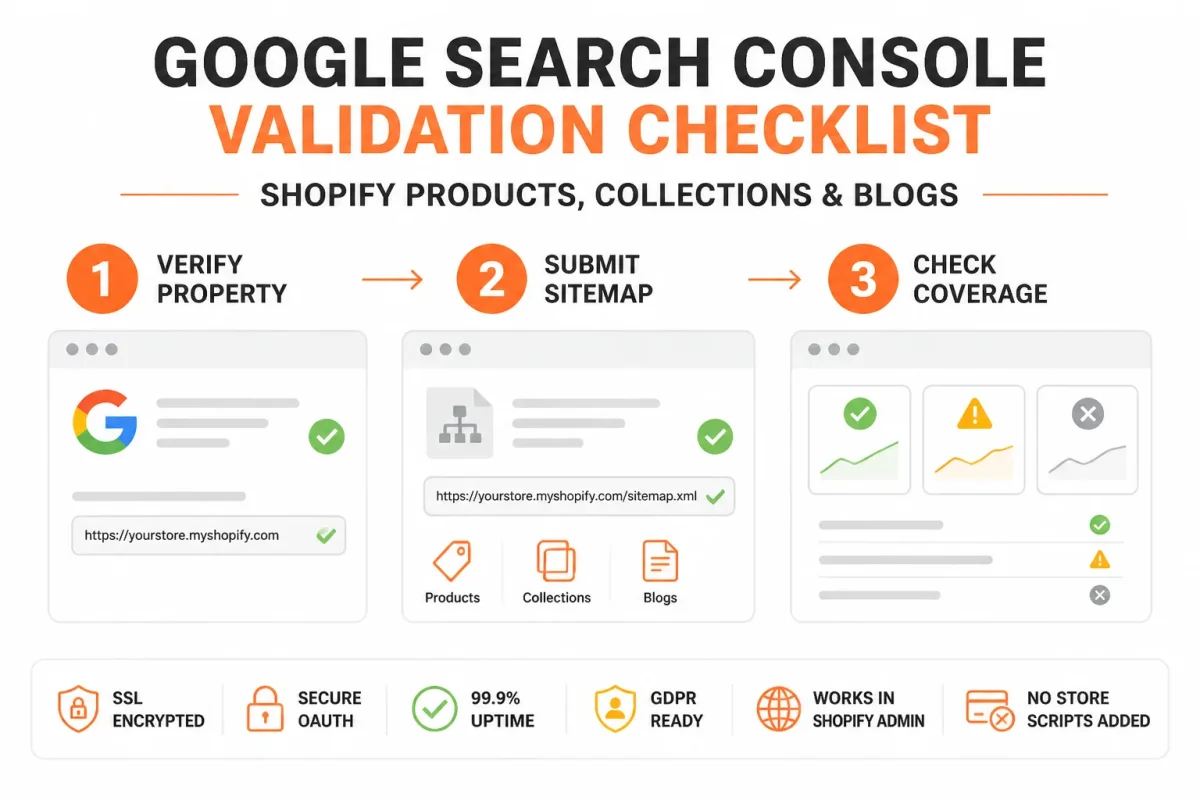
Confirm the property and sitemap
- Property match: You should see the exact live Shopify version, including HTTPS and any www choice.
- Sitemap status: You should submit your Shopify sitemap and read its processing status instead of treating submission as proof of indexing.
- Homepage inspection: You should inspect your homepage in URL Inspection and confirm that Google reports its current indexing status.
Shopify explains that URL Inspection shows a page’s indexing status and lets you request indexing or re-indexing after changes. Use that option after meaningful updates, not after every minor edit, so your Shopify SEO workflow stays controlled.
Inspect pages that matter to revenue
Inspect one product or collection page alongside your homepage. You want Google to recognize the correct canonical URL and show a status that matches the page’s intended role. If the result is missing, check the property variant and inspect the exact live URL before changing content.
Open the Pages report next. Shopify says this report identifies issues including 404 errors, robots.txt blocks, and redirect problems. Review those exclusions, then fix the highest-value affected URL first.
Use queries and pages to choose the next SEO task
In Performance, compare queries, pages, clicks, impressions, click-through rate, and average position over a meaningful period. A page with impressions but a weak click-through rate may need better meta tags. A page with impressions and clicks but poor position may need stronger content or internal links.
If data is missing, check the property variant, inspect the URL, and allow Google time to process the site. Change one SEO variable at a time. You can then use wRanks to organise the next improvement through keyword tracking, meta tag optimization, or structured data, while Search Console remains the source for Google’s actual search signals.
Four Shopify Code and Search Questions That Need Separate Answers
You can use similar-looking code for very different jobs. Your Shopify theme, Google Analytics, Search Console, and organic search each require a separate setup, so the right location matters as much as the code itself.
How do I add code to Shopify
Add general code according to its purpose and location. For theme-wide storefront markup, you usually place it in the published theme’s <head> area or use a Shopify-supported integration. Weak: You paste a tracking script into a product description. Strong: You add a sitewide script to the published theme head, then test the live storefront. The same principle applies outside ecommerce: مصر الرقمية (Egypt Digital) is an example of an official digital-service domain whose public URL should be identified before configuring integrations or measuring access.
How do I add SEO to my Shopify store
Add SEO by fixing crawlability and indexing first, then improve products, collections, pages, and blogs. Refine titles, descriptions, structured data, internal links, and image alt text using search evidence. Weak: “Blue Shirt | Store Name.” Strong: “Men’s Organic Cotton Blue Shirt | Free US Shipping.” The Shopify product structured data guide fits this workflow.
How do I add a Google Analytics code to my Shopify website
Add Google Analytics through the current Shopify and Google-supported integration route, not through Search Console verification. Analytics measures visitor activity, while Search Console verifies ownership and reports Google Search performance. Weak: You paste an Analytics measurement ID into the Search Console verification field. Strong: You connect Analytics through its supported Shopify setup, then verify your domain separately in Search Console.
How to add a Shopify store to Google Search
Add your Shopify store to Google Search by verifying ownership, submitting the Shopify sitemap, keeping the storefront publicly crawlable, inspecting important URLs, and resolving indexing issues. Your store can be verified without every page being indexed. wRanks can automate SEO improvements and monitoring, but it doesn’t replace Google verification, sitemap submission, or Search Console checks.
Start With One Verified Shopify URL and Build the Routine
You don’t need a broad store redesign to make Google Search Console useful. You need one correct property, one reachable Shopify URL, and a record of what Google sees before you change the page.
Choose one priority page and record its current status. That gives the next SEO change a clear baseline.
Follow the seven-step setup sequence
- Choose the property: Match the Google Search Console property to your live Shopify domain and URL format.
- Duplicate the theme: Create a Shopify theme copy before editing theme code.
- Add the verification method: Place the HTML tag in the published theme, or add the DNS record at your domain provider.
- Verify ownership: Return to Google Search Console and confirm ownership for the matching property.
- Submit the sitemap: Add your Shopify sitemap and confirm that Google accepts it.
- Inspect one priority URL: Test a live product, collection, page, or blog URL that matters to your revenue.
- Review Performance: Check queries, impressions, clicks, and pages before making your next SEO change.
- Property ready: Your verified property matches the live Shopify URL.
- Theme protected: Your original theme remains available as a fallback.
- Baseline recorded: You have saved the first inspection and Performance results before changing SEO elements.
Choose one priority page for the first inspection
Choose one revenue page rather than reviewing your entire catalog. A product with steady impressions, a collection with weak clicks, or a high-value blog post gives you a clearer starting point. You can use wRanks to support this routine with Search Console integration, keyword tracking, automated meta tags, structured data, and image alt text across Shopify products, collections, pages, and blogs.
Start with the live Shopify homepage URL
Open your live Shopify homepage, copy its exact HTTPS URL, and begin the matching URL-prefix property setup if you want the code route. Record the first baseline before changing any SEO element. That gives you a measurable starting point.
If you want a faster way to optimize Shopify products, collections, pages, and blogs, wRanks supports Search Console insights, keyword tracking, meta tags, structured data, and image alt text through its Shopify SEO guides and workflow resources for store owners and marketing managers.

AI & GEO specialist helping brands maximize visibility across AI platforms like ChatGPT, Gemini, and Claude. James pioneers generative engine optimization techniques for e-commerce.