How to Add Read More to Shopify Product Descriptions
Read more for Shopify product descriptions helps create clear, scannable pages that keep key buying info visible while expanding details for shoppers.
You’re checking a Shopify product page on your phone when the description appears as one dense block. A shopper must work through several lines before finding the answer that could settle the purchase, such as whether a jacket runs true to size or a lamp includes a bulb. Searches for “read more for Shopify product descriptions” usually point to this problem: shoppers need the page to feel easy to scan without pushing useful details out of sight.
Most Shopify stores don’t have a product-description length problem. They have a content-priority problem. Shopify recommends clear, scannable descriptions with plenty of white space, so the visible opening should answer the main buying question quickly while the expanded section preserves useful supporting detail.
The right setup keeps key information visible, gives shoppers an accessible way to expand the copy, and leaves the full description in the page markup. You’ll also need to check indexing, product views, and conversion signals in Shopify, Google Search Console, and wRanks. Hidden copy should support the buying decision, not become keyword filler or conceal context that search engines and AI platforms need to understand.
Keep the Buying Answer Visible Before You Collapse the Description
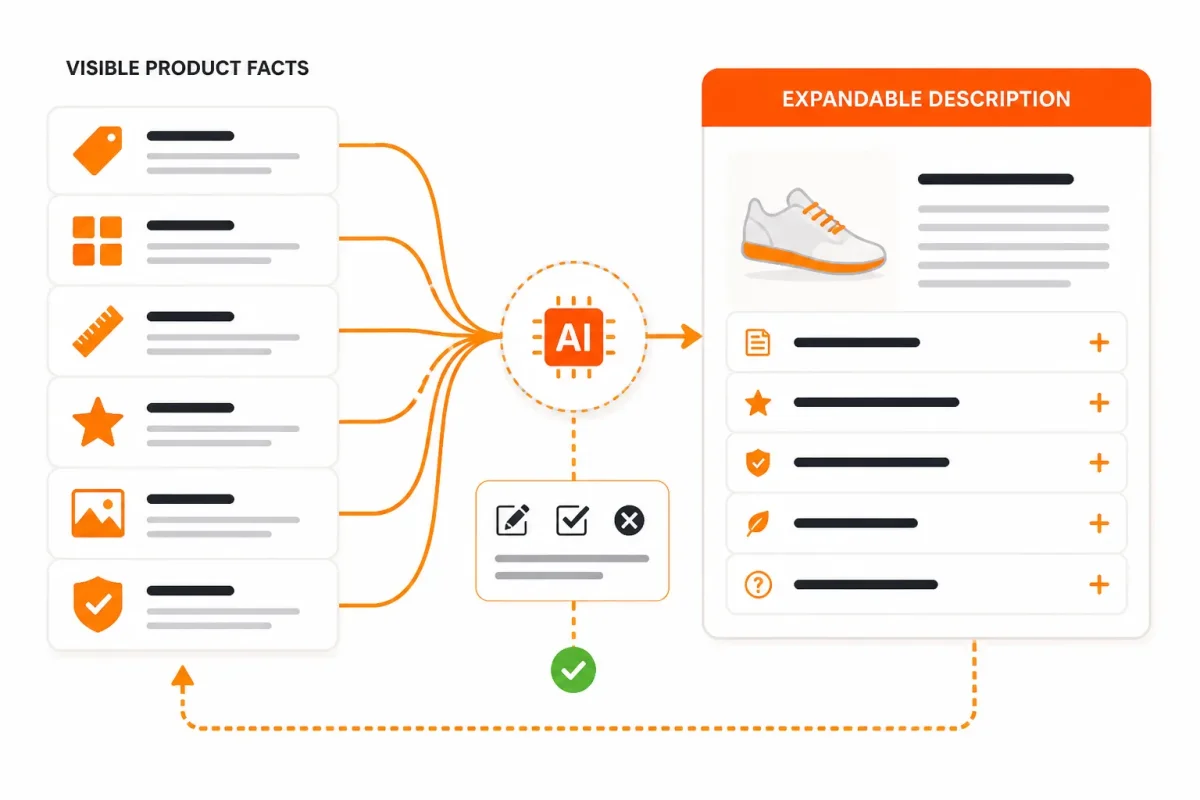
Start with the buying answer, then move supporting evidence behind Read more. You should see the primary promise, strongest differentiator, essential specifications, and next decision cue without opening another control.
Shopify advises you to show how product benefits help customers, while product details add credibility and factual claims require support. A collapsed description is therefore a merchandising decision, not an excuse to hide important context.
How do you place the product promise and decision-critical facts above the fold
Use the visible copy to explain why the product matters and whether it fits your need. Keep the material, size, compatibility, delivery condition, or next action near the opening when that information affects your purchase confidence.
Weak example: “Meet the Alpine Bottle, designed for everyday use with premium construction and thoughtful details.”
Built for 24-hour hydration: “The Alpine Bottle keeps 32 oz of water cold for up to 24 hours, with a leak-resistant lid that fits standard car cup holders.”
- Visible essentials: State the main benefit, differentiator, vital specification, and decision cue in the opening.
- Expandable support: Put care instructions, testing details, full materials, reviews, and longer explanations in the Read more area.
- Rewrite or remove: Avoid vague claims, repeated keywords, unsupported promises, and details that don't help you make a purchase decision.
How do you keep supporting proof, care details, and long-form context expandable
Use benefits to show how a product helps you, while product details build credibility. You can place comparison notes, warranty terms, care guidance, and factual evidence below the control, provided you can still reach the strongest proof easily.
“Product details add credibility and help to sell your product,” Shopify explains in its product-description guidance.
What happens when you use hidden content as an SEO shortcut
Use Read more to change presentation, not to erase the full description from the page markup. Make sure the control works with a keyboard and announces its expanded state to screen readers. A collapsed interface can't compensate for inaccessible content or missing search context.
wRanks can help you review page content and SEO signals after implementation, but it doesn't replace accessibility testing. If you're deciding which supporting questions deserve visible or expandable answers, this guide to FAQ content on product pages can help.
Practical rule: Keep the promise, differentiator, essential specifications, and next action visible. Place supporting proof behind Read more without removing it from the page or making it inaccessible.
How do you check comprehension and discoverability before scaling
Review every expandable statement before publishing, especially factual product claims. Then check the rendered page, keyboard flow, screen-reader behavior, Google Search Console signals, and wRanks findings. Your goal is clear copy for people and complete context for search engines and AI platforms.
Choose the Shopify Implementation Route That Matches Your Theme
Your theme determines whether you need a setting, Liquid, or JavaScript. Choose the least complex route that preserves the full product description, keeps key buying information visible, and works across your product templates.
Shopify recommends using headlines to attract attention and structure product copy, along with bullet points for lists. Use both to make the visible portion easy to scan before adding the control. For related product-page guidance, see this Shopify SEO guide.
Check the product template before editing code
Start by duplicating your live theme or using its preview. In the theme editor, open the product template assigned to a test product and check whether it already includes a collapsible block or description setting. This built-in route is safest when you want a standard expand-and-collapse pattern without custom code.
- Template match: You can identify the exact product template used by your test product.
- Route choice: You use the built-in block first, Liquid for presentation control, or Liquid plus JavaScript for custom behavior.
- Fallback ready: You have a duplicated theme available if the change affects layout or product rendering.
A Liquid wrapper suits a theme that lacks a suitable block but already renders product descriptions in a predictable section. Liquid plus JavaScript suits custom labels, animation, or state changes. Don’t assume every product shares one dynamic template.
Keep the complete description in the rendered page
Preserve the complete product.description output in the page markup. Control its presentation with a wrapper rather than shortening the Liquid value. Otherwise, supporting details may disappear for shoppers, search systems, and AI platforms.
Weak setup: product.description | truncate: 180 removes content before the shopper expands the section.
Strong setup: A “Cedar Ridge Camp Mug” wrapper contains the complete description, while CSS initially limits its visible height and the control reveals the remaining text.
Add an accessible Read more and Read less state
Add a real button beside the description, with an accurate aria-expanded value and an aria-controls reference connected to the description wrapper. The button should change from “Read more” to “Read less” when expanded, while the content remains available to keyboard and touch users.
Keep the promise, essential specifications, and next action visible before the control. Place comparison details, care guidance, and supporting proof behind it. Headings, bullets, and spacing should make the expanded copy readable, not merely present.
Test mobile, keyboard, and dynamic product behavior
Test the control on a phone, with a keyboard, and with a screen reader. Confirm that the same complete description appears after expansion, the focus state remains visible, and changing a product variant doesn’t leave stale content or a broken button.
Then review the rendered page, structured data, page content, and related SEO signals in wRanks. This confirms that the implementation improves scanning without hiding the context your SEO work depends on.
Fix the Failures That Make Read More Hurt SEO or Sales
A Read more control can work technically while hiding the detail that settles a purchase. You may conceal a product’s main use, key specification, or important qualification simply because the description is long.
Other failures are less visible. You may duplicate the description, depend on a fragile script, or deploy the toggle on only one product template. A quick symptom check helps you fix the right layer first.
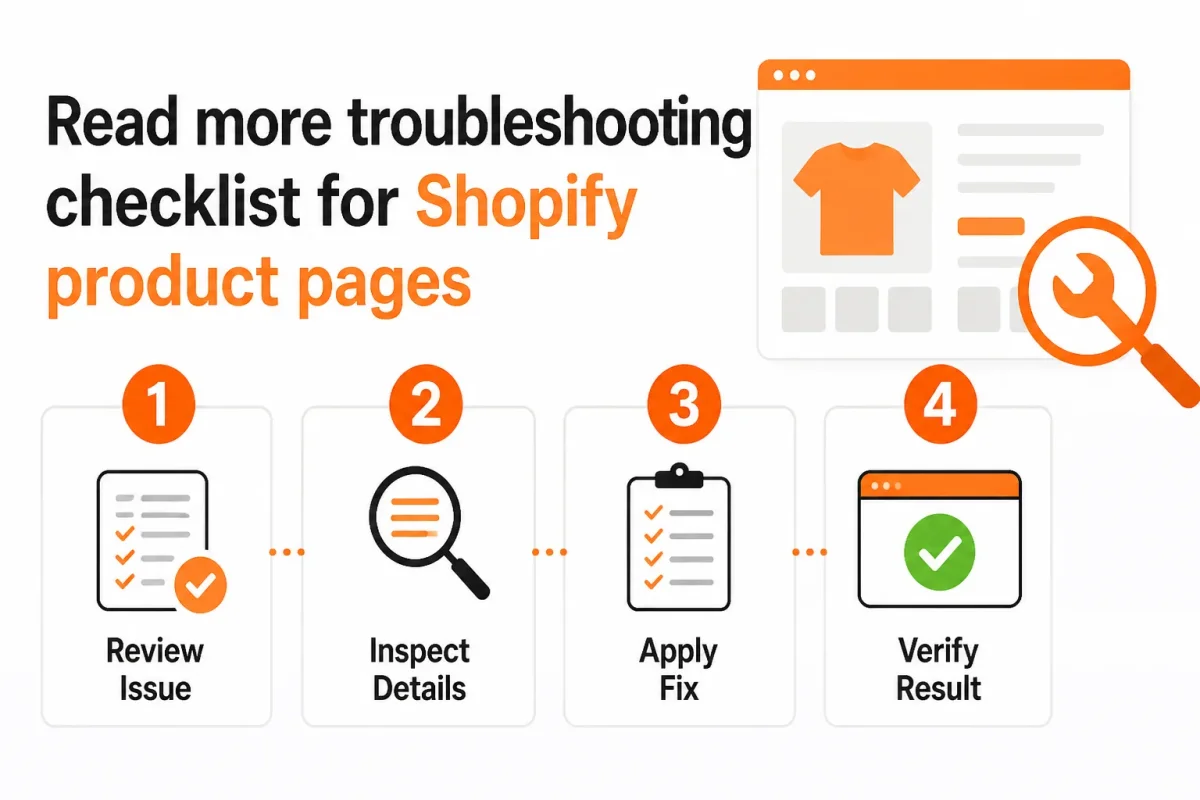
Symptom, likely cause, and first fix
| symptom | likely cause | first fix |
|---|---|---|
| Essential product facts are hidden until the shopper opens Read more | The description was collapsed by length rather than by buying priority | Move the primary promise, key differentiator, essential specifications, and critical qualification into the visible opening |
| The Read more control cannot be reached or its state is not announced | The custom control lacks keyboard support, focus styling, or an accurate expanded state | Use a real button, make it keyboard operable, and update its accessible state and label when content expands |
| Description text is duplicated or missing | The Liquid wrapper was added around only one output path, or the original product description was left in place | Inspect the rendered markup and keep one complete description output inside the intended expandable wrapper |
| Content appears only after an unreliable script runs | The implementation depends on JavaScript to insert or fetch the description | Render the full description in the page markup and use JavaScript only to change visibility and state |
| The toggle works on one product template but not another | The code was added to a specific template or section that other products do not use | Test representative templates in preview and apply the component wherever the catalog’s product templates require it |
Do not hide the only answer to a purchase objection
Review the visible opening on mobile before choosing its cutoff. Shopify advises addressing your target customer directly in product descriptions, so keep the clearest benefit and qualification visible. Mini-stories and vivid descriptions can support the detail below the toggle, but they shouldn’t replace product-specific evidence.
Weak example: “Premium jacket with quality materials and great comfort.”
Strong example: “The Northline Rain Shell keeps commuters dry through sudden downpours, with a 10,000 mm waterproof rating and pit zips for warmer rides.”
Repair focus, labels, and expanded-state announcements
Use a real button, visible focus styling, and an accurate expanded state. Confirm that keyboard users can reach it, activate it, and understand whether the description is open or closed.
Review AI-generated copy before placing it behind the toggle
Shopify magic product descriptions and other generated copy can sound generic. Review customer language, benefits, specifications, mini-stories, and sensory detail before deciding what shoppers see first. Generated text is a draft, not evidence.
Use this checklist before publishing:
- Source inspection: One complete description appears in the intended expandable wrapper.
- Keyboard testing: You can reach the button, see focus, and hear its changed state.
- Mobile testing: Essential buying information remains visible before expansion.
- Template variation: You have checked every product template used by your catalog.
Use Shopify Analytics to Find Viewed Products and Validate the Change
Your Shopify traffic reports show attention, not proof that a Read more control improved buying decisions. Set a baseline for product-page visits, engagement, add-to-cart activity, and sales before judging the layout change.
Shopify advises choosing product-page metrics that reveal whether descriptions contribute to sales, according to its product-description documentation. Separate visibility from discoverability too: Shopify Analytics shows store activity, while Google Search Console and wRanks help you check whether search engines and AI platforms can access the rendered product content.
How to see product views on Shopify
You can see product-page traffic in Shopify Admin under Analytics and the reports available for your store, such as sessions by landing page, product performance, and sales by product. Report names and access vary by Shopify plan and setup, so record the closest available product-page traffic measure before launching Read more.
Compare the same products before and after rollout. Check traffic, engagement signals, add-to-cart activity, and sales rather than treating more views as success. To assess whether expanded text is discoverable, inspect the rendered page and review Google Search Console. wRanks can add keyword tracking and structured data checks, but its reports won’t replace Shopify’s sales data.
How to see most viewed products Shopify
You can identify your most-viewed products by sorting or comparing product and sales reports in Shopify Analytics, using the product-page traffic measure your store provides. Filter by a consistent date range, export the results if needed, and compare product visits with add-to-cart rate and orders. Views alone don’t prove that the description change improved conversion.
Choose one representative high-traffic product for the first test, not every product in your catalog. Include a product with enough sales activity to reveal a difference, then compare its pre-launch baseline with post-launch results. To confirm search visibility, use rendered-page inspection, Google Search Console, and wRanks rather than relying only on Shopify traffic reports.
Launch the Shopify Read More Change on One Product Template Before Rolling It Across the Store
Make the first test small enough to inspect closely. Open one representative product page, then rewrite its description as a visible buying answer followed by expandable evidence. That page gives you a clear test before you change the rest of the catalog.
Keep authentic customer language or social proof where it supports confidence. Shopify’s product-description guidance recommends including customer testimonials or a social media feed to show previous customer experiences. A cleaner layout isn’t automatically a better selling page.
Start with one representative product page
Choose a product with steady traffic, meaningful sales activity, and a description that currently feels crowded. Mark the product’s key use, material, size, compatibility, delivery detail, and return concern before editing the copy.
Weak version: “The RidgeTrail 24 oz bottle is a durable stainless-steel bottle with a powder-coated finish and insulated construction. It keeps drinks cold for hours and includes a leak-resistant lid.”
Cold drinks for your commute: “The RidgeTrail 24 oz bottle keeps drinks cold for up to 24 hours. Its leak-resistant lid fits standard cup holders.” Expand the remaining specifications, care instructions, and authentic customer quote below.
Run the visibility and accessibility checks
- Mark visible facts: Keep the primary benefit, decisive specification, price-related information, and safety or compatibility details visible before the control.
- Choose the route: Use your theme setting first, then Liquid, then JavaScript only when the simpler options cannot produce the required behavior.
- Test every input: Check keyboard focus, screen-reader announcements, touch interaction, and a narrow mobile viewport.
- Confirm the control: Make sure the label explains its action, the expanded text is readable, and the control can close without trapping focus.
Review Search Console, wRanks, and Shopify results
Inspect the rendered product page, not only the editor. Confirm that the complete description and structured data are present, then review the page in Google Search Console and wRanks for indexing, meta tags, and related SEO signals.
- Baseline: Record product views, engagement, add-to-cart actions, and conversions before launch.
- Comparison: Review the same measures after launch against the same date range and traffic conditions.
Roll out only after the test page holds up
Expand the pattern to other Shopify product descriptions only when the test page works technically and its performance is understood. If the content is indexed, accessible, and commercially sound, apply it to the next closely related product group.
If you want a faster way to optimize Shopify products, collections, pages, and blogs, wRanks provides AI-powered SEO tools for meta tags, structured data, image alt text, keyword tracking, and Google Search Console insights for Shopify stores through its Shopify SEO guides and resources.

Content marketing expert and Shopify ecosystem authority. Priya has helped 200+ stores grow organic traffic through strategic blog content and keyword targeting.