
Google Analytics 4 for Shopify: A 2026 Setup Guide
You log into Shopify, check the dashboard, and see the basics. Revenue is there. Orders are there. Traffic sources are there. But key questions remain unaddressed.
Which campaigns are bringing people who buy? Where are shoppers dropping out of the journey? Are people viewing products and abandoning carts, or are they never reaching the right product page in the first place?
That gap is where google analytics 4 for shopify becomes useful. Not because Shopify Analytics is bad, but because it answers a different set of questions. Shopify is strong for store operations and top-line reporting. GA4 helps you understand behavior, attribution, and the path to purchase with much more precision.
Table of Contents
- Why Your Store Needs More Than Shopify Analytics
- Understanding the GA4 Event-Based Model
- Choosing Your GA4 Setup Method on Shopify
- How to Install GA4 with the Native Shopify Integration
- Essential Ecommerce Events and Funnels to Track
- Turning GA4 Data into Actionable Insights
Why Your Store Needs More Than Shopify Analytics
A lot of store owners hit the same wall. Shopify Analytics can tell you that sales dipped, a campaign brought traffic, or a product sold well. It usually can't tell you enough about how people behaved before the purchase.
Shopify tells you what happened
That matters because top-line reporting doesn't diagnose problems very well. If paid traffic rises but purchases stall, you need more than a revenue chart. You need to know whether people viewed products, added to cart, began checkout, or disappeared long before conversion.
For a quick primer on understanding visitor behavior, that broader mindset is useful before you touch any setup. The best analytics stack isn't about collecting more data for its own sake. It's about seeing where buyer intent strengthens or breaks.
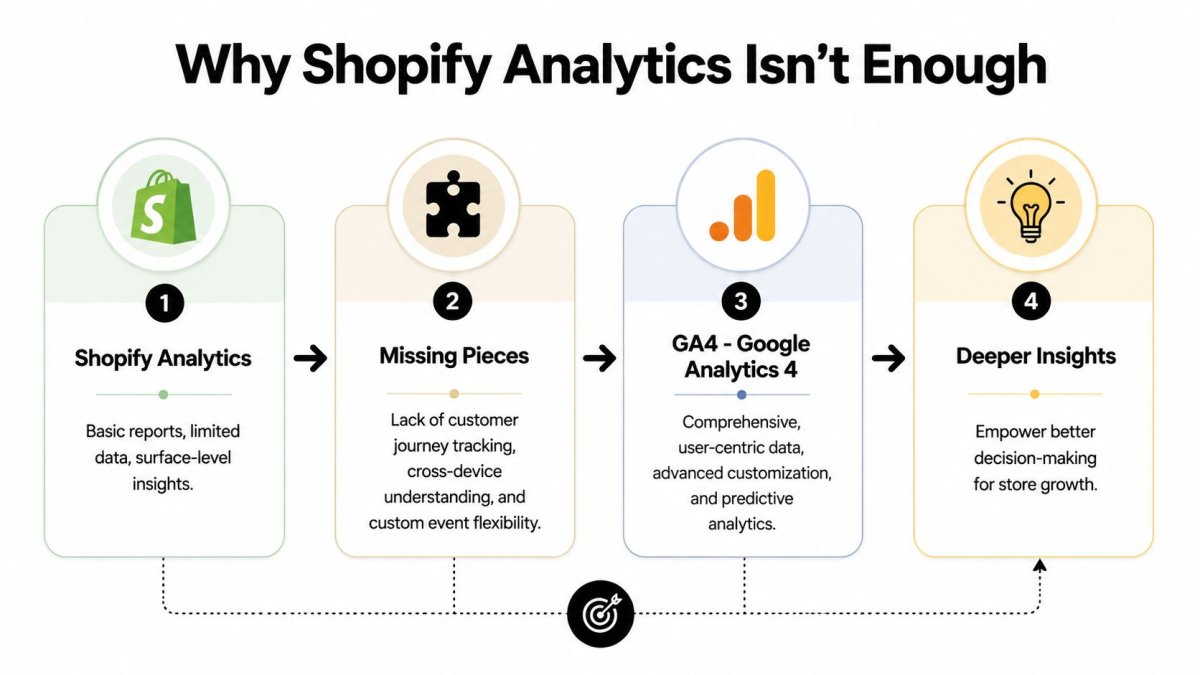
GA4 shows the journey behind the sale
Shopify's own setup guidance makes the shift clear. GA4 is no longer some optional extra layer you add later. Shopify documents that merchants need a Google Analytics account, then a GA4 property and web data stream, and once configured, certain ecommerce events are tracked automatically, including product views, add to cart, and purchases. That matters even more because Google sunset Universal Analytics for standard properties in July 2023, which made GA4 the standard framework for modern Shopify measurement according to Shopify's GA4 setup documentation.
Practical rule: Use Shopify for operational truth, and use GA4 to understand behavior, attribution, and the shopping path.
If you're running Google Ads, comparing channels, or trying to understand why one collection page converts better than another, GA4 becomes the working analytics layer. That's especially true when you're trying to connect behavior with campaign performance instead of just reading yesterday's sales total.
A busy merchant doesn't need more dashboards. They need a clean answer to simple questions. Which traffic is worth paying for, which pages move people closer to purchase, and where is the journey breaking?
Understanding the GA4 Event-Based Model
The hardest part for many merchants isn't installation. It's the mental model. GA4 doesn't think the way older analytics setups did.
Think in actions, not visits
The easiest analogy is this. Older analytics often felt like counting how many people walked into a store. GA4 is closer to watching what each shopper did after entering. Did they view a product? Search the catalog? Add an item to cart? Complete a purchase?
In GA4, each of those actions is an event. A page view is an event. An add to cart is an event. A purchase is an event. That structure is much better suited to ecommerce because stores don't live or die by visits alone. They live or die by sequences of actions.
If you want a broader breakdown of how the models differ, this MetricsWatch analysis of GA4 vs UA gives helpful context without getting too academic.
What that means for a Shopify store
For a Shopify merchant, this changes how reports should be read. Instead of asking only, "How much traffic did this campaign send?" you start asking questions like these:
- Did visitors view the right products: Traffic to the wrong landing page often looks fine at the session level and terrible at the event level.
- Did intent build after the first interaction: Product views and cart actions tell you whether shoppers are moving forward.
- Did the path break before purchase: A high number of early actions with weak completion usually points to friction, mismatch, or poor offer clarity.
GA4 is less about counting visits and more about reconstructing the customer journey from individual signals.
That doesn't mean every merchant has to become a data analyst. It means your reporting should follow the shopping process. You care about product discovery, cart creation, checkout movement, and purchase completion because that's how buying happens.
This is also why setup method matters. If your implementation captures only a thin slice of the journey, your reports will look neat but answer the wrong questions. Good GA4 data isn't just collected. It has to be complete enough to support decisions.
Choosing Your GA4 Setup Method on Shopify
Most confusion starts because there isn't just one way to install google analytics 4 for shopify, and each path creates different trade-offs in simplicity, control, and reporting depth.
The three realistic options
Most stores choose one of these:
- Native Shopify Google and YouTube integration: Easiest for getting started and often the fastest path for standard needs.
- Google Tag Manager: Better when you need tighter control, custom logic, or cleaner sequencing.
- Dedicated Shopify GA4 app: Often the middle ground when you want easier setup than GTM but more complete ecommerce tracking than the default integration.
The native route is appealing because it removes a lot of setup friction. The trade-off is that simplicity can come with reporting blind spots. Independent guidance notes that the built-in Shopify Google and YouTube integration can miss variant-level detail because it sends the product ID rather than the variant ID, which is one reason merchants turn to dedicated apps for more complete funnel analysis, as noted in the Shopify GA4 app listing.
Shopify GA4 Setup Methods Compared
| Method | Ease of Setup | Data Completeness | Best For |
|---|---|---|---|
| Native Shopify integration | Easy | Good for standard ecommerce tracking, but can be limited for deeper detail | Newer stores, lean teams, merchants who want a quick start |
| Google Tag Manager | Moderate to advanced | High potential completeness when configured well | Brands with technical support, marketers who need control |
| Dedicated GA4 app | Usually easier than GTM | Often stronger than native setup for ecommerce detail | Growing stores that need better tracking without building everything manually |
What usually works best
If you're a smaller store and need a clean starting point, the native integration is often enough. It gets you into GA4 quickly and lets you begin validating the major events.
If you're spending seriously on ads, managing multiple campaigns, or care about product variant reporting, the native setup often becomes limiting faster than people expect.
A dedicated app makes sense when:
- You want less technical overhead: You don't want to maintain a GTM setup yourself.
- You need more ecommerce detail: Product, cart, checkout, and purchase reporting need to be more reliable.
- You care about marketing attribution: You need confidence that the journey is being captured well enough to compare campaigns.
GTM is the strongest fit when your team can support it. It gives you flexibility, but flexibility cuts both ways. Poor GTM setups create their own mess, especially when events fire twice or pageviews inflate.
Don't choose the most advanced setup by default. Choose the setup your team can maintain and verify.
How to Install GA4 with the Native Shopify Integration
If you want the simplest practical path, start with Shopify's native connection. For many stores, that's the right first move. You can always move to a more advanced setup later if reporting gaps become a real business problem.
Start inside Google Analytics
Before touching Shopify, make sure the Google side is ready. Shopify's guidance makes the sequence clear:
- Create or access your Google Analytics account.
- Create a GA4 property, or move to a GA4 property if you haven't already.
- Set up a web data stream for your store.
- Keep your Tag ID or Measurement ID available for installation.
Those pieces matter because Shopify no longer works like the older manual code-embed era many merchants remember. The setup is centered on GA4 properties and web streams, not the old Universal Analytics model.
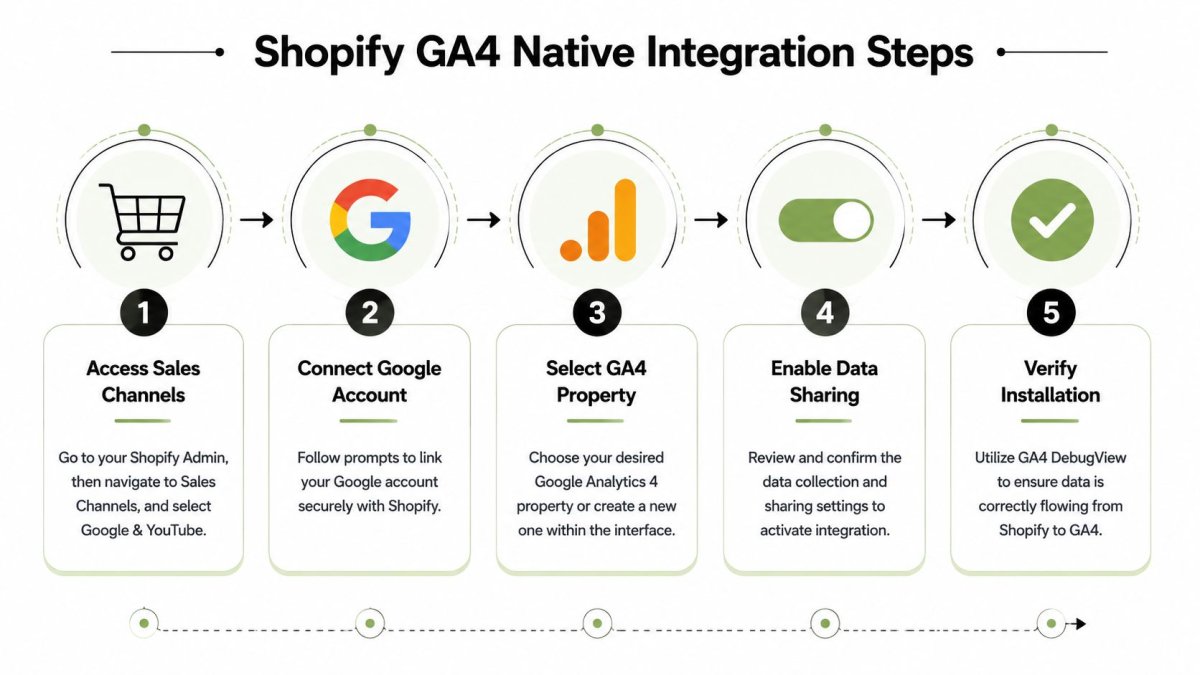
A simple visual helps if you want to follow the flow in order.
Connect GA4 inside Shopify
Once your GA4 property exists, move into Shopify admin and connect it through the Google & YouTube sales channel. The exact interface can shift over time, but the workflow is straightforward:
- Open Shopify Admin and go to the Google & YouTube sales channel.
- Connect the Google account that owns or can access your GA4 property.
- Select the correct GA4 property when Shopify prompts you.
- Review data-sharing settings and complete the connection.
This is also a good place to avoid a common mistake. Merchants often connect the wrong Google account, then wonder why data isn't visible in the expected GA4 property. Verify account access before you start troubleshooting event issues.
If you'd rather see the process visually before clicking around in admin, this walkthrough can help:
Verify that data is actually flowing
Don't stop at "connected." Open your store, browse a few pages, view a product, and trigger a cart action if possible. Then check GA4 DebugView or real-time reporting to confirm events are arriving.
Use a short validation checklist:
- Check the property: Make sure you're looking at the same GA4 property you connected in Shopify.
- Browse like a shopper: Visit the homepage, a collection, a product page, and the cart.
- Look for key events: At minimum, you want to confirm the store is sending meaningful interaction data.
A setup that isn't verified isn't finished.
When GTM is the better option
The native integration works well for straightforward installs, but some stores outgrow it. If you need more precision, Google Tag Manager gives you tighter control over how tags and events fire.
One important best practice comes from Analytics Mania's Shopify GA4 guidance: when deploying GA4 through GTM, separate pageview firing from the Google tag by setting send_page_view to false. That reduces duplicate pageview inflation and gives you more control over sequencing, which is especially useful on Shopify stores with more complex tracking behavior, as described in the Analytics Mania Shopify GA4 guide.
That doesn't mean GTM is always better. It means GTM is better when you know why you need it.
Essential Ecommerce Events and Funnels to Track
Once installation is done, the critical work starts. A lot of merchants connect GA4 and then never decide what they intend to measure. That's where the tool turns into dashboard clutter.
The core events that matter first
For most Shopify stores, the first goal is to get the core commerce journey visible. Shopify's own guidance notes that once GA4 is configured, certain ecommerce events are tracked automatically, including product views, add to cart, and purchases. Those are the minimum viable signals for a store trying to understand buyer behavior.

You don't need dozens of custom events on day one. You need the ones that map to commercial intent.
Start by watching these stages:
- Product interest: Product views tell you whether landing pages and merchandising are attracting the right attention.
- Cart intent: Add to cart is the moment casual browsing starts turning into buying behavior.
- Completed sale: Purchase closes the loop and lets you compare pre-purchase behavior with actual revenue outcomes.
How to think about your funnel in GA4
A Shopify funnel isn't abstract. It's a sequence. Someone lands, explores, views products, adds one to cart, and eventually buys. GA4 is most valuable when you build reports around that progression.
A practical funnel review usually looks like this:
- Which landing pages drive product views
- Which products generate cart actions
- Which traffic sources lead to purchases
- Where people stall before the final conversion
If your reporting doesn't mirror the buying journey, it won't help you fix the buying journey.
GA4 demonstrates usefulness for merchandising and paid media concurrently. If a collection page attracts traffic but weak product views, that's a merchandising or landing-page issue. If product views are healthy but cart actions are weak, the issue may be price positioning, product clarity, or offer strength. If cart actions happen but purchases lag, checkout friction or trust issues may be involved.
Where native tracking can fall short
Not all setups capture enough detail to answer those questions confidently. As noted earlier, some native implementations can miss variant-level detail. That matters more than it sounds.
If you sell apparel, bundles, or products with meaningful size or color differences, variant-level reporting can change how you read campaign and product performance. A product might look strong at the parent level while one variant does most of the work and another underperforms.
That is why many merchants eventually move beyond "tag installed" thinking. The installation method affects whether your funnel is merely visible or genuinely useful.
Turning GA4 Data into Actionable Insights
The point of GA4 isn't better-looking reports. It's better decisions. Once the data is flowing, focus on a short list of reports that answer real operating questions.
Use Traffic Acquisition to judge channel quality
The Traffic Acquisition report is one of the fastest ways to stop overvaluing weak traffic. Don't just look for channels that send visitors. Look for channels that send visitors who engage with products, move into carts, and contribute to purchases.
That changes how you evaluate marketing. A channel that looks strong on clicks can still be weak on buying intent. A smaller channel can be more valuable if it consistently sends shoppers deeper into the funnel.
Use this report to ask:
- Which source starts quality sessions: Look for traffic that produces meaningful ecommerce actions, not just arrivals.
- Which campaigns attract buyers instead of browsers: Product views and cart actions usually reveal that gap quickly.
- Where paid and organic behave differently: They often do, and the differences can reshape budget decisions.
Use Funnel Exploration to find leaks
The Funnel Exploration report is where GA4 becomes practical for conversion work. Build a funnel around the key actions that matter to your store and review where people fall away.
You don't need a complicated analysis process. Start with a simple business question. Are people failing to reach product pages? Are they adding to cart but not purchasing? Is a certain device type or traffic source more likely to abandon earlier?
Good GA4 analysis usually starts with one sharp question, not a giant dashboard.
When you use acquisition data and funnel data together, store decisions get clearer. You can spot weak landing pages, low-intent campaigns, underperforming products, and checkout friction without guessing. That's when google analytics 4 for shopify stops being a setup task and becomes part of how you run the business.
If you want to turn analytics insights into actual organic growth work on your store, wRanks is worth a look. It's built specifically for Shopify and helps merchants move from diagnosis to execution with technical SEO audits, AI-assisted content creation, schema, rankings, redirects, indexing tools, and GEO tracking in one place.

About Sarah Mitchell
Senior SEO strategist with 8+ years in e-commerce search optimization. Sarah helps Shopify merchants turn organic traffic into revenue through data-driven content strategies.